
Staff news: This article will contain a summary of useful updates you may see in your Blackboard Ultra courses from Friday 9th January 2026.
View-Only roles
Blackboard now supports genuine view-only roles for marks and feedback. Updated roles:
- External Examiners
- Can view all marks and feedback for Blackboard Assessment and Grade Centre.
- Cannot edit marks or feedback in Blackboard.
- Note: They can still edit marks for Turnitin LTI and other third-party LTI assessments.
- Auditing Instructors
- Can view all marks and feedback for Blackboard Assessment and Grade Centre.
- Cannot edit marks or feedback.
- Cannot view or edit marks for Turnitin LTI and other third-party LTI assessments.
System Navigation Changes
Course Banner
- Course name now appears over the banner image on a darker background.
- Banners resize automatically, but check your courses for appearance.
- If your banner includes text, consider replacing it with a stock image.
- If no banner is set, a placeholder image will appear.
Course Switcher
- Access your four most recent courses via the Courses button in the top menu.
- Use View All to see all courses.
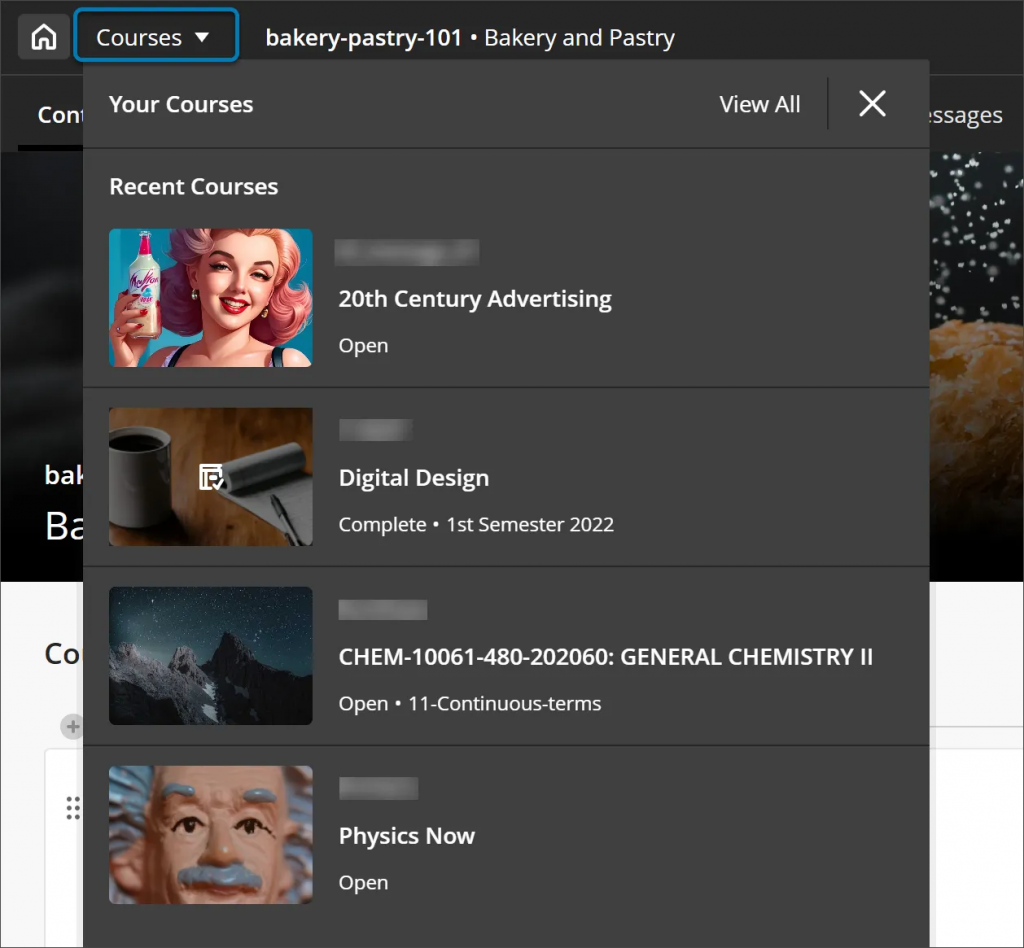
Menu changes
- Your profile now appears at the top of the navigation, alongside your profile picture.
Courses become full-screen
- Courses now open in full-screen mode to maximise horizontal space.
Home button
- The previous “X” exit icon is replaced with a Home button, returning you to the Institution Page.
Expanded question options for true/false
True/false questions now include additional display options:
- True/False
- Yes/No
- Right/Wrong
- Agree/Disagree
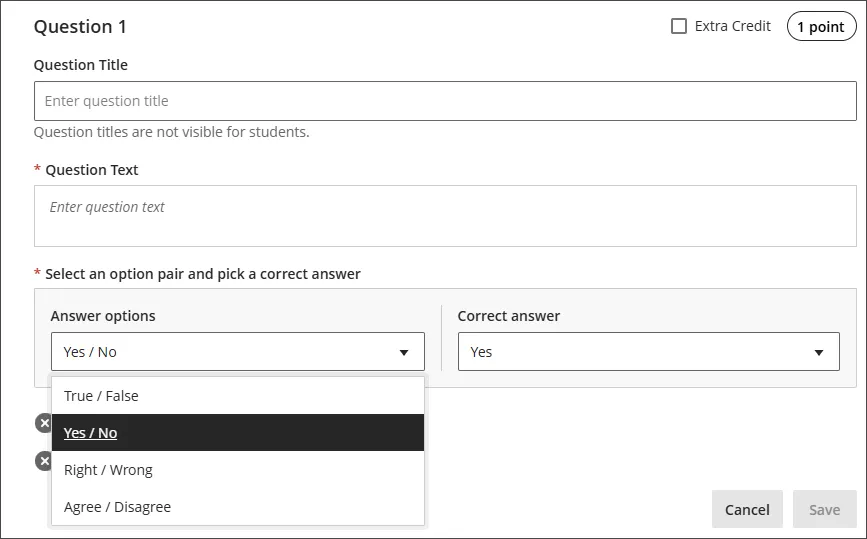
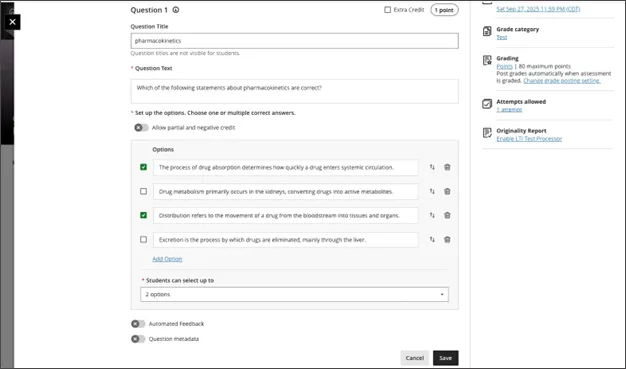
Enhanced multiple choice and multiple answer workflow
- Default number of answer options increased from 3 to 4.
- Instructors can set how many answers students may select.
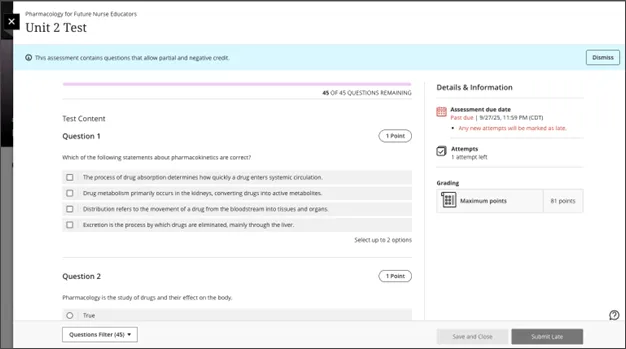
- Students see:
- A note indicating selection limits (e.g., “Select up to 2 options”).
- Radio buttons for single-answer questions.
- Checkboxes for multiple-answer questions.
Did you know?
- Your course description automatically displays information from Worktribe, including campus, duration, and delivery mode.