
Student Guide: describes how to successfully submit to a Blackboard Assignment and check your submission.
Before you start
Before submitting your assignment, make sure:
- You have read the submission instructions.
- Your work is finished and ready to submit.
- You have saved your file to your device.
- Your file is in an accepted format.
- Your file is less than 25 MB.
- Your document contains fewer than 100,000 words.
Note: The accepted file types may vary between assessments. Check the assignment instructions if you are unsure.
File types
Common file types include:
- Microsoft Word (.doc, .docx)
- PDF (.pdf)
- Rich Text Format (.rtf)
- Plain Text (.txt)
Submit your assignment
Review instructions
- Log in to Blackboard.
- Open your course.
- Find your assignment
(should be in the Assessment Learning Module or use Course Content Search). - Select the assignment title to open it and review information (such as due date, marks, number of permitted attempts and if SafeAssign has been enabled).
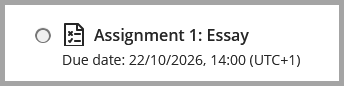
- Select View Instructions.
- Review the Assignment instructions which may include information about submission requirements (the location of this information may vary from course to course if in doubt contact your module lead) .
Submit file
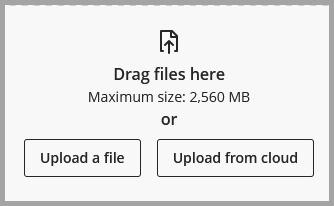
- Under Submission > Drag Files here, either
- Select Upload a file (if your work is saved on your device).
- Or select Upload from Cloud (if your work is saved on your OneDrive).
- Or Drag and Drop your file into the box.
- Locate article and Open (from device) or Import (from Cloud)
- You can also select and upload multiple documents e.g. Word document and PowerPoint if required.
Review uploaded files
- Uploaded files will appear below the submission buttons.
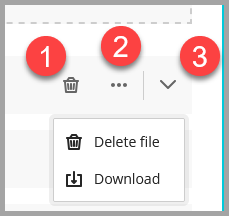
- If you have uploaded an incorrect file, use the 1. Delete File button (bin icon) or select 2. More options button (three dots) to delete or download your file.
- View your uploaded file with the 3. Preview File button (arrow).
Finalise your submission
- Select Submit.
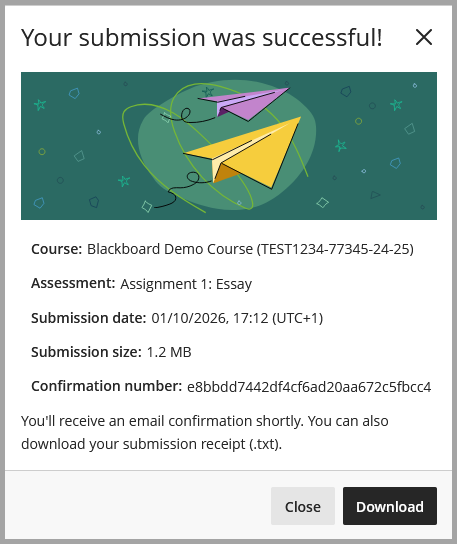
- After submitting, Blackboard will display a confirmation message showing that your work has been received.
- We recommend downloading your submission receipt as evidence that your assignment was submitted successfully
How do I check I’ve submitted correctly?
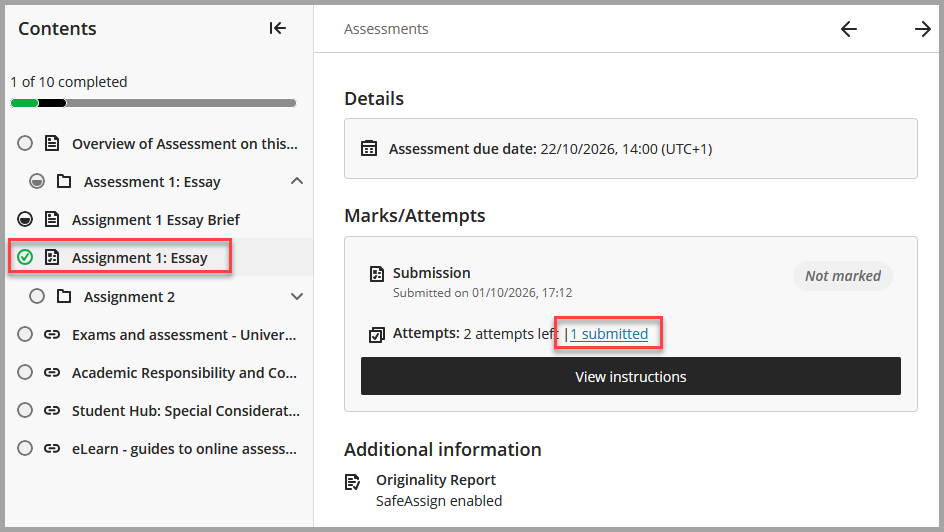
Select your assignment and you will see two things to indicate that you have submitted to it.
If Progress Tracking is enabled, the assignment will have a green tick on the course content page/learning module index.
When you select the assignment, under Marks/Attempts, you will see 1 submitted. Select 1 submitted to review what you have uploaded for this submission.
Can I resubmit?
Some Blackboard Assignments allow more than one attempt. Your instructor decides how many attempts are allowed. Check the assignment instructions or with your module lead if you expect but are unable to resubmit.
In the assignment under Marks/Attempts, you will see your submission and if you have any attempts left.
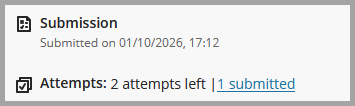
To resubmit, select View instructions and upload files. If you do not see View Instructions then you may not submit another copy of your assignment.
What does SafeAssign enabled mean?
SafeAssign is a Blackboard tool which may be used by your instructor to check your submissions Originality. SafeAssign compares your submitted assignments against a set of academic papers to identify areas of overlap between the submitted assignment and existing works.
Once you have submitted your work, SafeAssign begins checking it and creates an originality report. This report highlights text that matches other sources and gives an overall matching score.
Whether you can see the report depends on the settings chosen by your instructor.
If originality reports have been made available, you can find them by following these instructions:
- Open the assignment.
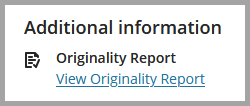
- Select View Originality Report.
- If you submitted more than one file, you will see a report for each file.
Note: A high matching score does not automatically mean plagiarism. SafeAssign highlights matching text, but your instructor decides whether sources have been used correctly.
Troubleshooting
My file will not upload
Check that:
- The file is under 25 MB.
- The file type is supported.
- Your internet connection is working correctly.
I submitted the wrong file
If another attempt is available, submit a new attempt.
If no further attempts are allowed, contact your instructor or the Student Hub as soon as possible.
My internet connection was lost
Blackboard automatically saves work while you are typing in text submission areas. If your connection is interrupted, Blackboard will try to save your work again once the connection is restored.