
Blackboard release monthly features updates. This article will contain a summary of things that are on the horizon.
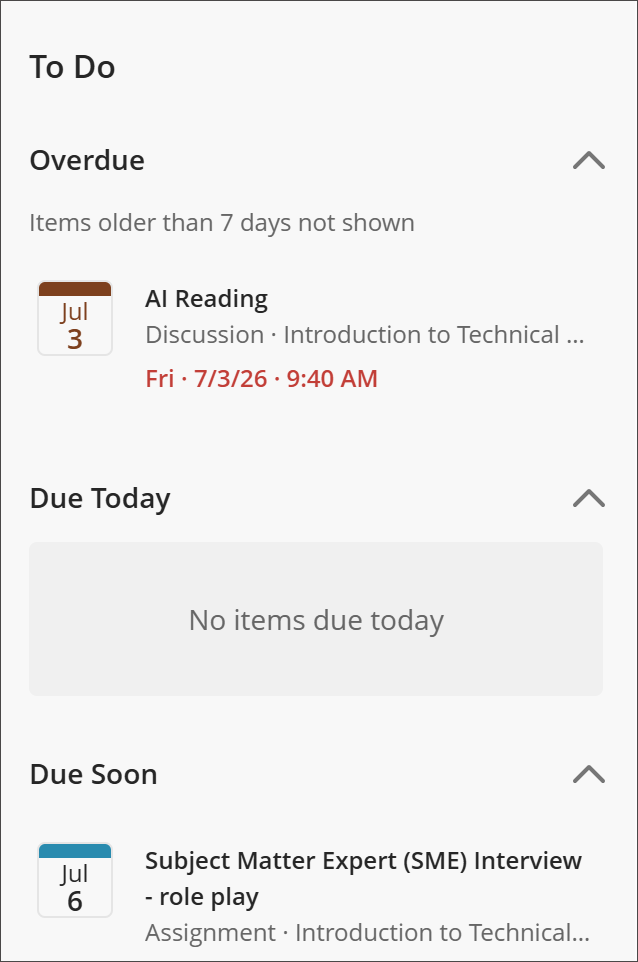
To Do panel on the Courses page
As part of a refreshed Courses page, a new “To Do” list surfaces up to five of your most urgent, deadline-driven tasks across your active courses, so you can see what needs attention and go straight to it.
Your Top To Dos list shows a user’s most pressing tasks—such as assignments, quizzes, and exams, plus feedback to review once it’s posted—ordered by urgency.
- Overdue items appear first, with the closest due date at the top, followed by items due soon
- Each item shows the task title, course name, localized due date and time, and a status chip (Overdue or Due soon)
- Selecting an item takes users directly to the page where you submit work or review feedback
- Completed, unavailable, and duplicate items are filtered out, so the list stays focused on what matters
New Groups Management Experience
Groups management has been reimagined from the ground up with a cleaner layout and more intuitive controls.
- Automatic enrollment with clearer controls
- More flexible ways to assign students, including drag‑and‑drop
- Sorting for group members and groups
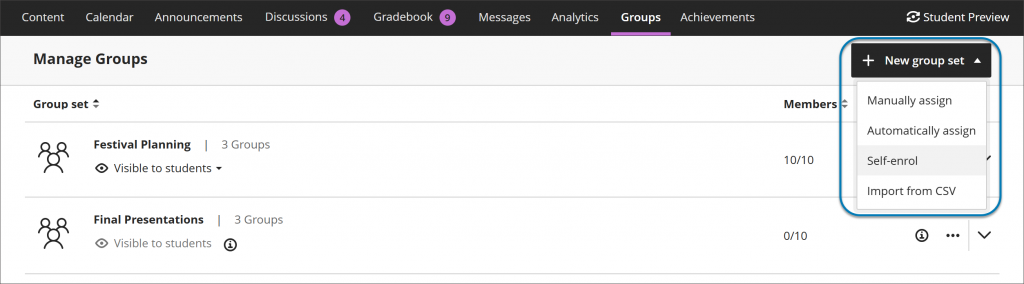
You can now start by choosing how they want to structure groups—before managing individual members. The options include:
- manual assignment
- automatic assignment
- self‑enrollment
- import
- bulk creation of groups
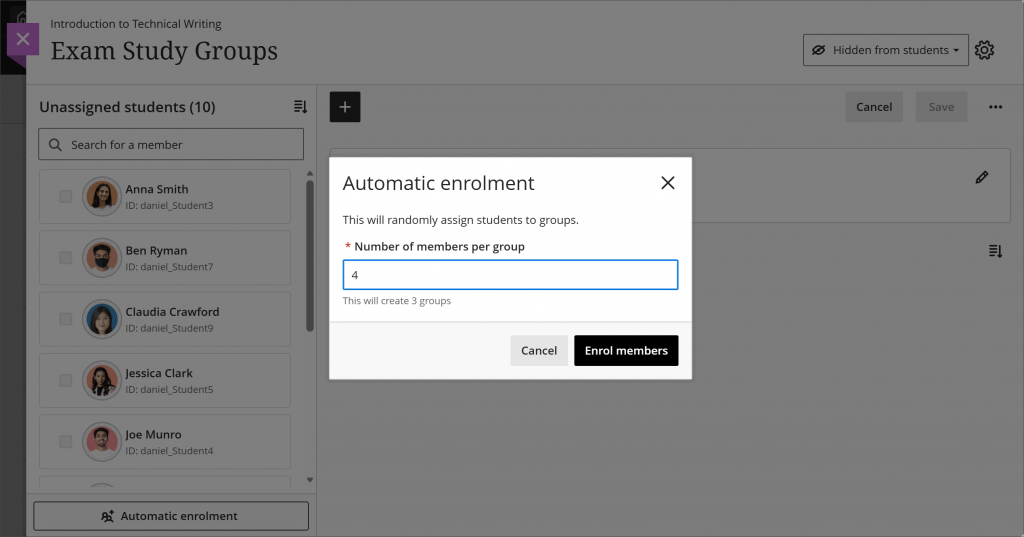
You can automatically assign students to groups by specifying the number of members per group.
Automations: Send messages to students based on rules
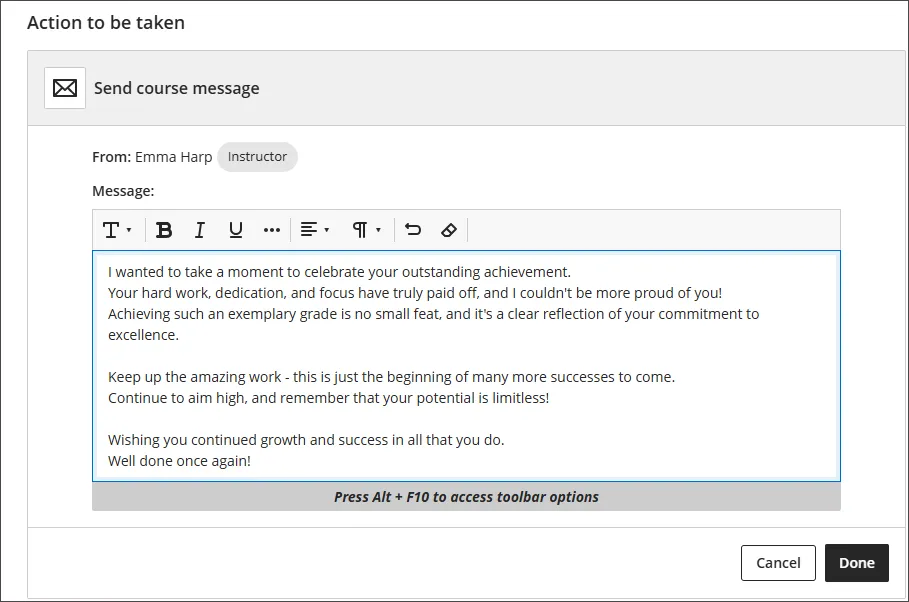
Instructors can soon create automations that send congratulatory or supportive messages to students based on custom rules set at the course level. Instructors define the score thresholds and write the messages. These automations help instructors deliver timely, personalized feedback throughout the course, boosting student engagement and saving time.
In the initial release, three automations are available. Instructors choose to either Send congratulatory message or Send supportive message, or reminder to students to review feedback. Congratulatory messages are sent when a student earns a high score; supportive messages are sent when a student does not achieve a specified score. Instructors select the grade item, set the score threshold as a percentage, and enter the message text.
Image 1: In the Automation trigger section, instructors set the conditions that will trigger the message to be sent.
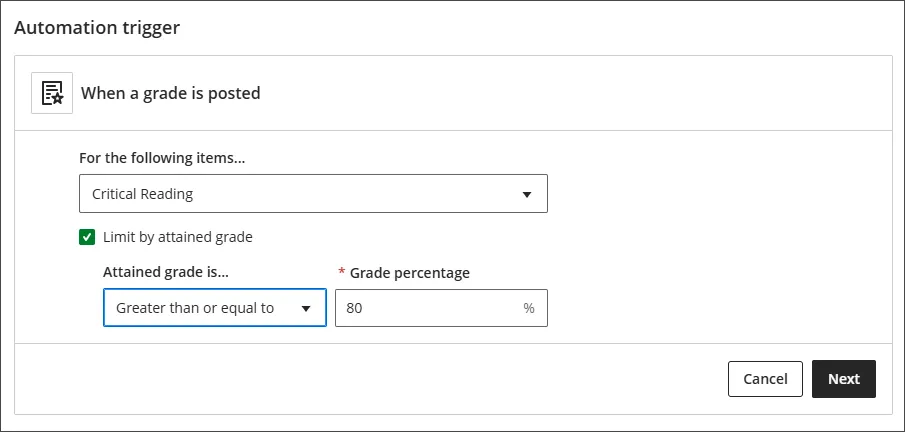
Image 2: In the Action to be taken section, the instructor writes the message that will be sent to students when the rule is triggered.
Learning Object Repository
The Learning Object Repository is a central location to store course materials in Ultra Documents. These documents can then be centrally updated from a single location, but appear on multiple courses.
Goals and Mastery Learning
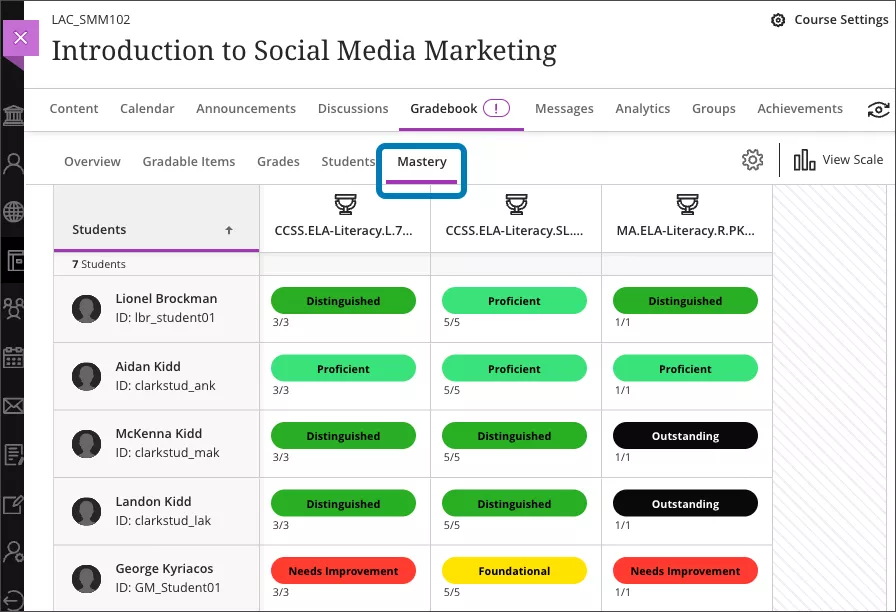
The Mastery tab in the Gradebook allows instructors and students to see how their activities align with institutional goals. Based on the goal performance scale set by your institution, the tab displays the mastery of each alignment.
The Mastery tab enables instructors to:
- View the level of mastery per alignment for each student.
- View how each student is performing against those alignments.
Considerations:
- Goals cannot be created by a course Instructor. These must be set up by an administrator.
- The Goal Performance Scale must also be created by an administrator, and is the scale used for all goals.
- Gradebook columns cannot be expanded so it is difficult to view the full name and description of a goal.