Staff Guide: How to copy template items and teaching content from another course following the 26-27 guidance.
The 2026-27 Copy Content Guidance
Follow the updated guidance and Copy Content using the 2-step approach:
- Step 1.
- Copy items individually into the 26-27 Template Learning Modules.
- Only copy items you added or modified in last year’s Template.
- Step 2.
- Copy all teaching content.
- Copy other Course Items (Discussions, Announcements, Banner image..).
Copy Content demonstration
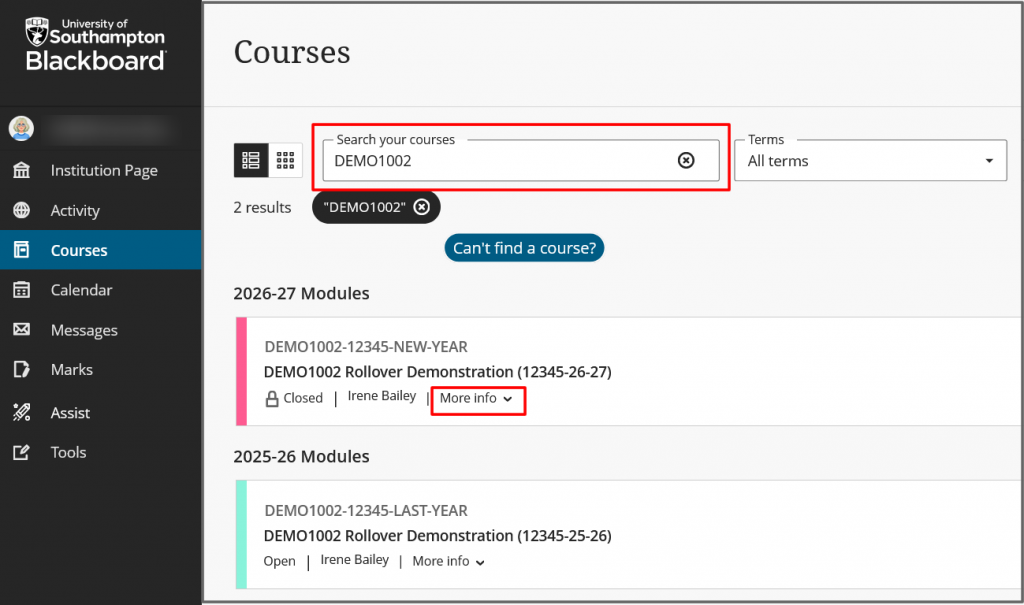
Check that you are enrolled on the right courses
- Check that you are copying into the correct delivery of your module. See More information/Course Description for delivery details, including campus, semester, and start date.
- Go into your 26-27 course to start copying any content you want to reuse from other courses.
If you are copying content from an Original format course, follow the guide for migrating content.
Step 1: Copy items into the Course Template
Dos and Don’t’s
| Don’t copy template Learning Modules: | Don’t copy these template items: |
|---|---|
| Module Information | Module Profile |
| Accessibility Statement | |
| Assessment | Past Papers |
| Academic Responsibility.. | |
| Special Considerations | |
| eLearn Guides | |
| Turnitin submission links (must be removed – Turnitin cannot be used for AY 2026/27) | |
| Resources & Support Materials | Module Reading List |
| Library Subject Guides | |
| Video Tour of Blackboard Ultra | |
| Panopto Recorded Sessions | |
| Assist Links | |
| eLearn guides |
How to copy items into the Template
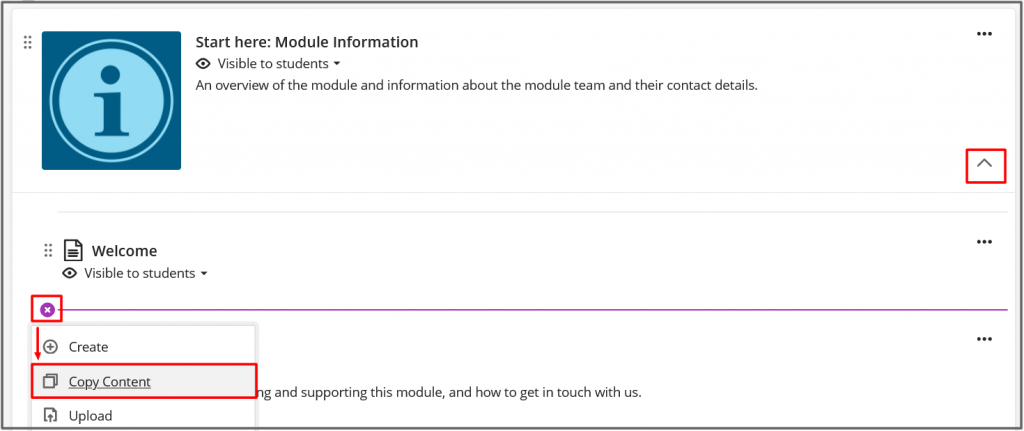
Start in the Module Information section and Copy Content from last year’s Module Information Learning Module.
- Select Module Information to expand the Learning Module.
- Select the Add Content icon (+) when you are inside the Learning module.
- Select Copy Content.
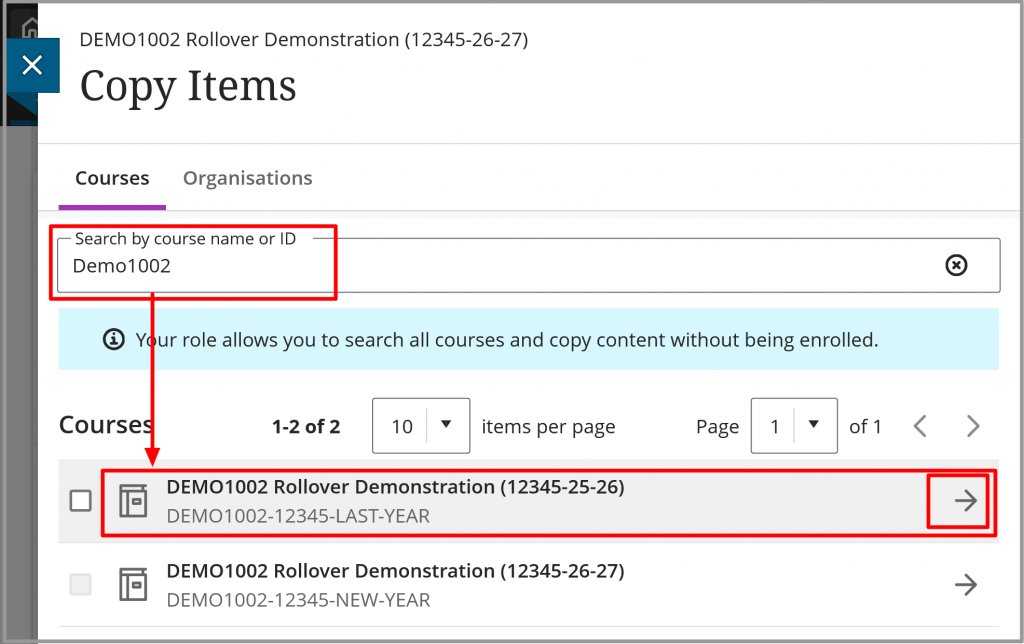
- Search for the course you are copying from.
- Select the course title to view the list of course items to copy. (Don’t select the checkbox to the left of the course title).
- Select the category Content (Items that are listed on the Content page for that course).
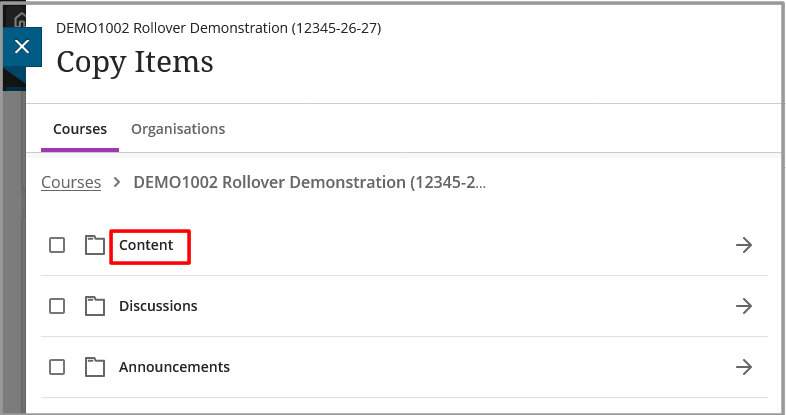
- Select the Template Learning Module (Module Information) to show the list of items in this section.
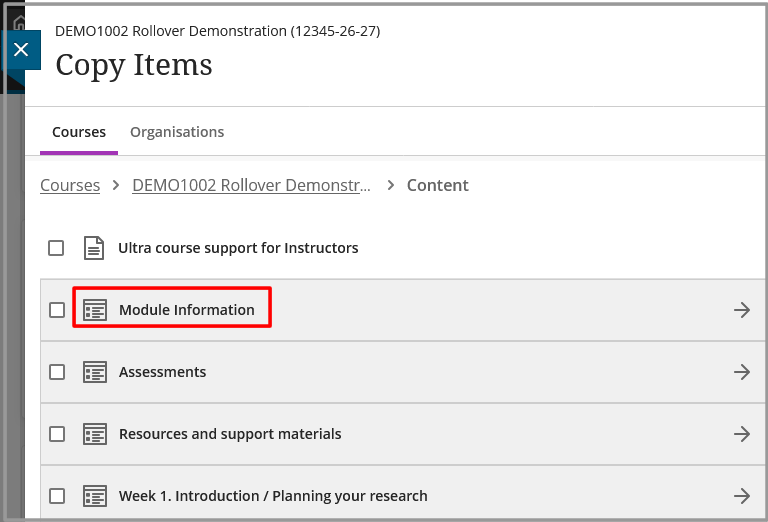
- DO: Select any content you modified or added to the template and want to reuse.
- DON’T copy template links such as Reading lists and Module Profile as these are already in the 26/27 course. See the table above for a list of items not to copy.
- Select Start Copy.
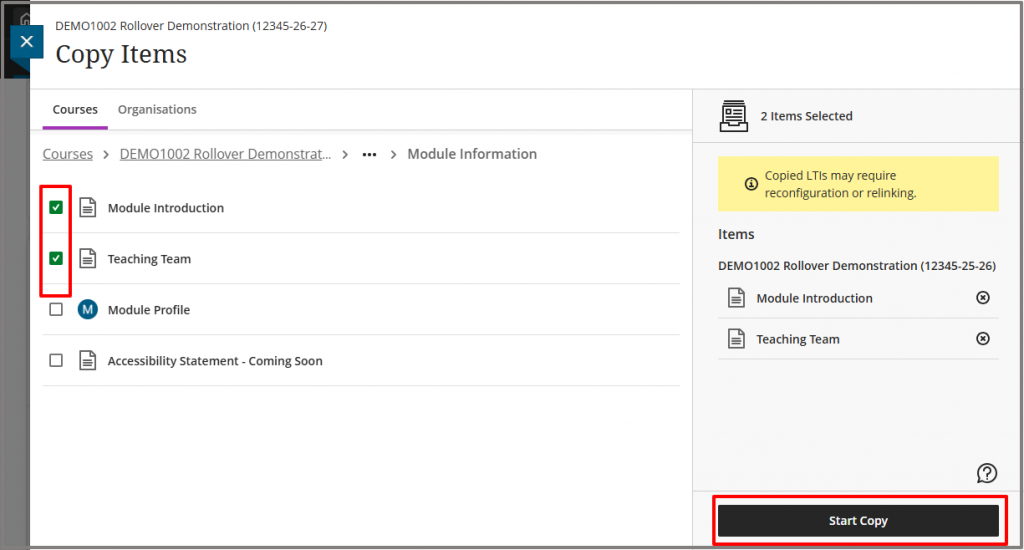
- Items you copy will appear in the 26-27 corresponding Template section. Copied content will be set as Hidden from students.
- Delete any duplicate documents from the template. Select the item options (3 dots) and select Delete.
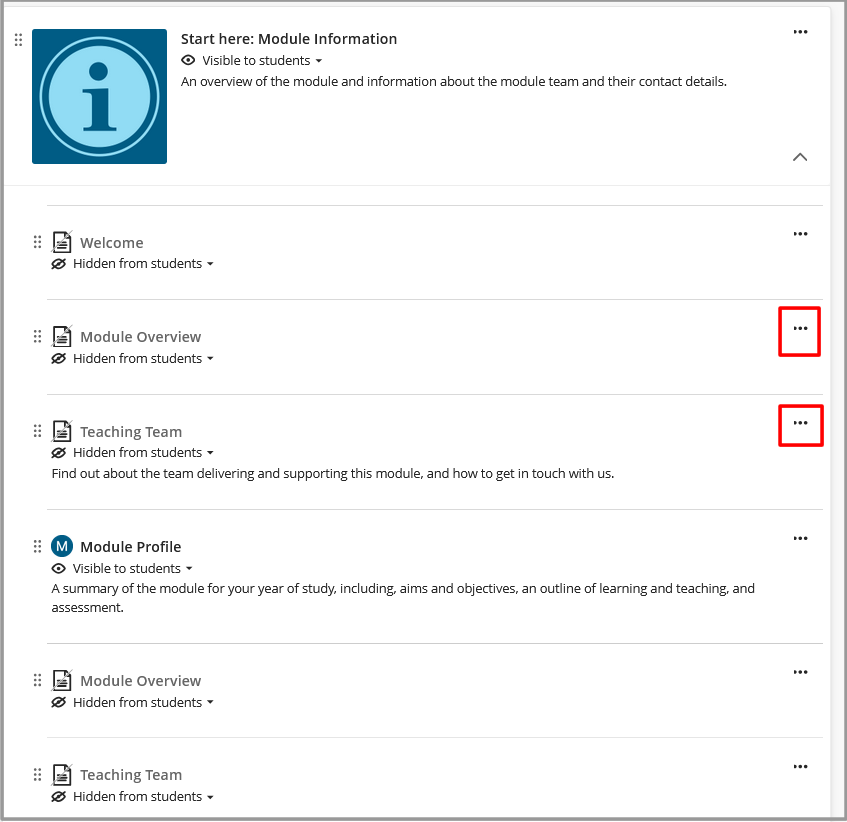
- Repeat the process for Assessments.
- Repeat for Resources and Support materials IF you added your own links to this section last year.
Step 2: Copy weekly/topic teaching content and other course items.
- Select the Add Content icon (+) when you are below the Template items.
- Select Copy Content.
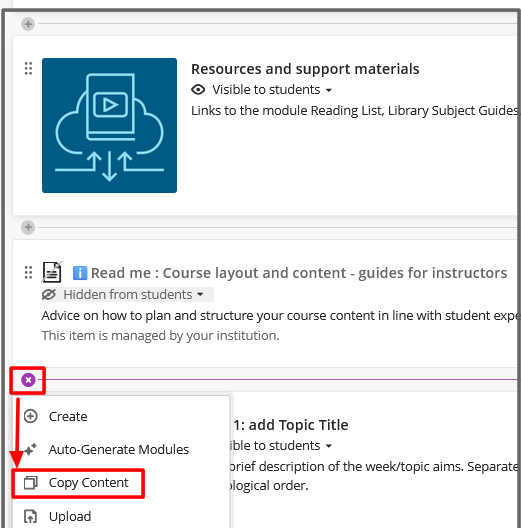
- Search for the course you are copying from.
- Select the course title to show the list of course items to copy
(Don’t select the checkbox to the right of the course title).
- Select the category Content
(Items that are listed on the Content page for that course).
- Tick to select all of your teaching content that you want to reuse. Select whole Folders or Learning modules, and edit content once you have copied it into your new course.
- Select the course title from the breadcrumb trail to return to the list of Course Items.
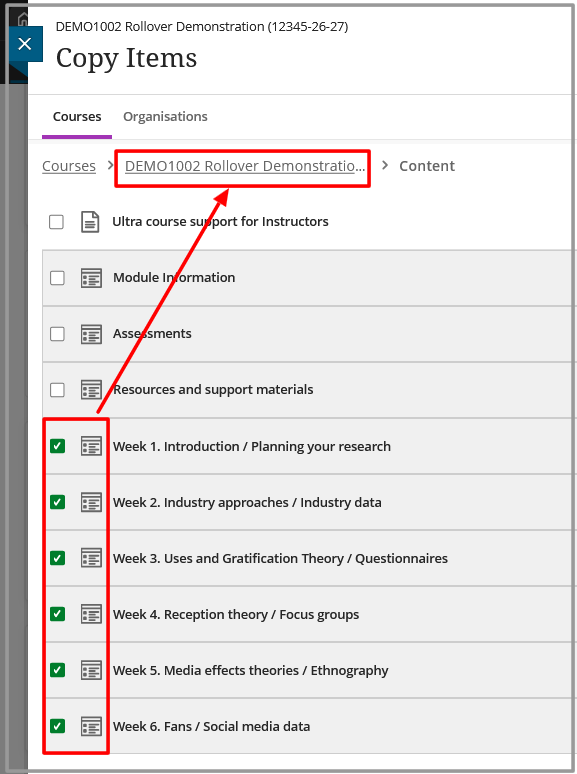
- Tick to Select the Categories if you want to reuse this content.
- Discussions: Items that are listed on the Discussions tab for that Course.
- Question Banks: Question Banks if you have used Tests.
- Rubrics: All available Rubrics if you created them in the course.
- Grade Schemes: All available Grade Schemes for that course.
- Settings – includes the course Banner image.
- Select a category title if you want to select individual items in the Category (for example, if you only want certain Announcements).
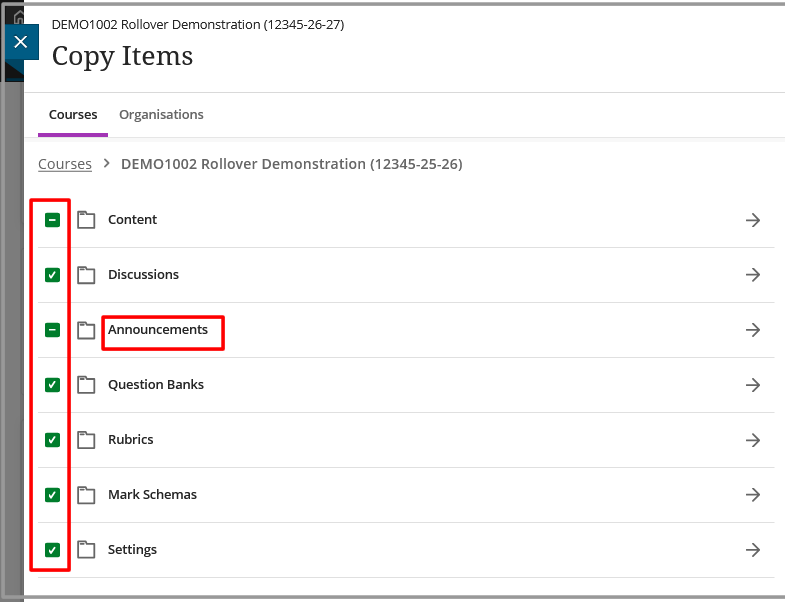
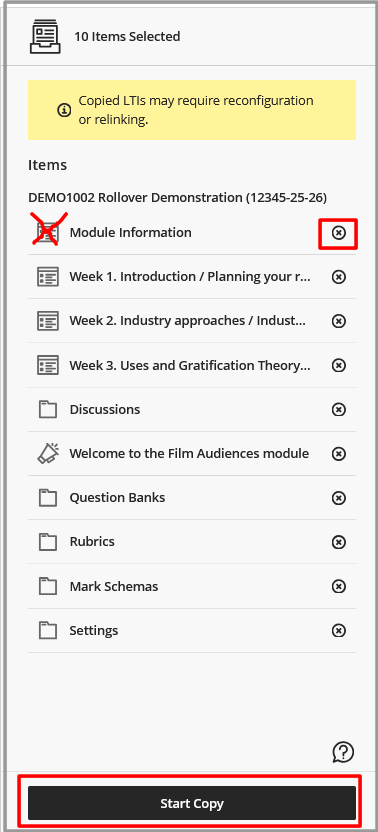
- Check the list of Selected Items contains everything you want to reuse.
- Check that this list doesn’t contain the Learning Modules of the course Template:
- Module Information
- Assessments
- Resources and Support Materials
- Select Start Copy.