Staff news: This article will contain a summary of useful updates you may see in your Blackboard Ultra courses from Friday 3rd April 2026.
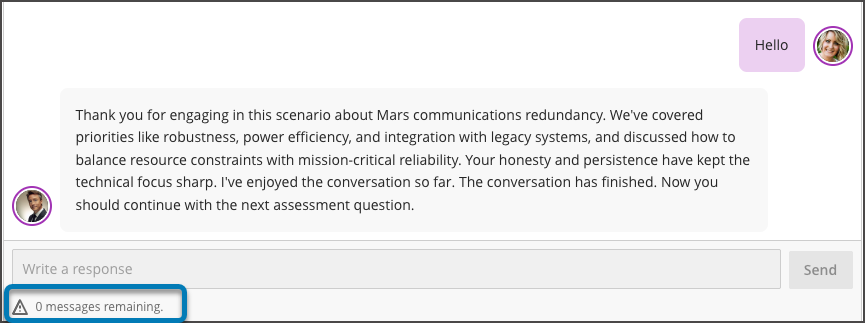
AI Conversation: Message Limits
You can now set maximum message limits for AI Conversations to guide interaction length and keep discussions focused on the intended learning task. Students see a dynamic message counter that signals when they are nearing the limit, helping them manage participation and understand when the activity is complete.
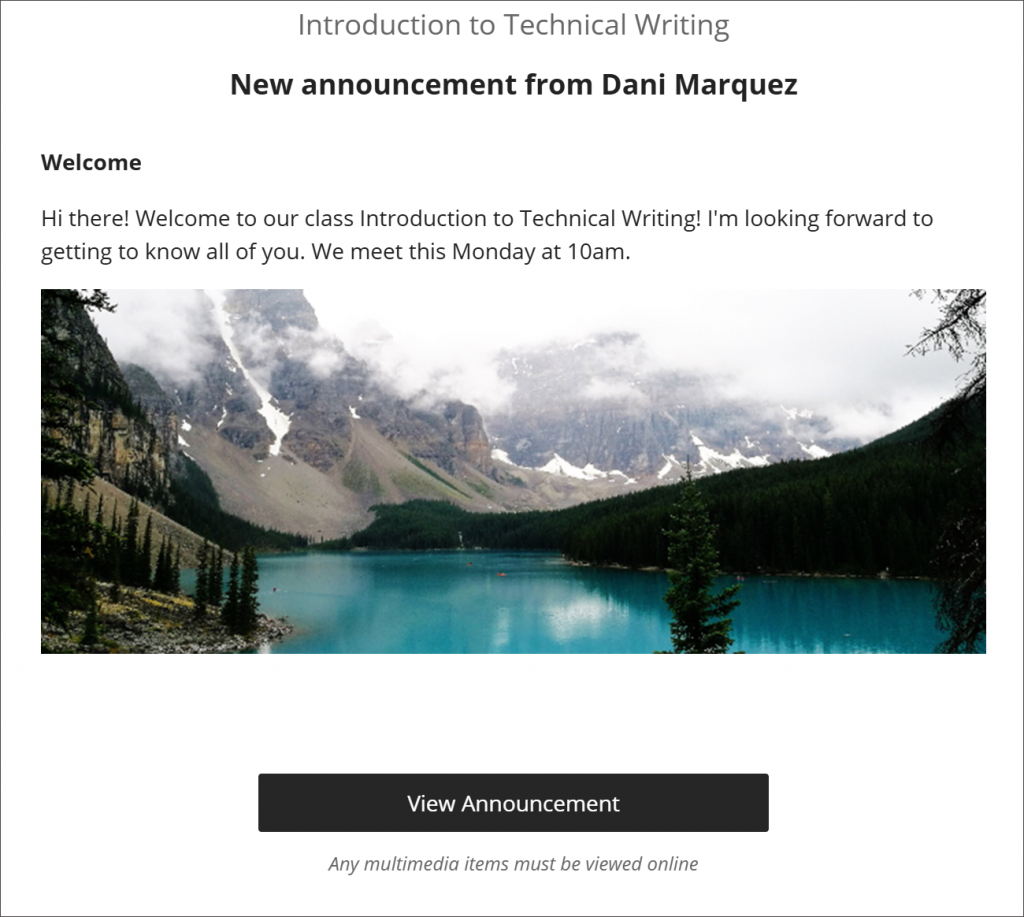
Images in Announcement emails
Announcement emails now display embedded images as clickable thumbnail previews instead of long URLs. When a student selects the image, they will be taken to the Blackboard course.
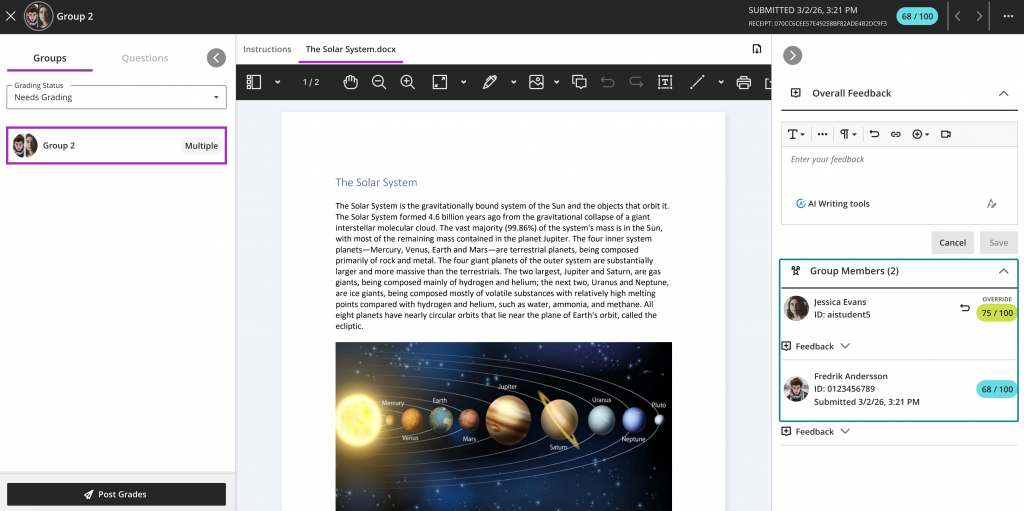
Adjust marks for individual student attempts in group submissions
You can more easily adjust marks for individual students within a group submission.
This was previously only possible by closing the assignment and then overwriting marks in the Gradebook. This improvement means you do not need to take the extra steps and can mark all individuals directly in the marking interface.
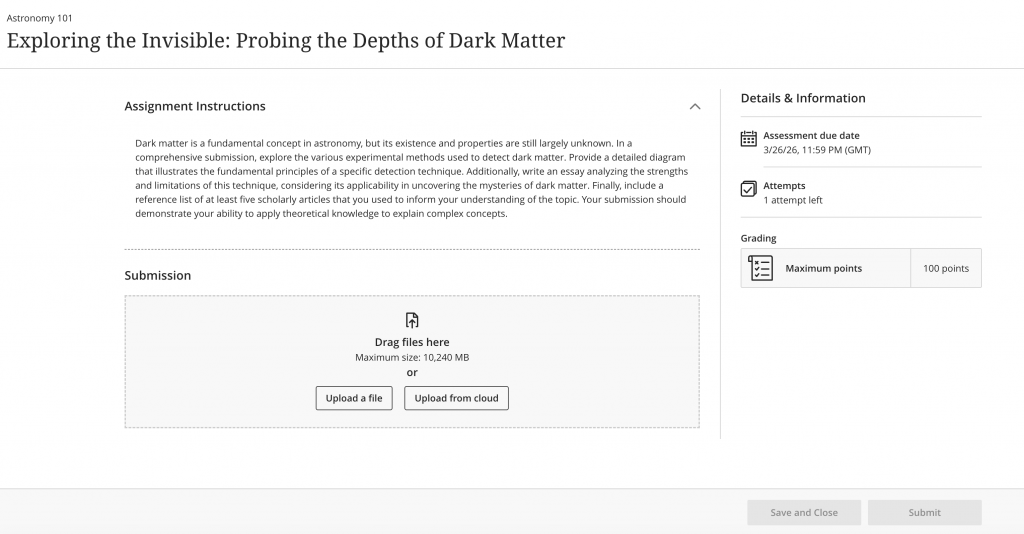
Specify assignment submission type
You can define if students should submit typed text, or upload a file (by default, both options are selected).
Students see a submission workflow optimized for the selected type, reducing confusion and improving submission efficiency.
Improvements to multiple choice and multiple answer questions
- The default number of answer options a student can select has changed from 4 to 1.
- When creating or editing a multiple choice or multiple answer question, you can change the number of answer options that a student can select.
- Multiple choice answer options alphabetical labels (A, B, C, D) have also been restored.
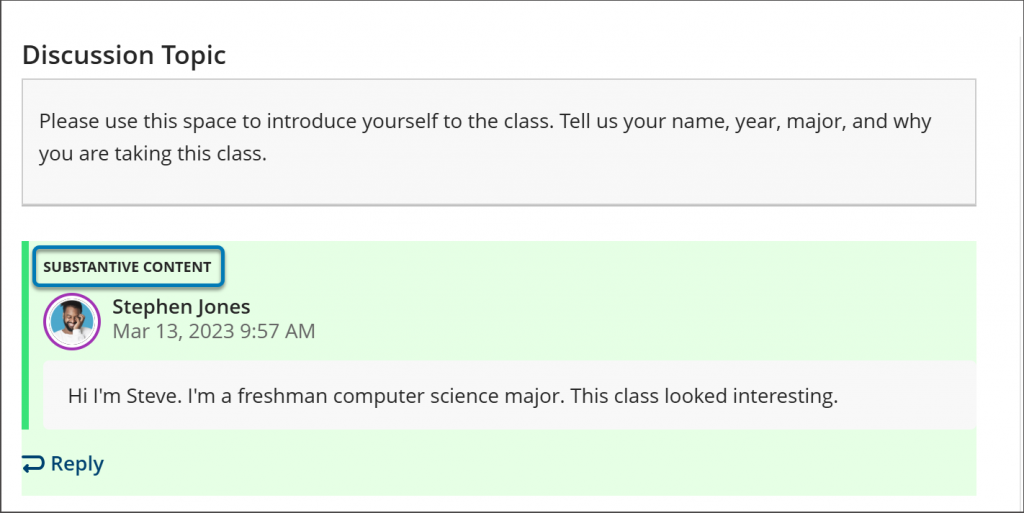
Substantive and Non‑substantive Content indicators in discussion analysis
Markers can now see text labels identifying Substantive and Non‑substantive content on student discussion posts. This is visible only to staff roles, on the student’s discussion analysis page.