Staff news: This article will contain a summary of useful updates you may see in your Blackboard Ultra courses from Friday 6th March 2026.
Generate Knowledge Checks with AI
You can now generate Knowledge Checks for your Blackboard Ultra documents.
Knowledge checks are interactive assessment that can be added alongside the document content. Knowledge checks are informal, no marks are recorded in the Gradebook.
Find out more about AI tools in Blackboard. All AI generated content should be reviewed for accuracy before being made available to students.
Update to Course Messages
Course messages will look a little different. Sending new messages to existing conversations will update previous “threads” instead of starting a new one.
Students cannot reply to messages, only staff roles can currently send Blackboard messages.
Second Due date in Discussions
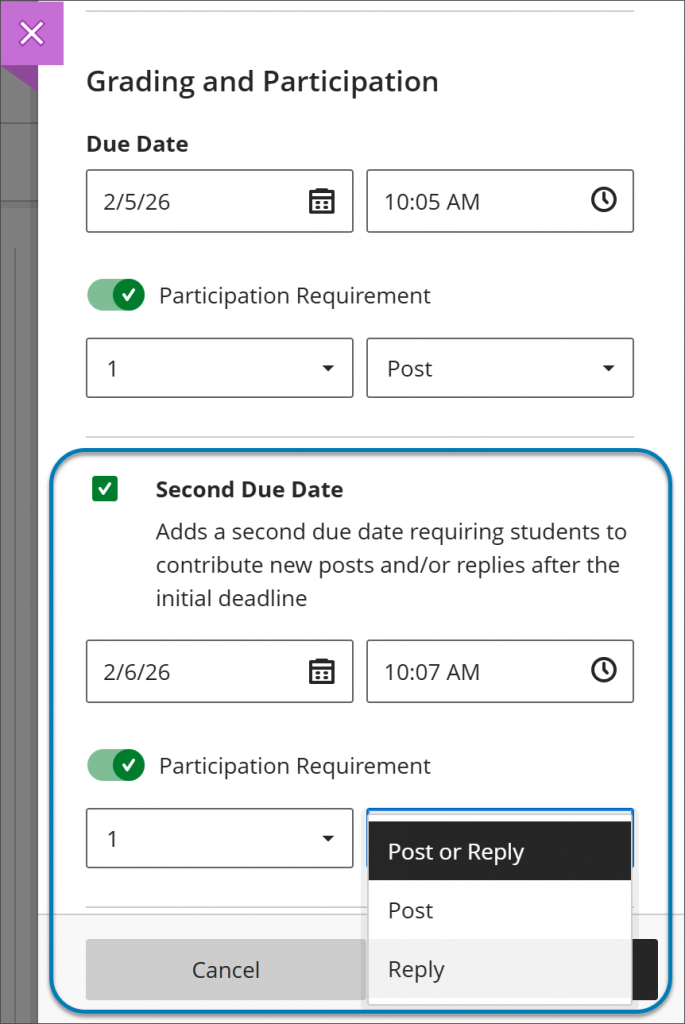
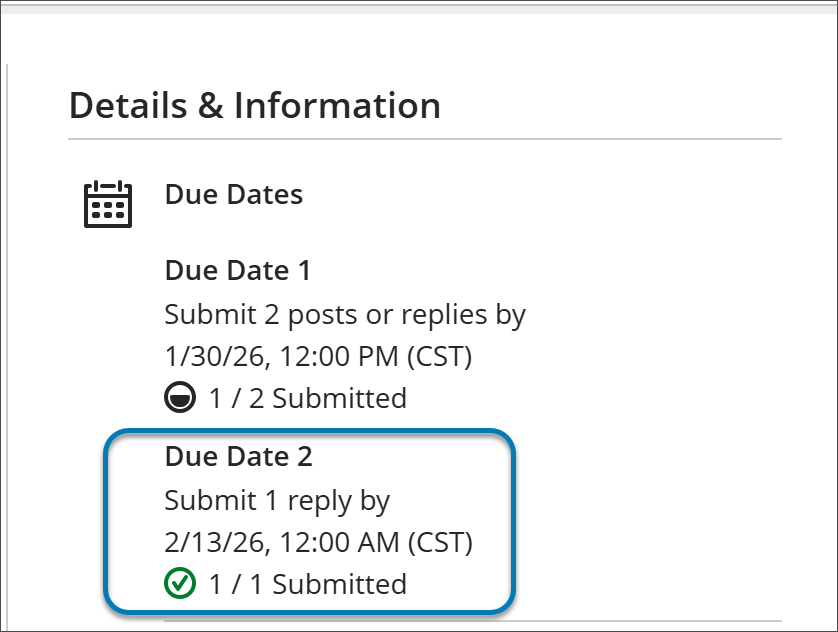
You can now set how many posts and replies that students must complete across two due dates. This setting is for marked discussions. You can specify the number and type of post or replies that the student should make.
Test question titles relocated
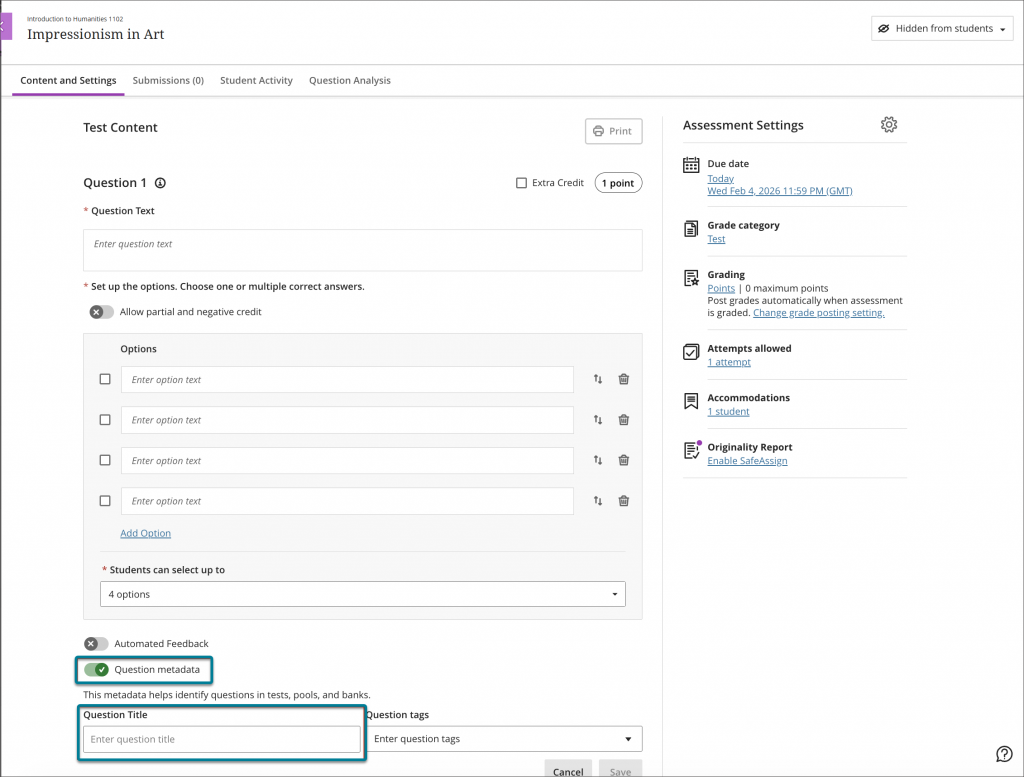
Question titles, which are not visible to students, have been relocated next to the question metadata.
Toggle Question Metadata to add a question title and question tags. Titles and tags make it easier to reuse your questions and manage content in question banks.
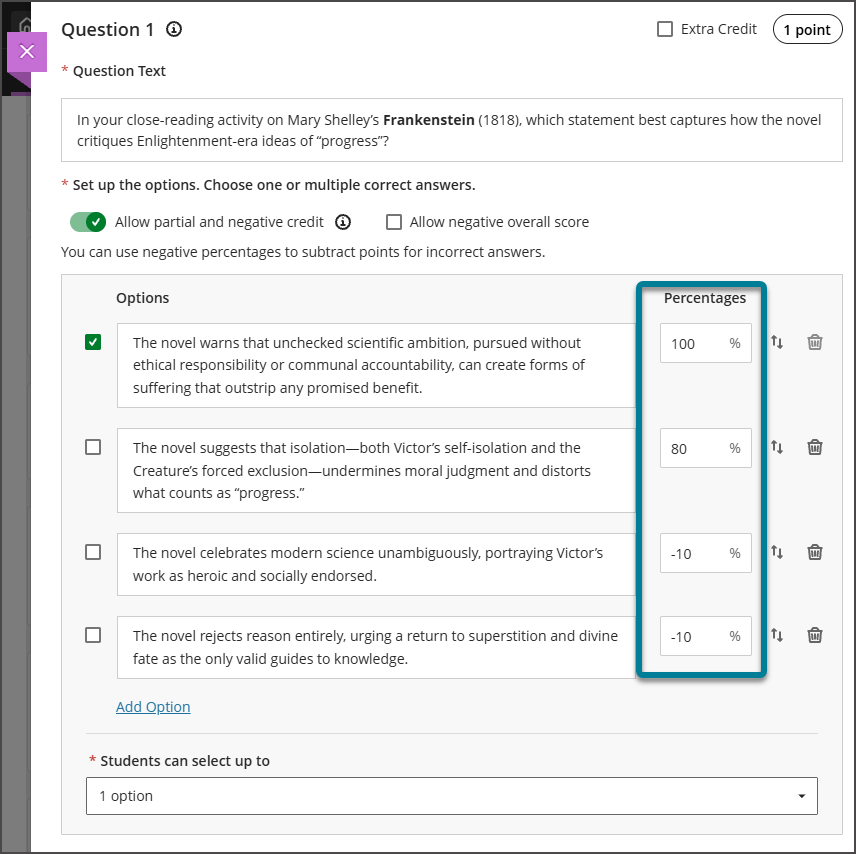
Partial credit limits removed for MCQs
When creating (or updating an existitng) multiple choice quesion, you can now enter any partial credit value for each answer option within a range of –100% to +100%.
You may enter positive credit values for options that are not marked as the correct answer. The total partial credit value for correct answers should be at least 100% (it may exceed 100%.)
Negative marking can be used alongside partial credit marking.
Markers can adjust credit values during regrading.
Improvements to marking essay questions in a test
Previously it was not possible to mark essay questions “by question”.
Instructors can now mark anonymous by question in addition to grading anonymously by student.
Identify Key Assessments
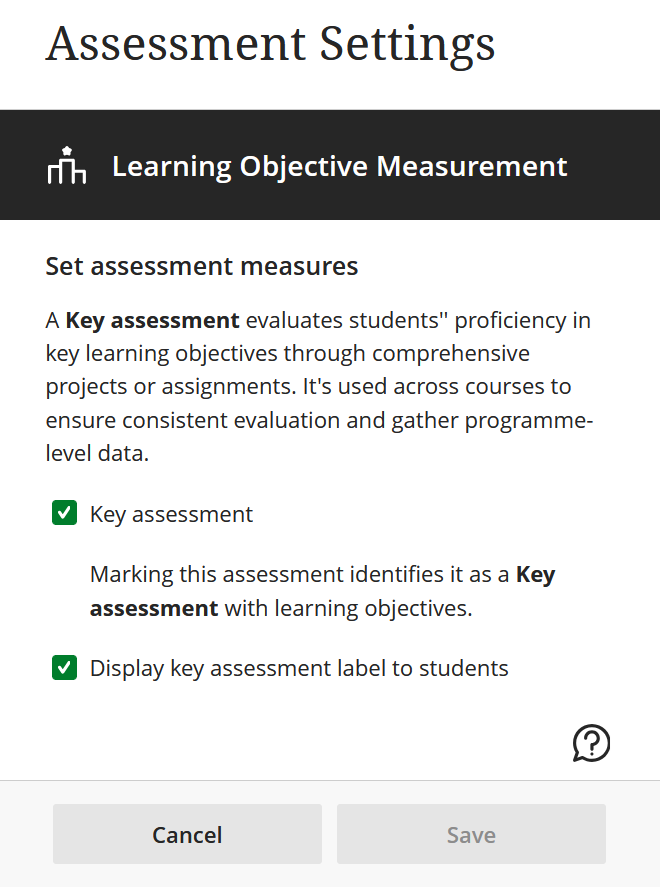
A new menu called Learning Outcome Measurement shows in assessment settings. You can mark a test or assignment as a Key Assessment. This can be made visible to students.
You can filter the Gradebook by assessment type: Formative, Summative or Key Assessment.