
What should I do if I have further problems not solved here with the app?
We have further FAQ answers on our MySouthampton SharePoint site.
For any issues with the app, please contact us via ServiceLine Online.
How do I restart/refresh the app?
You might need to refresh the app to update your timetable data, or if you have changed time zones or have been advised to restart the app. To do this, go to the ‘More’ section in the app, scroll to the bottom and select the ‘Logout’ button. On the pop-up that shows asking you to confirm to log out, select ‘Yes, Logout’.
The app will sign you out. You can then sign back into the app, and your data will be all resynced.
Why can’t I see my timetables?
Please be aware that at the start of a new academic year, timetables might not yet be available for students to view. It should be there a week before the new academic year/term starts.
If you still cannot see your timetable in the app, you can double-check on Timetables online.
If you can see your timetable on the website but not the app, please contact us via ServiceLine Online.
Where do I go to leave feedback?
If you do not have a technical issue, but would like to leave some feedback for the app then please complete the Microsoft Form. (Please note: The feedback form is for university-registered users only)
How can I manage notifications in the app?
You can manage notifications within the MySouthampton app without having to change your device settings. Read more on our Managing Notifications page.
How accessible is the app?
Please see this report, which sets out how the app meets the WCAG accessibility standards.
Do I have to pay for this app?
No! It is completely free and there for your convenience, and there are no hidden costs in the app either.
However, some parts of the app will require an internet connection. If you are using the app with 4/5G please check with your mobile provider for any data usage costs.
Why is my ID card not showing?
If you are a new student, then it can take a while for your ID card data to be processed, and it will then go to the app.
If your ID card is still not showing, first try fully restarting the app.
If that still fails, please contact ServiceLine.
Where can I use the digital ID card?
The Digital ID card can be shown around campus for a range of services, including for borrowing books at the Library. You can also use it to access the Library by showing it to a staff member on the desk.
How can I change my name in the app?
You can change your preferred name in the app by going to “More” and then “View Profile”. There will then be a link which will take you to the system where can I change your preferred name.
I am a member of staff/PGR, can I use the app?
The new app has been designed specifically for Undergraduate and Postgraduate Taught students.
However, we know the current app, whilst always designed for students, has been used by some staff and PGRs for a range of tasks. The services that staff and PGRs may have used are all available via mobile in alternative places.
| You can access your University email and calendar on the go via the Microsoft Outlook app. You can find advice on the Microsoft 365 Support SharePoint site. | |
| Events | You can find University events via the Events section of SUSSED. |
| Campus Maps | Campus Maps can be accessed through this web page, including on your mobile browser: https://campusmaps.soton.ac.uk/ |
| Timetables | Timetables can be accessed through this web page, including on mobile: https://timetable.soton.ac.uk/ |
Why do some pages keep asking me to continue to use them?
When opening some pages, you may see a message box that looks like the following:
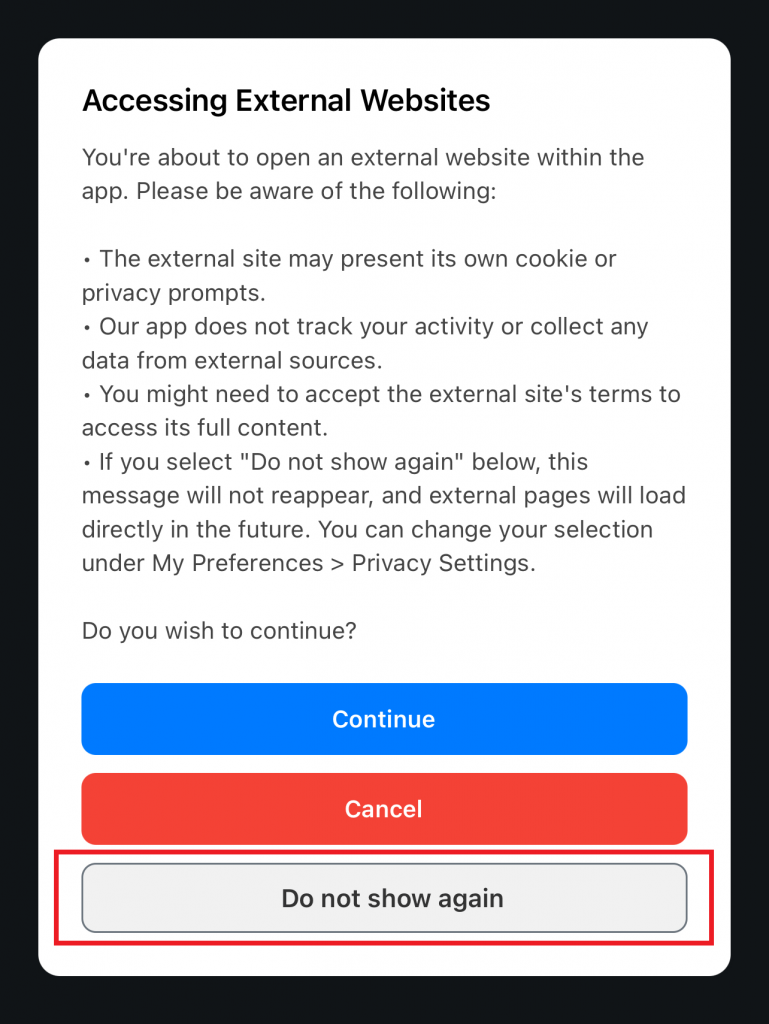
To stop this from showing again, please select the option of ‘Do not show again’, and it will not prompt you again on any other pages.
How can I get access to security/support?
To access support or contact the University security team, click on the ‘More’ button and then select ‘Student Support’.
Here you will see a range of support options, including ‘Emergency Contacts’, which can be used to contact Campus Security.
Can the homepage layout be altered?
The current homepage layout was shaped by feedback from the student codesign panel, who highlighted quick access to timetables and academic updates as a top priority.
We recognise how important it is to make student support services easy to find.
We are collating feedback from students and staff and will be reviewing this regularly to explore if there are key areas that we can update to improve the overall user experience.
To share your feedback please fill in this form.
While the app draws from the timetable in relation to all Common Learning Spaces (CLS), is it able to draw on other timetabled activities?
Any content that appears in a student’s timetable on timetable.soton.ac.uk and examtimetable.soton.ac.uk will be reflected in the app. In addition, students will see meeting invitations that have been sent to their university email accounts.
Is the user experience the same across all UoS sites (including maps)?
The new app includes campus maps for both Southampton and Winchester campus locations, including university accommodation.
At this stage, the app does not accommodate the specific timetabling approaches used by Delhi or Malaysia campuses or Southampton Online students. This was a deliberate decision for the current release of MySouthampton app, based on scope and priorities.
However, we fully intend to revisit this in future phases, and Transnational Education (TNE) remains a key component of the broader project roadmap.
Is there a plan to integrate a broader range of tools (e.g. engagement with SUSU and clubs and societies)?
We are currently evaluating our requirements to determine their priority and feasibility, with a view to expanding the app’s functionality in future development phases.
I use a Huawei or Xiaomi device and I’m having issues using the app. What should I do?
We are aware of issues where the app is not working as expected for some users on devices – such as Huawei or Xiaomi phones – which have their own versions of the Google Play Store. We are working on a fix for this, but if you are affected we recommend using the web version of the app via this link MySouthampton.