
This guide will walk you through what to expect when you arrive at your workstation and how to successfully navigate and submit your assessment.
Arriving at your Workstation
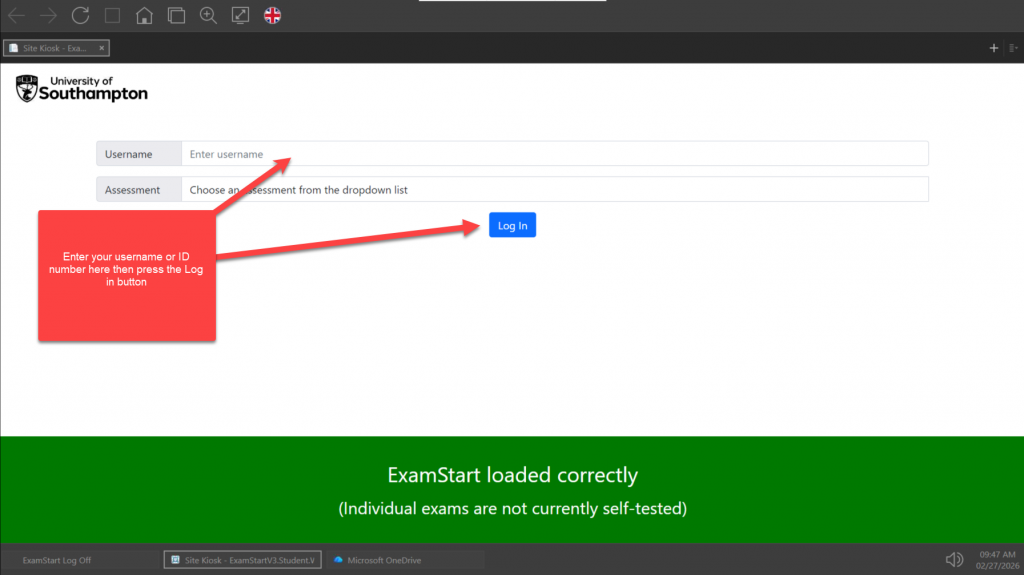
When you arrive at your desk, the computer should already be powered on and displaying the ExamStart Logon Page.
The Green Bar: Look for the green status bar at the bottom of the screen. This indicates that the system is “Ready”. If it displays anything else tell your invigilator.
The Logon: Enter your university Username or ID number and select login
Selecting Your Exam
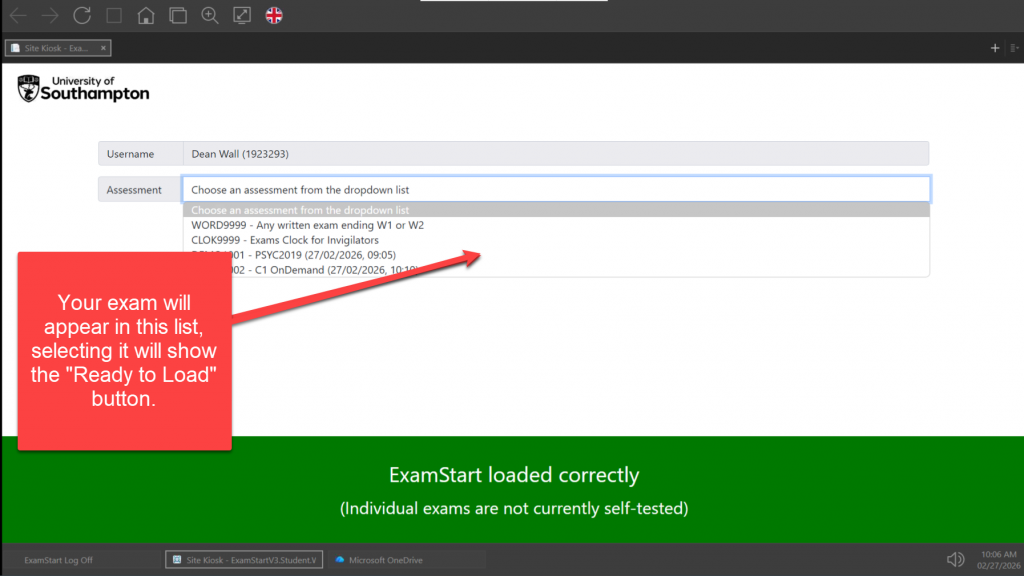
Once logged in, you will see a list of exams available to you.
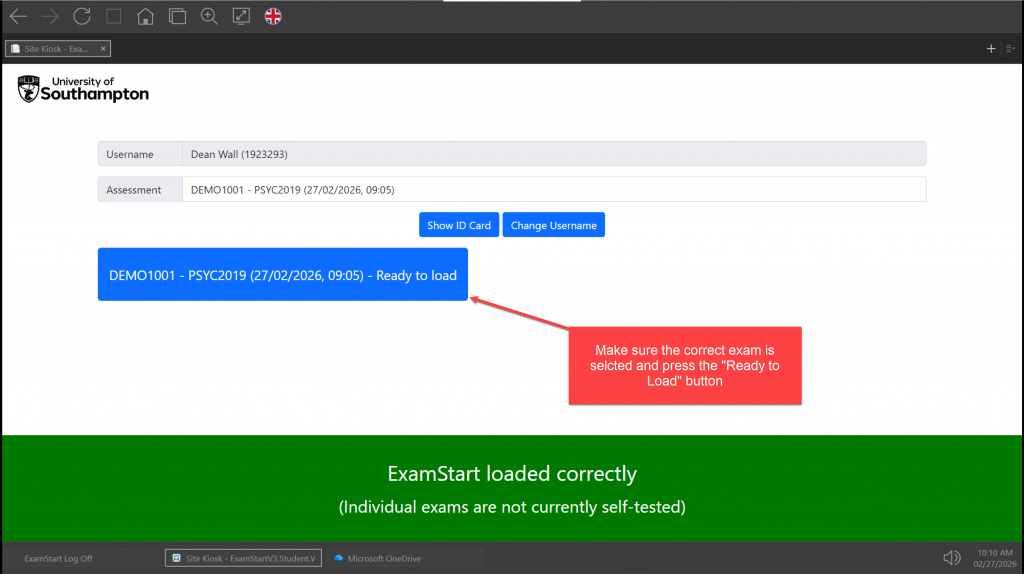
Identify your Exam: Select your specific exam from the list.
Start Exam: Click the “Start Exam” button. If you are sitting a Multiple Choice Question (MCQ) exam, which is the most common format, the assessment will launch directly to a holding page within the secure browser.
MCQ/MRQ (OnDemand) Exams
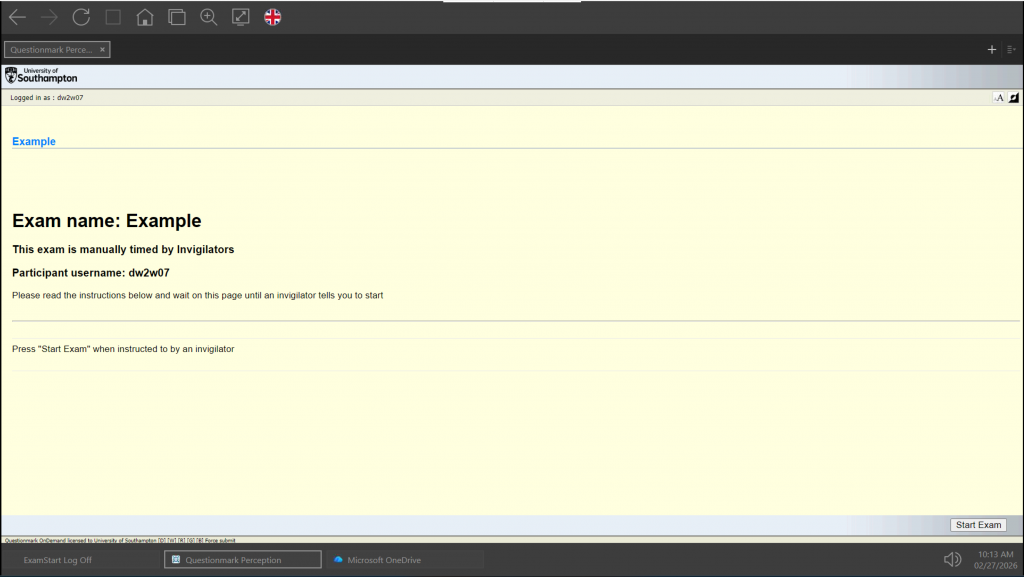
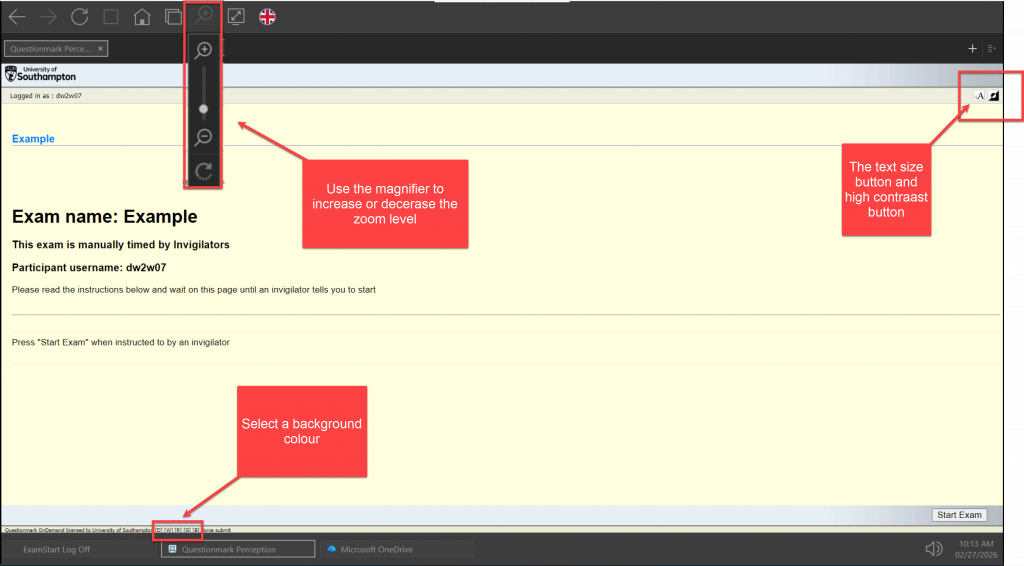
For MCQ (OnDemand) exams you will be taken to a holding page similar to the following image. Wait here until an invigilator tells you to start your exam.
View settings for an OnDemand exam
While you wait for the invigilator to say you can start you can adjust some settings to get a view that you are comfortable with.
Text Size– In the top right you will find a button that allows you set one of 3 levels of text size.
High Contrast-In the top right you will find a button that allows you to toggle high contrast mode.
Background colour-At the bottom of the screen you will see a line of characters in square brackets, Double clicking these will set the background colour.
Magnifier-The browser has a built in magnifier found along the top menu. You can use this to increase or decrease the zoom level of the whole page.
Written (MS Word) Exams
If you are using Word on it’s own or as part of another exam the process is similar. For wholly written exams you may be instructed to select the exam named WORD9999 from the drop down menu or your courses module code will be listed. Your invigilator will be able to guide you.
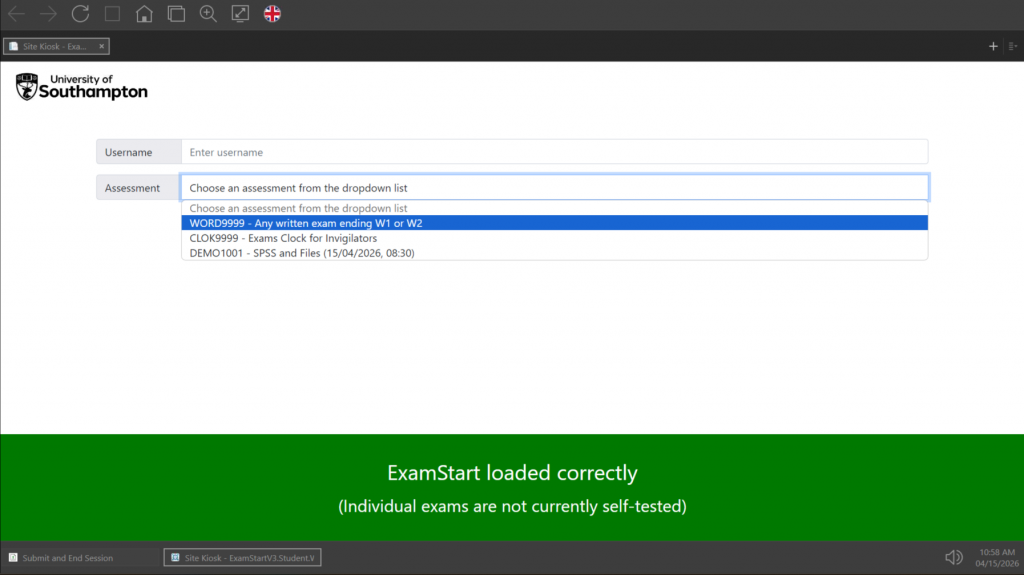
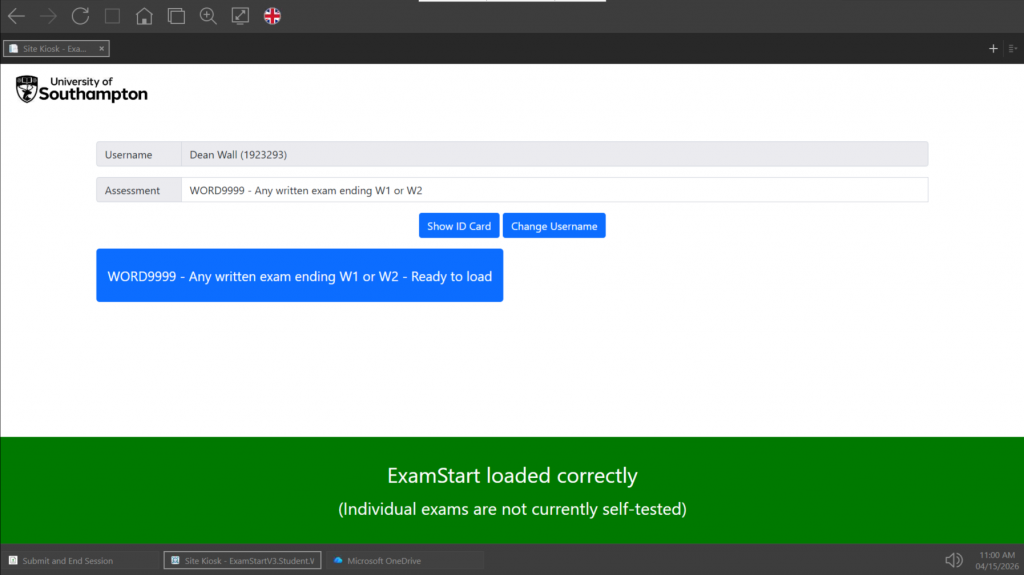
After you have logged in and chosen your exam you will see a ready to load button. Press this now.
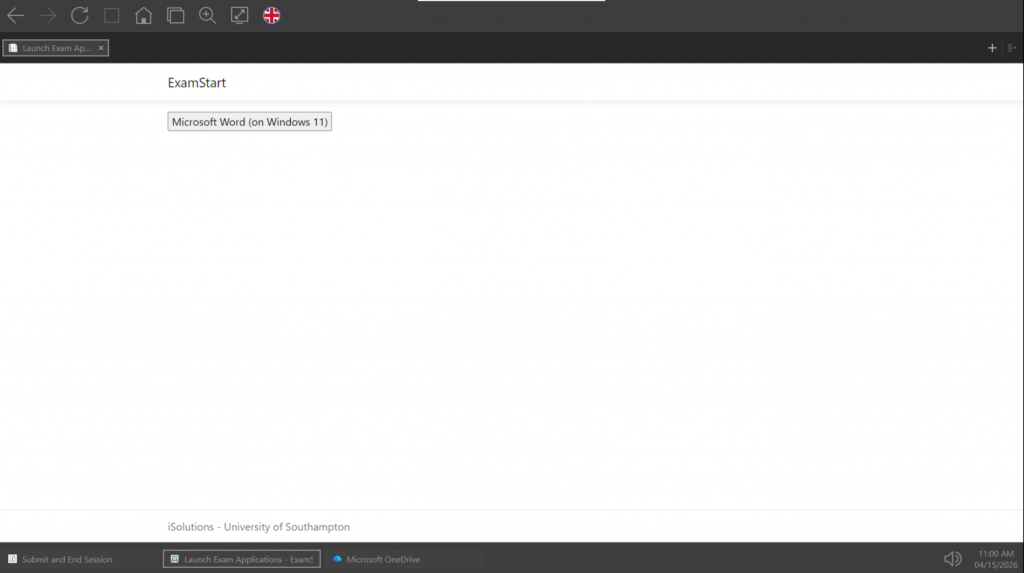
On the next screen you will see a button to open Word, press this. If your exam consists of more elements than Word then you can launch them from here also. OnDemand exams will load as the default page so you will need to change tabs to find this page.
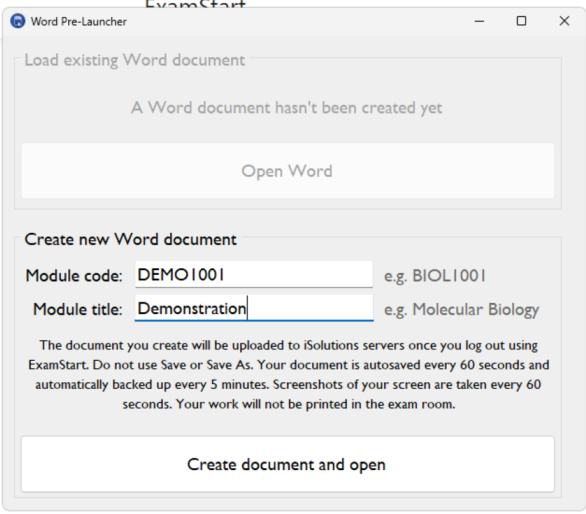
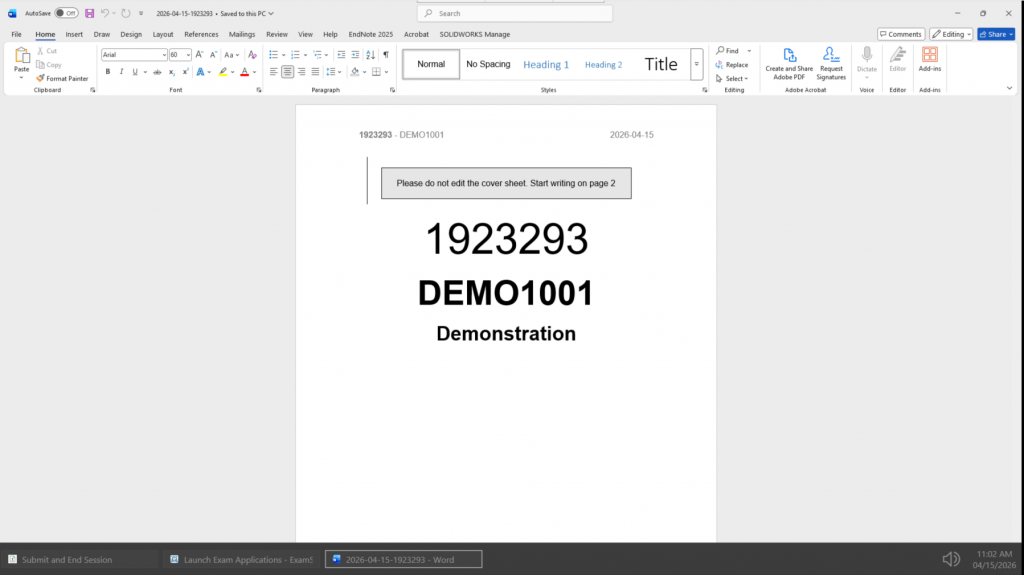
A pre-launch form will appear. Type in your module code and module title, this helps form the cover sheet, header, footer and filename of your submission.
You’re ready to start typing.
View settings for a Word exam
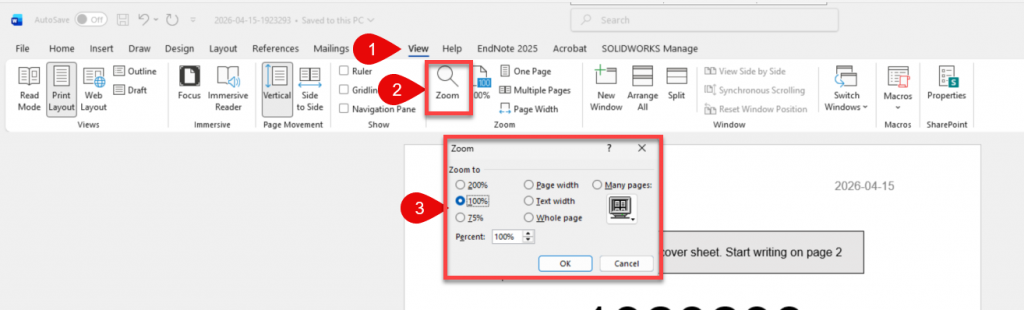
You can adjust the zoom levels within Word to make the writing experience more comfortable by selecting the “view” tab on the ribbon, and then choosing the Zoom menu item
Other Exams (SPSS, RStudio, Matlab and other apps)
Some exams (such as those using SPSS, R-Studio, or Excel for example) require specific data files provided by your lecturer.
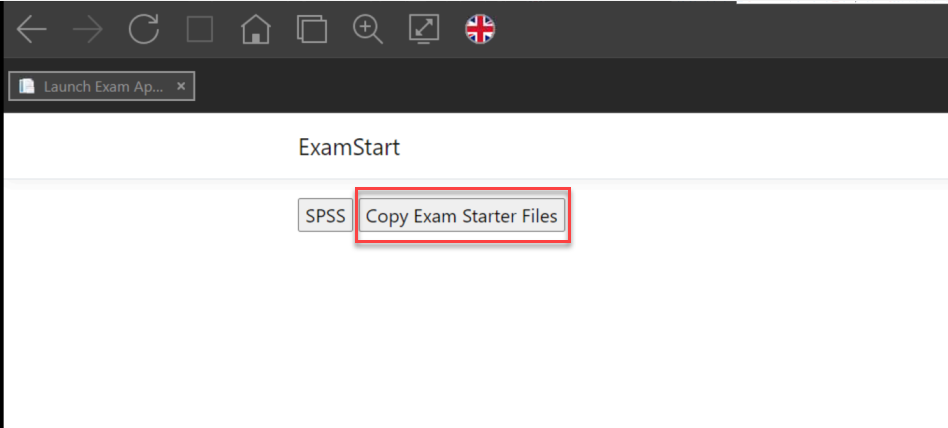
Manual Import: If your exam requires files, ExamStart will load to a browser tab titled “Launch Exam Applications”. Here you will see buttons relating to your specific exam. There will be one named “Copy Exam Starter files”. Pressing this copies the files to an accessible location.
Completed Successfully: After pressing the “Copy Exam Starter Files” you will see a window pop up with information pertaining to the transfer, it should end with “Completed Successfully“, if it says anything else inform your invigilator
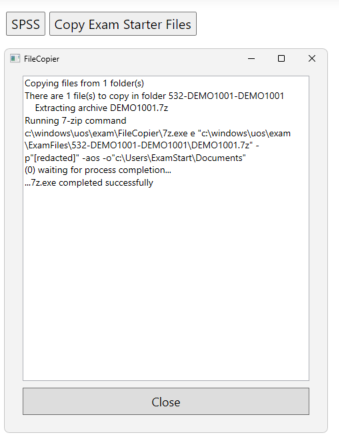
Opening the files: To open the files that have been transferred you need to use the “open” function of the app you are using. ExamStart does not have a file explorer, but each app does. Your tutor will have given you explicit instructions.
Submitting your work
When you have completed your exam, follow these steps to ensure your work is recorded:
Multiple Choice Questions exams (OnDemand): For standard MCQ exams, once you have answered all of the question a “submit” button will appear in the bottom right of the screen, press this to submit and finalise. You will not be able to access the exam after pressing the submit button.
MS Word and other Applications: Make sure you have saved your work to the C:\users\examstart\documents folder and closed the apps.
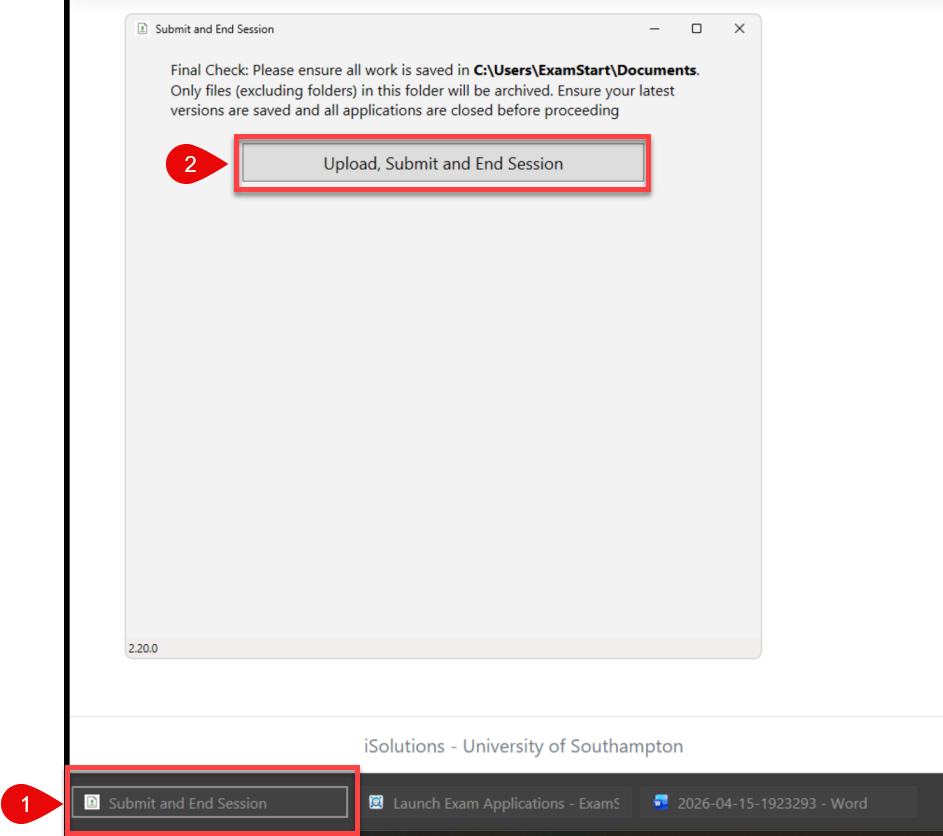
From the task bar choose “Submit and End Session“
Then press the “Upload, Submit and End Session” button
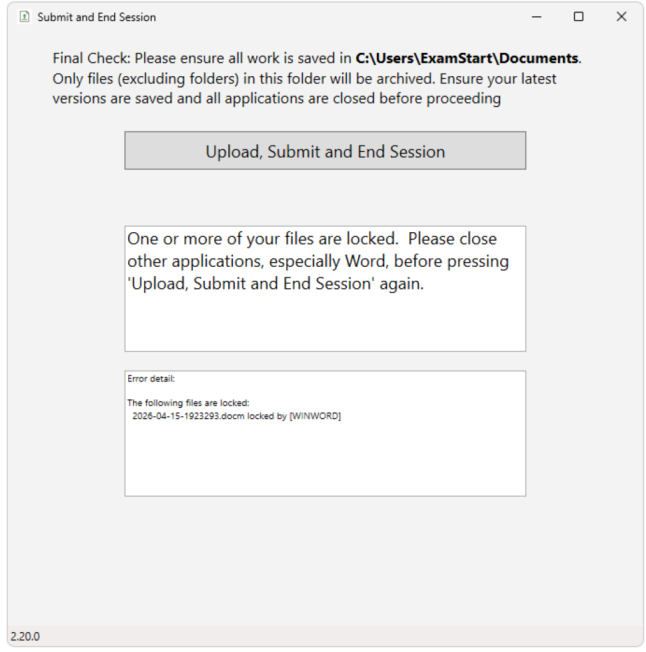
If ExamStart detects that a file is still open it will show a warning
When you have successfully submitted you will be shown a summary.
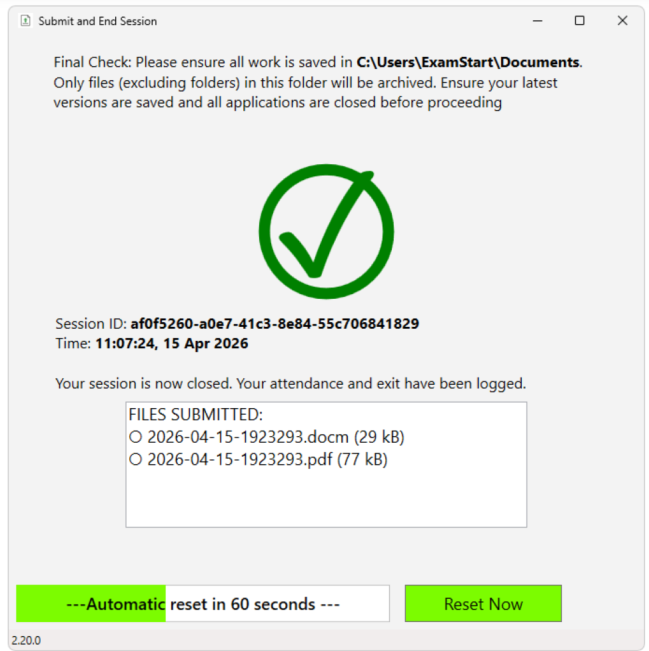
Await instructions from your invigilator.