
This page explains how to create a folder in Panopto that has a session pre-made per student. The instructor will need to log into Panopto to record the sessions. Sessions can be recorded only once.
For instructions on how to have a folder where the student logs into the computer and can create multiple sessions please see this support page: Student video assignments.
Example scenario
An instructor has booked a teaching room on campus for students to give presentations. The instructor signs onto the PC and into Panopto. Each student loads their presentation and selects their own name in the Panopto Recorder. They press record, present, press stop and repeat for each student.
Each student gets a link to their presentation. They can see their presentation, but they cannot edit or delete it. The student cannot see any other presentation. The presentations are not added to Blackboard.
This scenario is preferred for:
- Presentations that are assessed in class, but may need to be viewed by an external examiner.
- Presentations that take place during a timetabled class.
How to set up the above scenario
Because each student needs to click on their own name during the recording process you will have needed to give iSolutions the student details before the assessment takes place. Raise a ticket with ServiceLine and include:
- The module code of the course (e.g. BIOL1001).
- If there are multiple versions of the course (in Southampton and USMC for example) the Course Reference Number (e.g. 25478).
- A list of students in a CSV or Excel file format
- Information required format: ‘username’, ‘last name’, ‘first name’ and the individual unique ‘name of session’ (See example below)
- A separate list must be made for each folder you wish to have. It can be in the same file on different tabs.
- The names of people who need access to all of the recordings; this could just be yourself.
For step 3 you will need to export a list of your students’ names and usernames (usernames must not include @soton.ac.uk).
The “name of session” will be what the student selects before they record their session and what the student / instructor / external examiner will select to view the session. For the name of session you should use something along the lines of “Firstname Surname Title” (e.g “Peter Jones Presentation 2”).
Please note: It is important that the title is unique to each student so you can identify the session to record into and for them to playback. In the title do not include any commas.
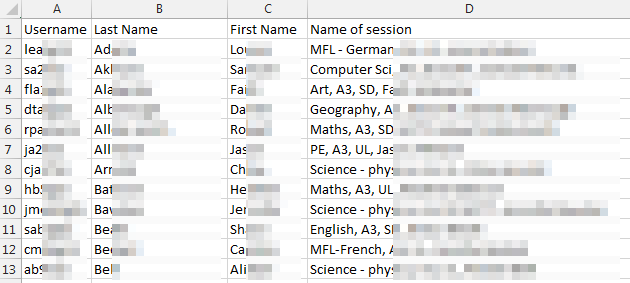
Once your ticket is submitted to iSolutions (give the ticket the subject “Student Panopto Recordings”) we will create the assessment folder and sessions. If you wish to have a specific folder name for your assessments please tell us in the ticket.
Practice and training
If you would like to practice recording a student presentation beforehand, or have a test session to train other staff on how the process works, then you can do so. You simply need to add to the student list either your details or the details of other staff members and you will also get a blank session.
Please bear in mind that each session can only be used once.