
Your lecture will indicate to you if they would like a video submission for your Blackboard assignment, this guide shows you how to submit this in Blackboard. If you have been asked to submit to a Panopto assessment folder please see our other Panopto assessment guide.
How to submit written guide version
First, you will need to find the assessment area in your course. This will depend on where your lecturer has put the assignment.
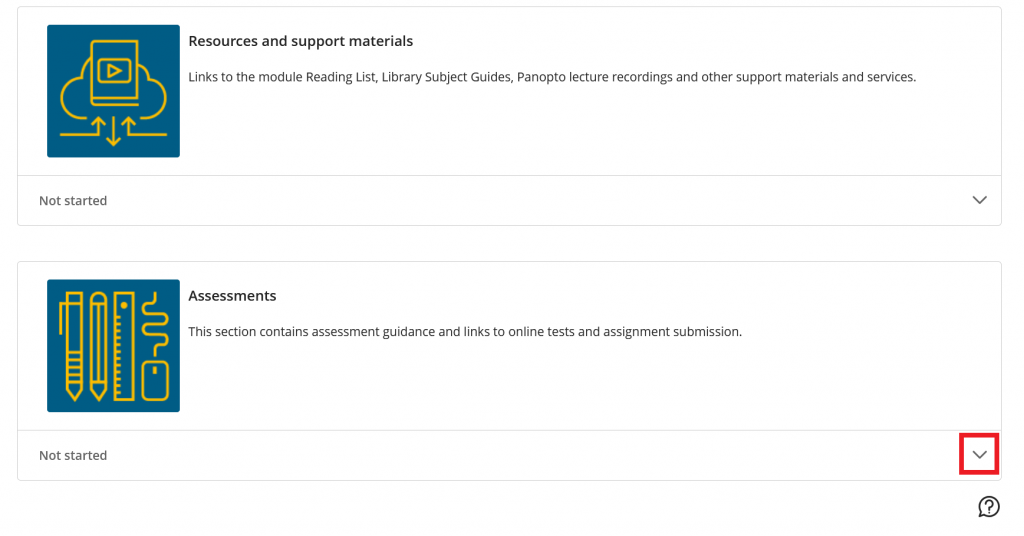
Select the assessment to which you need to submit your Panopto content to.
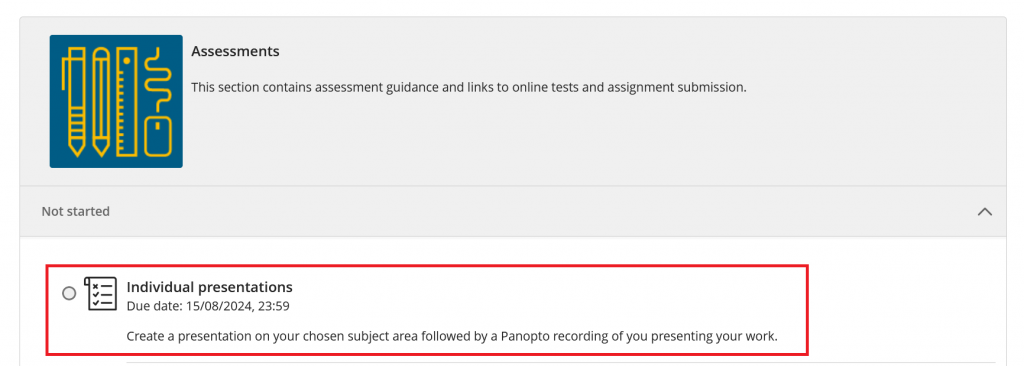
On the right menu bar that will then show, select the Start attempt button.
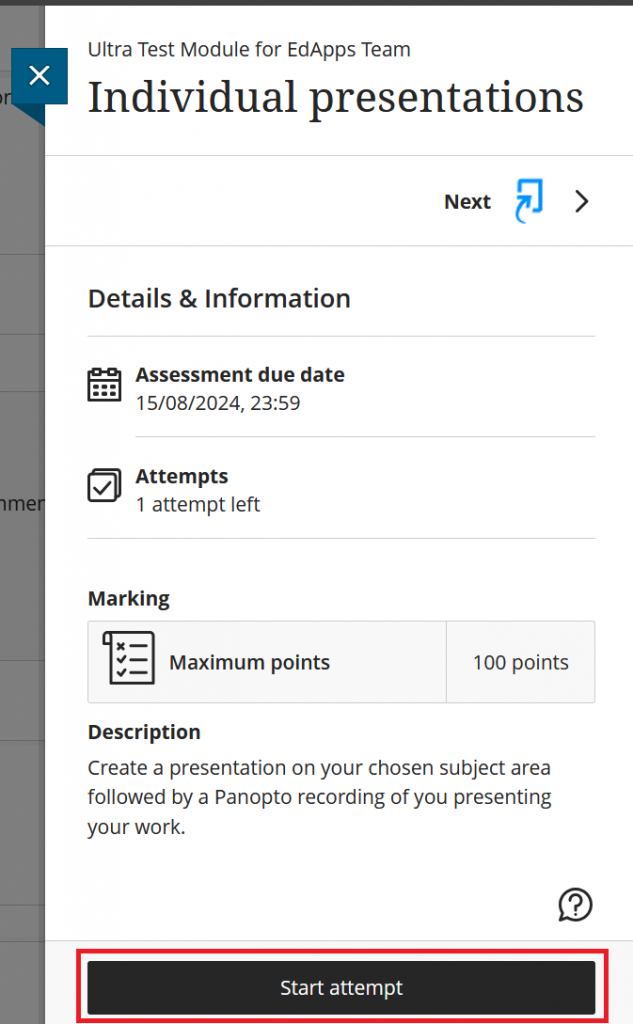
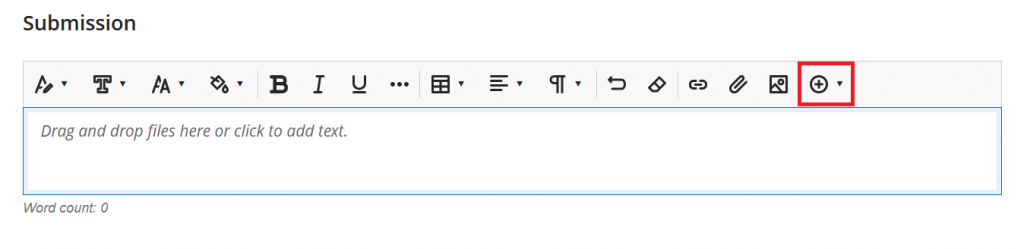
On the submission page, you need to select the central text box to see more.
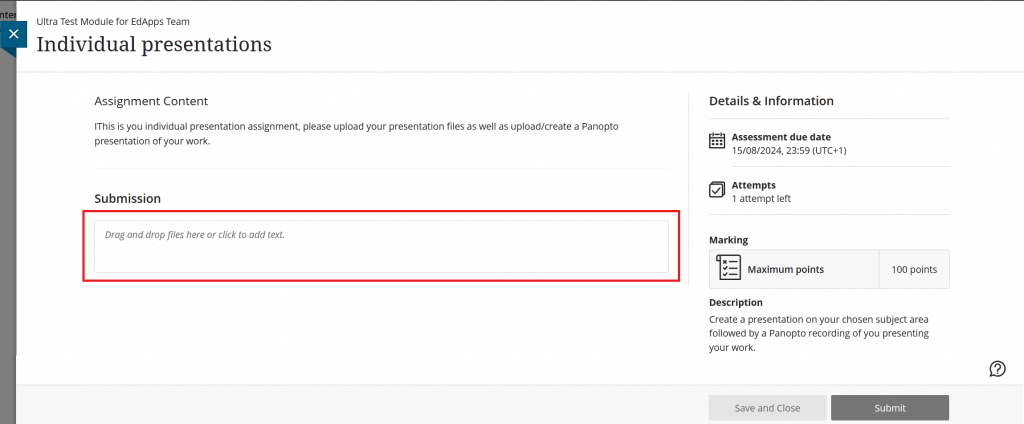
Once you have done that, you will see a plus button for more options, select this.
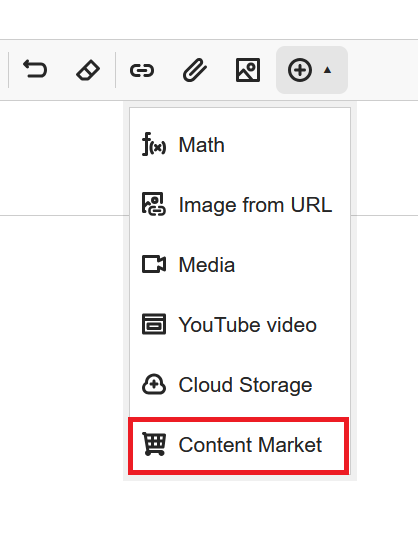
From the options menu select Content Market.
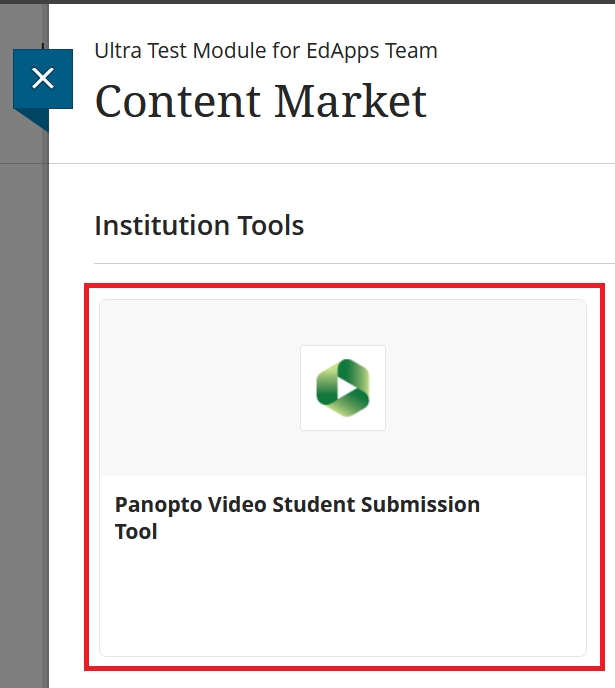
This will open up the Content Market area that will show you some options of things you can submit. From here select the Panopto Video Student Submission Tool.
You will then be shown the Panopto interface, from here you can select an existing recording from another folder, upload a new video or record a new video specifically for the submission.

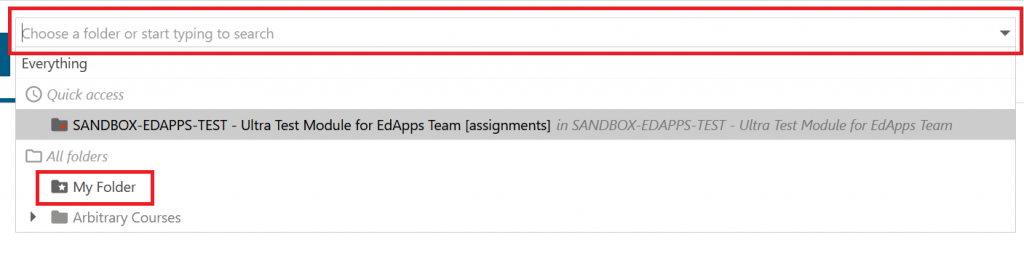
If you select the top menu bar you will see you get the option to search for a folder at the top or select your personal My Folder in Panopto. So if you have put something in your folder you can select it from here.
If you are uploading a media file then you can simply drag and drop the file into the grey area on the Upload tab.
The media file can be created in almost anything other than Panopto such as Microsoft Teams, so long as you have a recorded media file output such as .mp4 it can be uploaded as well.
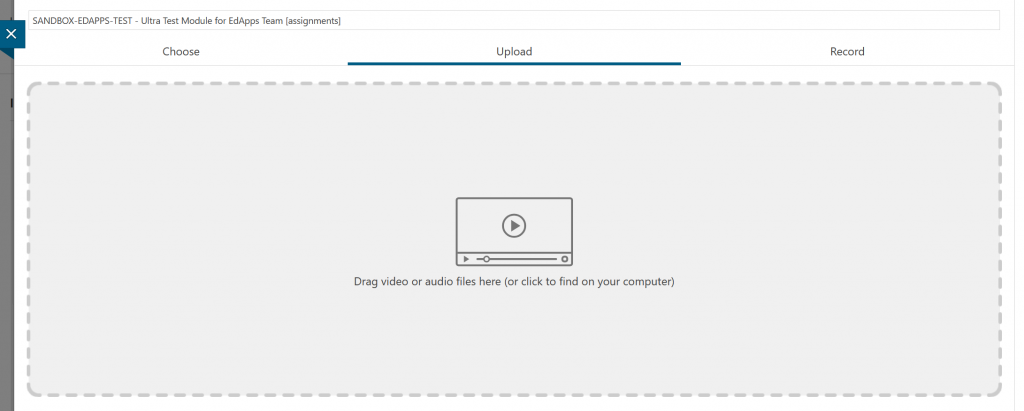
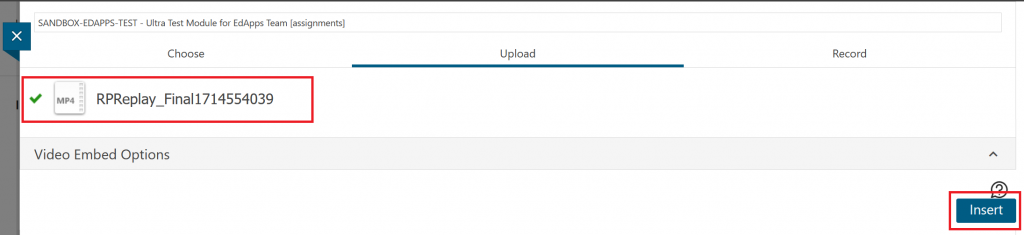
If you are uploading content it is best to wait for the file to be fully ready by having a green tick show next to it.
Once you have either selected or uploaded your content select the Insert button in the bottom right.
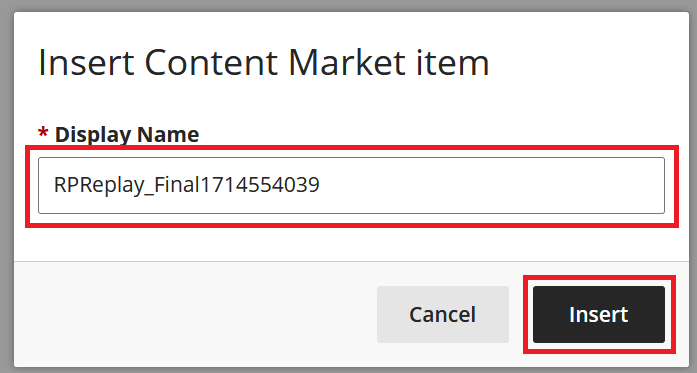
After selecting instert, a new pop up box will show asking for you to give a title to the content. Once happy select the Insert button.
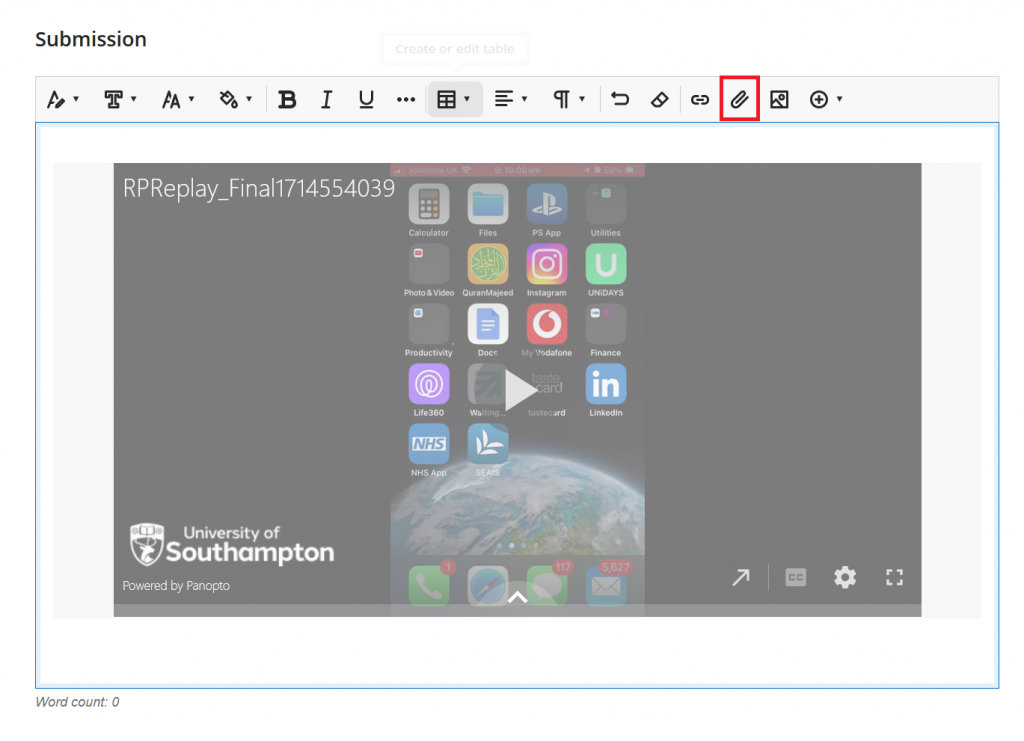
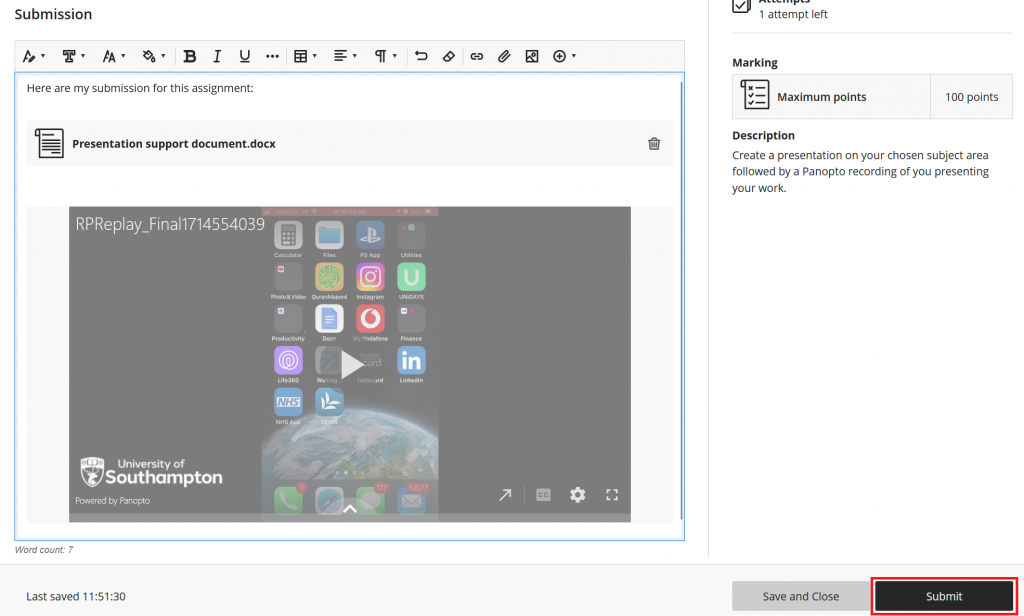
This will take you back to the submission page. From here you can use the paperclip icon to add any documents to support your video submission.
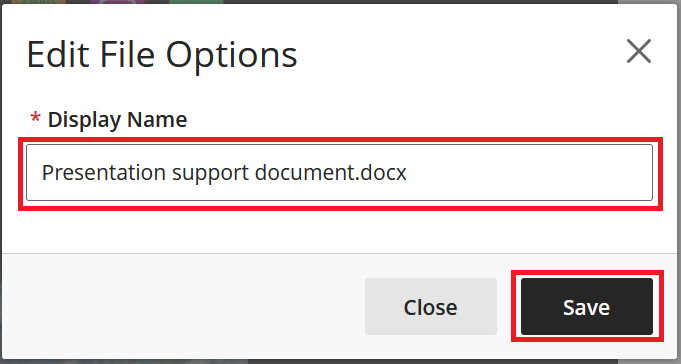
When you have selected and uploaded a file, you have the option to name your file. Once happy that you have a working upload you, can select the Save button.
It is at this point you can review everything you wish to submit, you may wish to add some text to the submission page and review your Panopto submission. Once happy you can select the Submit button in the bottom right.
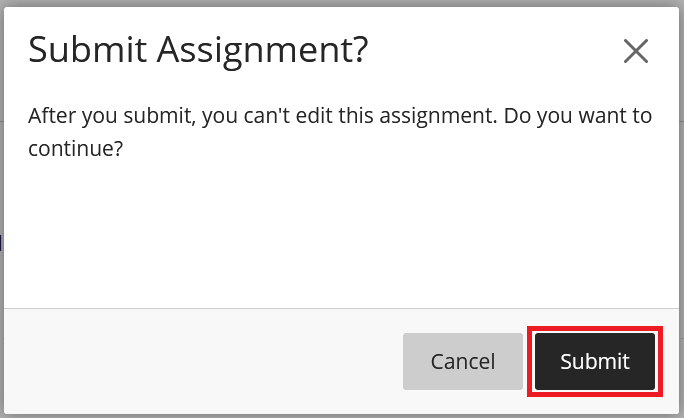
A popup box will then show asking you to confirm that you wish to submit, depending on how your lecturer has set up the assignment you may or may not be able to submit again. Once happy select the Submit button.
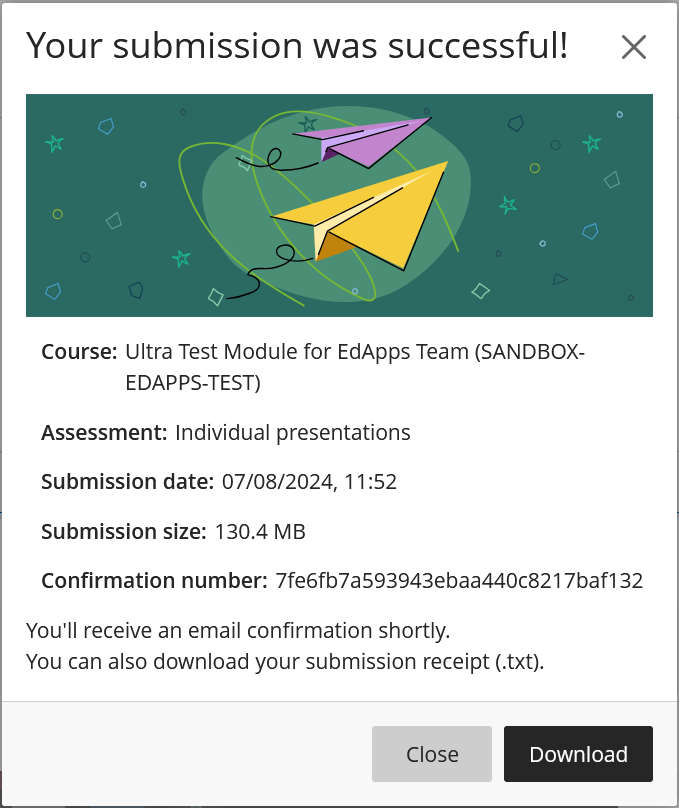
Upon successful submission you will see the submission receipt, it is a good idea to download the receipt so you have a confirmation that you have submitted correctly.
How to submit video guide version
We have a video version of the above guide that can be found on Panopto.