
Staff Guide: Personalise a student’s assessment by adding alternate dates (extensions), additional attempts, and extra time for timed assessments.
Accommodations
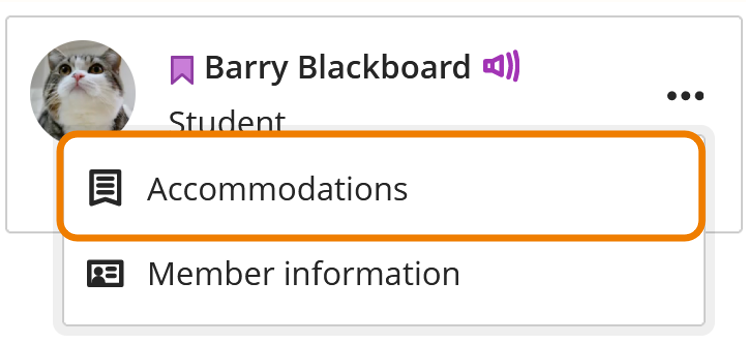
A time limit Accommodation is a setting applied to a specific student. Once set, an accommodation adds the set % of time to all timed assessments the student undertakes in the Blackboard course.
Accommodations Summary
- Additional time is given by the Disability and Inclusion team and recorded in a student’s AERs (Additional Exam Requirements) in Banner.
- A student’s Blackboard time limit Accomodations are updated automatically from Banner.
- The extra time includes time for rest breaks, if the student has these recorded in their AER.
- You will see a purple flag against the name of students with Blackboard Accommodations in the Class Register and Gradebook.
- The time limit Accomodation is added to any timed assessment in a Blackboard course, and the student will see the extra time displayed with the Assessment information.
- Course Instructors and limited staff roles can view students’ AERs and Support requirements (SSRs) in the Books and Tools/Blackboard Photo Roster and the Student Support Recommendations tools.
Note: UoS do not give universal Date Accommodations – see the guide below on how to add an Exception for any student requiring a due date extension for a particular assessment.)
Exceptions and Exemptions
Exceptions and Exemptions allow instructors to grant students alternative due dates, additional attempts or to be excused from the assessment entirely on an assessment-by-assessment basis.
An Exception allows a student an extension on the Due Date or additional attempts for a specific assessed item. Exceptions do not repeat and are not universally applied to any other assessment in the course.
An instructor can use an Exemption to exempt a student from completing the assessment in Blackboard. The student will not receive notifications and won’t appear in the Gradebook for marking.
How to apply an Exception or Exemption to a student’s Assignment
There are a number of places in the Gradebook and marking workflow where you can add an exception or exemption for students.
See the Blackboard Guide: Grant Exceptions and Exemptions for further details.
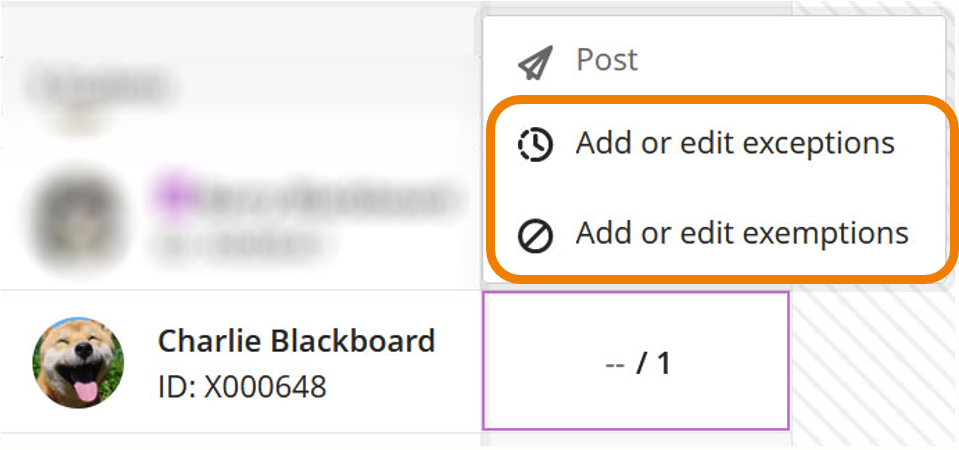
Exceptions and Exemptions Summary
- Exemptions and Exceptions are one-time changes.
- They are provided to a student per assessed item.
- Can be given to any student needing a due date extension or is not required to take an assessment.
- Exceptions can be a Due Date extension or additional attempts.
- Exemptions remove a student from an assessment.
Add an Exception or Exemption
You can add an exception or exemption from the Gradebook.
- Open the course Gradebook.
- Using the Grid View, locate the student and the assessment. You can use the filters if desired.
- Select the square showing the student submission (indicated by a hyphen if no submission has been made).
- This opens the Mark Details panel with the student’s name and assignment name.
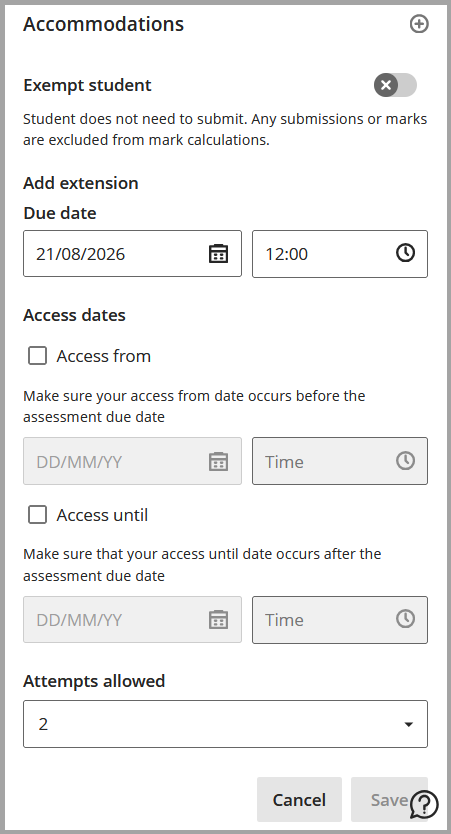
- Scroll down to Accommodations, and expand by selecting the plus icon [add accommodation].
- Exempt Student.
- Add or edit exceptions (due date, access date, attempts allowed).
- Select Save.
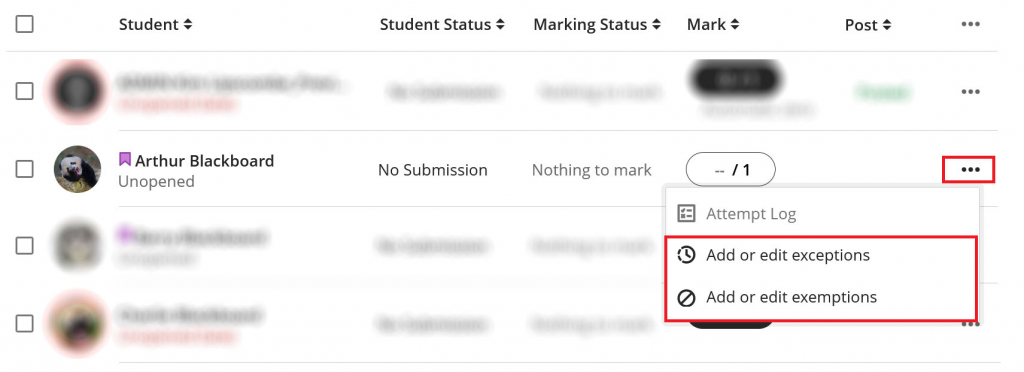
You can add an Exception or Exemption on the submissions page of the assessed item.
- Select the item to open it.
- Select Submissions.
- Select the three dots (…) to the right of the student name.
- Select Add or edit exceptions or Add or edit exemptions.
- A panel will appear. The name of the student will appear towards the top.
- Select your settings for the exception or exemption.
- Select Save.
Release Conditions
You can also manage assessments with additional time and alternative Due Dates with release conditions. Use release conditions to hide or show items on your course to individuals or groups of students.
Viewing Student Information (AERs and SSRs) in Blackboard
See if students on your course have an Additional Exam Requirements (AERs) or Student Support Recommendations (SSRs)
Find both tools in the Books & Tools menu.
- Select the Books & Tools menu to find:
Only staff with certain course roles can view students’ AER and SSR information.