
Programme Lead Staff guide: How to enrol on modules included in your department’s programmes using our Staff Enroller tool.
What is Staff Enroller?
Staff Enroller is an in house tool that lets certain groups of staff self-enrol onto Blackboard courses with an appropriate course role.
Anyone with a Programme Leadership role can use Staff Enroller to enrol in any Blackboard module included in their department’s programmes.
Find Staff Enroller in the Tools section on the main Blackboard navigation menu.
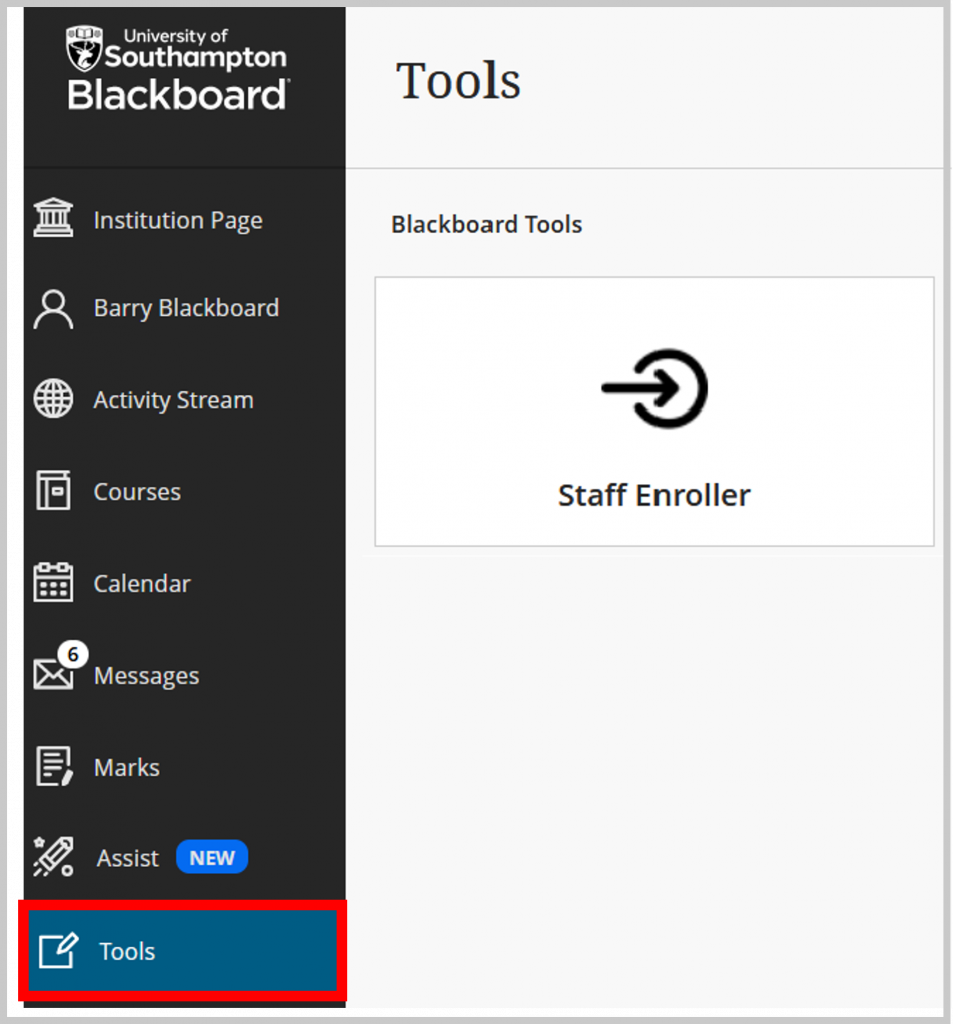
How to access to Staff Enroller as a Programme Lead
You have automatic access to Staff Enroller if you are registered as a Programme Lead in CRUMS (Worktribe). Contact your CQA team if CRUMS needs updating.
How to give Programme Leadership access to a colleague/ Deputy Programme Lead?
You can add colleagues to Staff Ernoller if they need Programme Leadership access to Blackboard courses in your department – for example, add a Deputy Programme Lead.
- From the main Blackboard menu select Tools/Staff Enroller.
- A Programme Lead can access the Programme Leadership Admin menu.
- Add the username of the member of staff you want to add to Staff Enroller.
- Select Add.
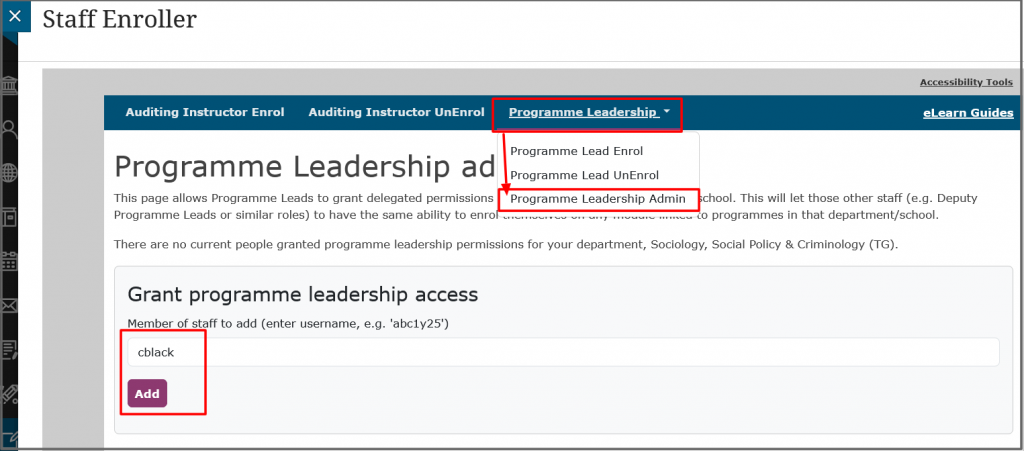
- You can also unenrol staff you have added via this Admin page.
Permissions for the Programme Leadership course role
If you don’t have an existing course role, Staff Enroller will add you to a course with the Programme Leadership role. You will be able to:
- View (not edit) all content.
- Use Student Preview to view the course from a student’s view.
- View and edit the Blackboard Gradebook.
- Edit the Class Register to add staff members and edit roles. For example, add the Module Leads as the Primary Instructor.
- You can remove staff who have been manually added to a course.
Contact us via ServiceLine if you need adjustments to permissions.
Enrol on modules in your department.
View the list of modules in a programme or search for an individual module.
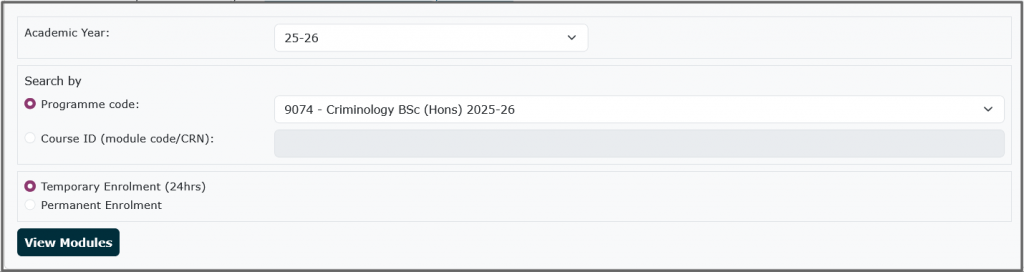
- Select an Academic Year. Select a search option. Either:
- Choose to search by Programme code, and select a programme from the drop-down list, or
- Choose to search by Course ID, and enter a Module Code, Module Code prefix, or CRN (e.g. ‘MATH1001’, ‘ENGL3’, ‘12345’).
- Choose Enrolment Type:
- Temporary Enrolment: Enrol on a course for 24 hours.
- Permanent Enrolment: Enrol permanently or bulk enrol in multiple modules.
- Select View Modules.
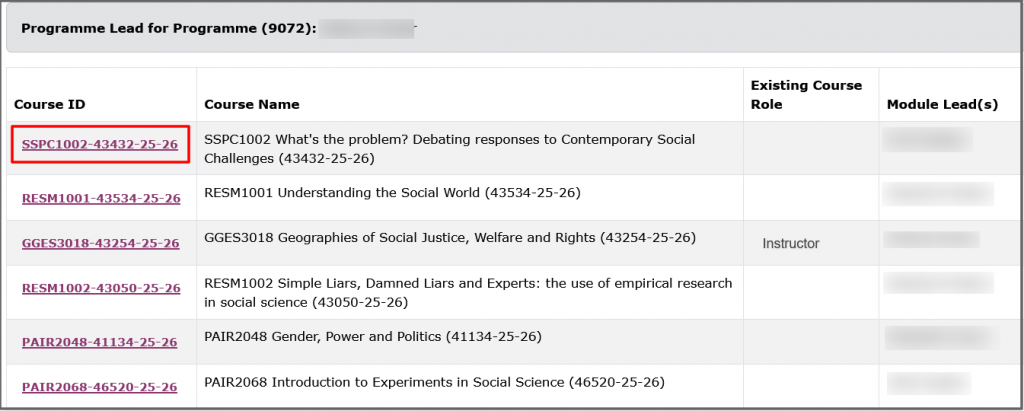
Follow a Course ID link to be taken to a course
- Select the link to a Course ID to be taken to the course.
- If you don’t have an existing course role you will be enrolled with the Programme Leader role.
Unenrol from a course
- You can unenrol from any course where you have been added as Programm Lead by selecting the Programme Lead UnEnrol tab in Staff Enroller.
Organise your Courses list and Notifications
We recommend you choose the Temporary Enrolment option to enrol on courses for 24 hours so your Courses list and notifications don’t get cluttered.
Filter your list of courses
You can filter your courses by:
- Courses I teach – Instructor role.
- Courses I support – Programme Lead and other staff roles.
- Courses I am taking – Student role.
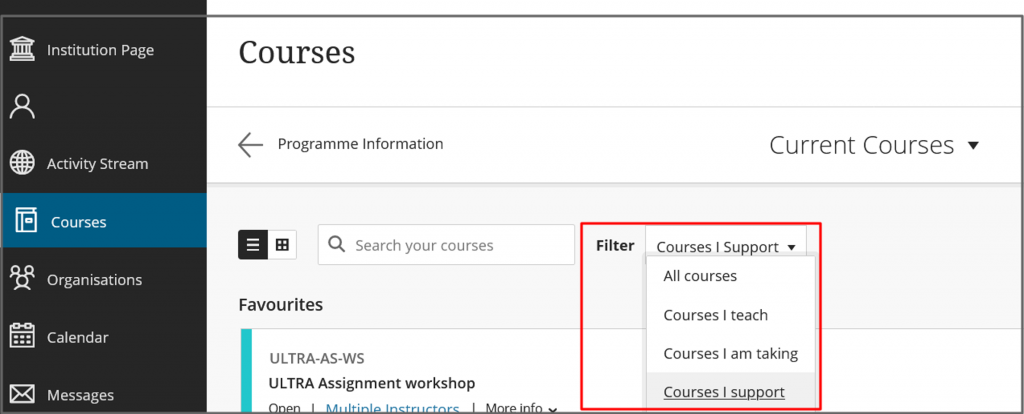
Notifications
You will receive notifications from any course you are enrolled on. You can block notifications by hiding a course. You can view Hidden courses via the Filter option.
You can adjust your Blackboard notifications via your Blackboard profile settings.
You can set up an email rule to filter emails from Blackboard – see the Outlook guide.
Troubleshooting
I see an Unauthorised error message when I try to log into Staff Enroller.
You will have access to Staff Enroller if you are registered as a Programme Lead in CRUMS. Contact your faculty CQA team if CRUMS needs to be updated. Another Programme Lead in your department can add you to Staff Enroller if you need Programme Lead access but are not listed in CRUMS (eg deputy Programme Lead)
Staff Enroller does not open when I select it
If you work remotely, you must be connected to the Virtual Private Network (VPN) via GlobalProtect to use Staff Enroller.
I don’t see a module that is associated with my Programme
You will see all modules linked to programmes in CRUMS/Worktribe. Contact your faculty CQA team if CRUMS needs to be updated.
Some modules are listed in Banner but do not appear in CRUMS . Try using the option to search by Course ID to find modules that aren’t linked to programme codes.
If a programme code is no longer running, you won’t see it in your list of current year programmes, but past students may still be enrolled on modules as they complete the programme. We are working on a fix for this issue. You can search for these modules by Course ID rather than programme code.
I need access to a module that is not delivered by my department.
You can only enrol onto modules delivered in your department.
The Module Lead, or your Administration and Assessment team, can enrol you onto a module outside your department with the course role Programme Lead or Auditing Instructor (no editing access). You can search for any Course ID in Staff Enroller if you want to see the Module Lead, but you won’t be able to enrol.
I need more permissions than I have as a Programme Lead for a particular module
If you need content editing permission on a module, please ask the Module Lead to add you manually as an Instructor – hidden or Teaching Assistant.
If you are responsible for leading or teaching on a module, you should be enrolled as an Instructor. See this guide on how to request access to Blackboard modules.
Contact ServiceLine if you feel the course permissions given to Programme Leads need changing.
I can’t remove a staff member from a module
If you want to remove an Instructor, change their role first (you cannot directly remove instructors).
You won’t see the option to remove a course member (bin icon) if they are automatically added to the course via a Banner, CRUMS or Timetable enrolment feed, but you can select a more appropriate course role.
For example change the role to a :
- Instructor – hidden from students to remove an Instructor from the Course Staff list, which is visible to students.
- Course Content Viewer – for a view-only access to content.
See this guide for more information on removing staff members and editing roles.