
Introduction
QuestionMark OnDemand is the University’s chosen computer-based exam platform and its intended use is for summative, on-campus, and invigilated exams primarily organised by the Exams office. Exams are delivered via our secure exam environment called ExamStart and you will work with us (iSolutions) to make your exam ready.
If you are looking for a solution for formative exams/tests/quizzes etc. then Blackboard tests will most probably be the recommended solution however if you have any questions about computer-based assessments please get in contact with us via ServiceLine.
Signing in
Requesting an account
If you wish to use OnDemand as a new author you need to request a new account.
Please request this via ServiceLine.
Signing in via ExamStart
- Go to https://examstart.southampton.ac.uk/.
- Sign in with your University account.
- Select “Log into Perception OnDemand”.
- On the “Accessing OnDemand” page, select “Sign into Questionmark OnDemand”.
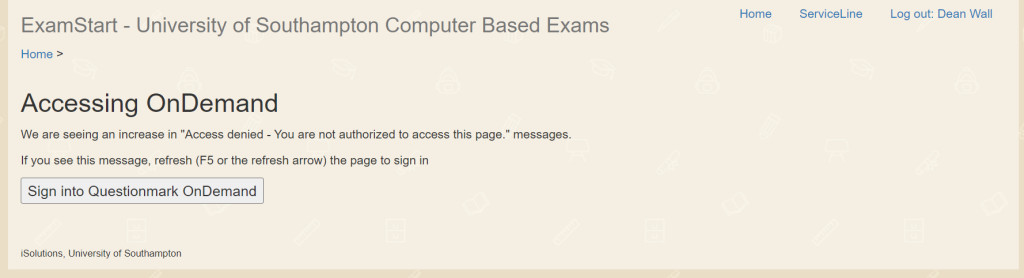
If Questionmark displays its own login page, the transfer from ExamStart has failed. Use your browser’s Back command and activate “Sign into Questionmark OnDemand” again. You may need to repeat this more than once.
Finding your questions
When your account is created, iSolutions will create a course folder for your questions. If requested, this folder may also contain questions imported from previous examinations.
To open the folder:
- Sign in to OnDemand.
- From the main navigation, select “Authoring”.
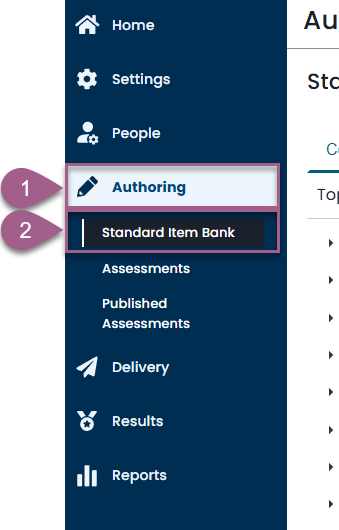
- Select “Standard Item Bank”. This area was previously called “Topics”.
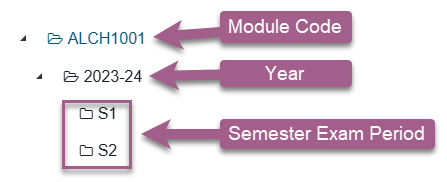
- In the folder tree, expand the folder named with your module code. Then expand the required academic-year folder, such as “2026-27”.
- Select the folder for the relevant semester examination period, such as “S1” or “S2”.
Creating questions in your folder
You can choose from a long list of question types, but the popular ones are listed here.
Multiple choice
Use a multiple-choice question when students must select one correct answer from a list.
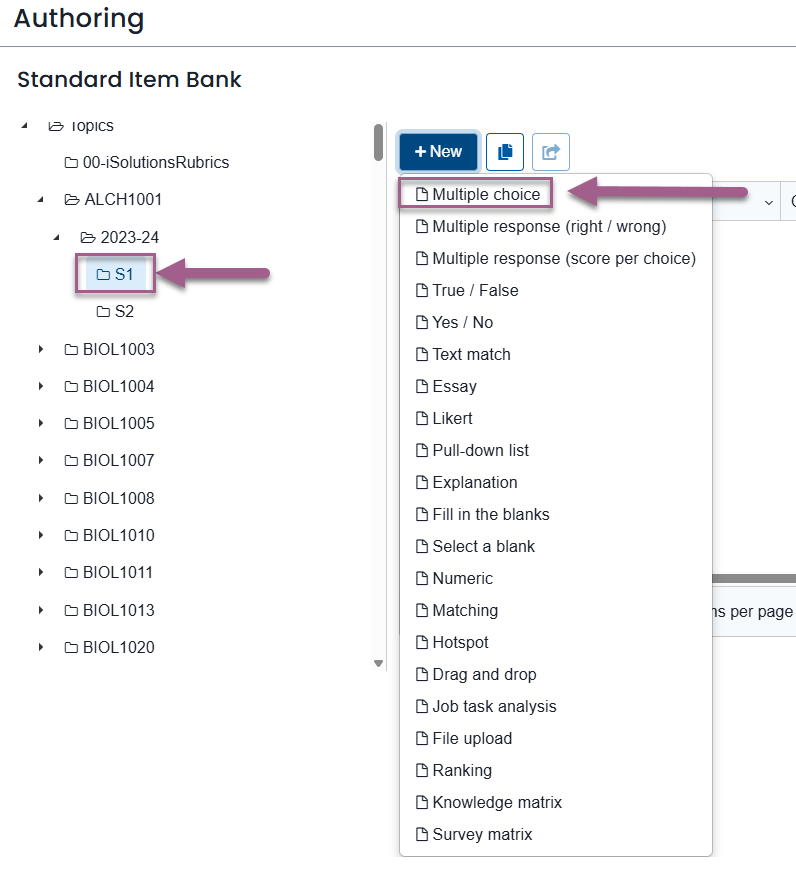
- Open the appropriate course, academic-year, and examination-period folder in “Standard Item Bank”.
- Activate “New” above the item list.
- Select “Multiple choice”.
- Enter the question wording in the question editor.
- Use “Add New Choice” to create each answer choice.
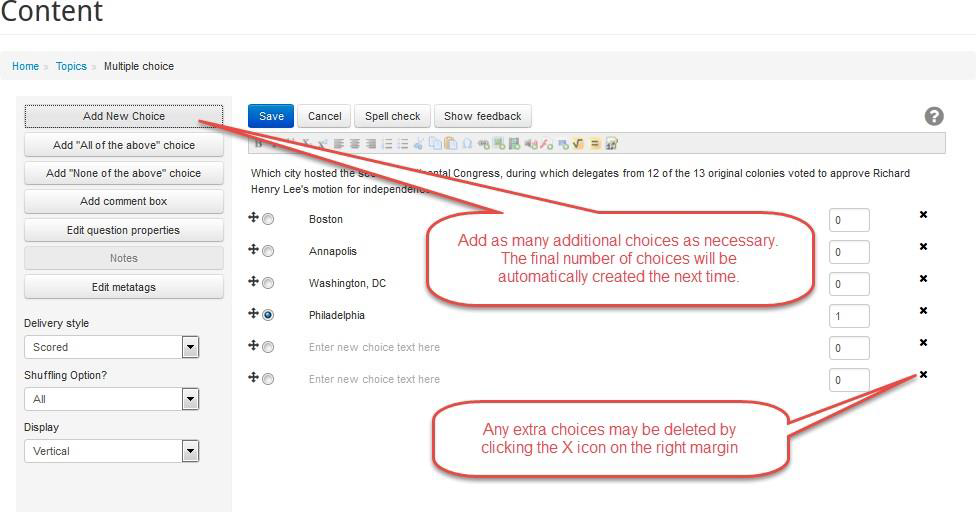
- Enter the text of each choice.
- Select the radio button associated with the correct choice.
- Enter a score for the correct choice. If the question is worth more than one mark, replace the default score with the required value.
- Activate “Save”.
To remove an unused choice, activate the delete control associated with that choice.
OnDemand remembers how many choices remain when you save the question. It uses that number of choices when you create your next multiple-choice question.
If you need an “All of the above” or “None of the above” choice, use the dedicated ‘Add “All of the above”’ choice or ‘Add “None of the above”’ choice control. These special choices remain at the end of the list when answer choices are shuffled.
Multiple response: Choose one or more correct answers from a list of choices
Use a multiple-response question when students may select more than one answer. There are two scoring methods: where the student must pick all correct choices and no incorrect choices for a correct answer, or where each choice has an independent score.
Score the complete response as right or wrong
Use this method when students must select every correct choice and no incorrect choices.
- Open the appropriate folder in “Standard Item Bank”.
- Activate “New”.
- Select “Multiple response (right / wrong)”.
- Enter the question wording.
- Use “Add New Choice” to add the answer choices.
- Enter the text of each choice.
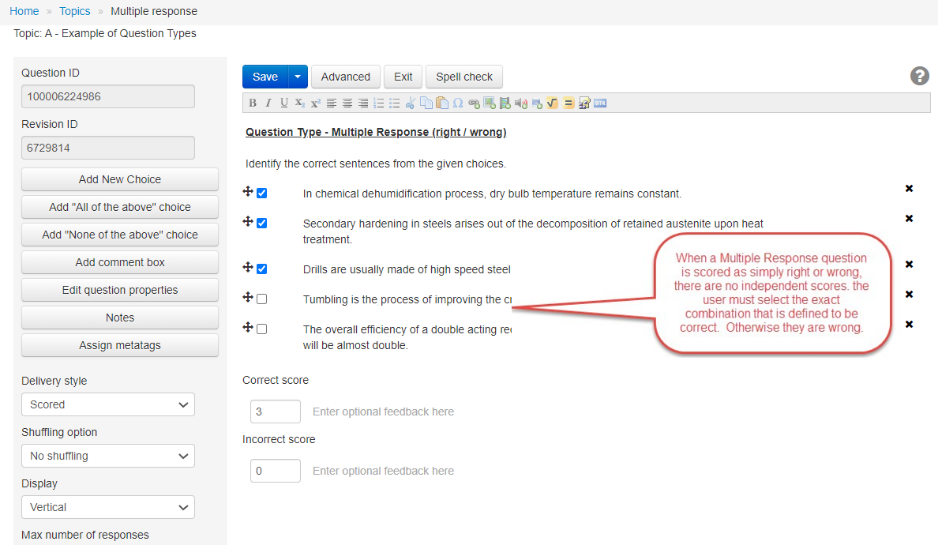
- Select the checkbox associated with every correct choice. Leave the checkboxes for incorrect choices unselected.
- Enter the score awarded for a completely correct response in “Correct score”.
- Enter the score awarded for any other combination in “Incorrect score”. This will normally be zero.
- Activate “Save”.
The scores apply to the student’s complete combination of selected answers. Individual choices do not receive separate scores.
Give each choice an independent score
Use this method when each selected choice should contribute its own positive, zero, or negative score.
- Open the appropriate folder in “Standard Item Bank”.
- Activate “New”.
- Select “Multiple response (score per choice)”.
- Enter the question wording and answer choices.
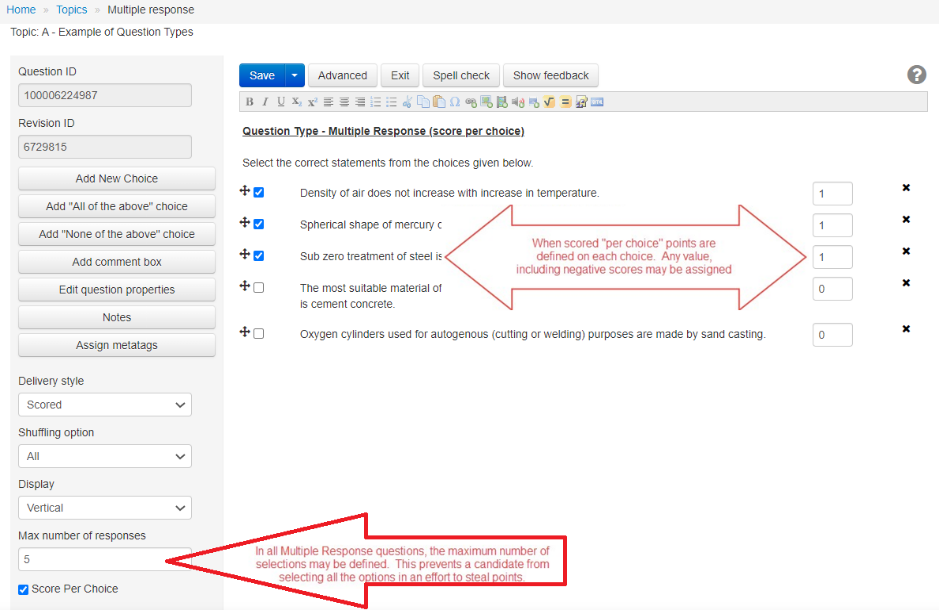
- For each choice, enter the score that selecting that choice should award. You may enter a positive, zero, or negative value.
- Ensure that “Score Per Choice” is selected.
- In “Max number of responses”, enter the greatest number of choices a student may select. This can prevent students from selecting every option to collect positive marks.
- Activate “Save”.
Pull down question
Use a pull-down-list question when students must select the correct option for one or more statements.
- Open the appropriate folder in “Standard Item Bank”.
- Activate “New”.
- Select “Pull-down list”.
- Enter the question instructions.
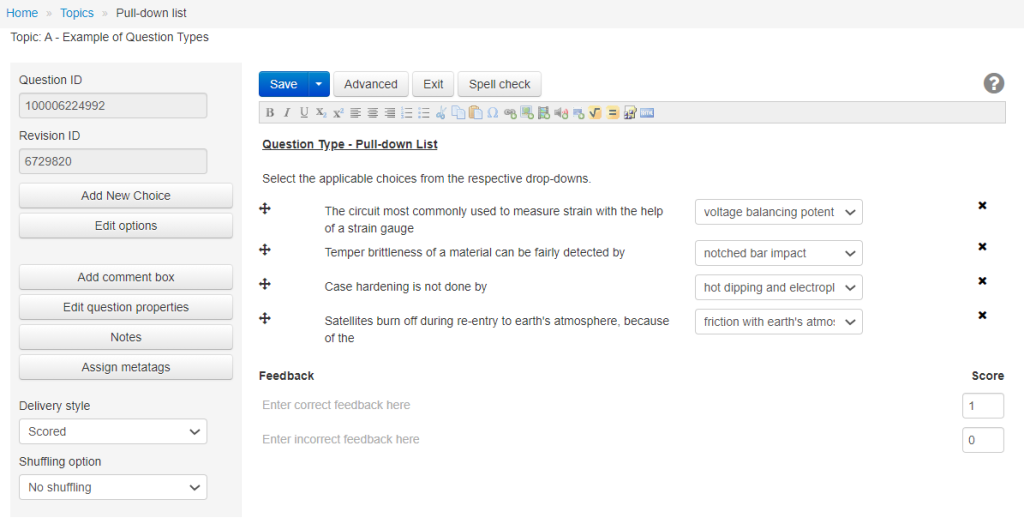
- Activate “Edit options”.
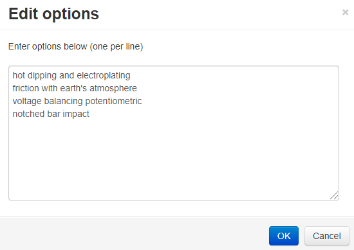
- In the “Edit options” dialog, enter the available answers. Put each answer on a separate line.
- Activate “OK” to close the dialog.
- Add each statement or prompt required by the question.
- For each statement, select its correct answer from the associated pull-down list.
- Set the correct and incorrect scores if required.
- Activate “Save”.
Essay questions
iSolutions does not recommend using OnDemand for essay questions
Ask serviceline@soton.ac.uk about adding a Word element to your exam. More information can be found in guidance on using Word during an exam.
Creating a rubric
Exams should have a rubric page at the start of the exam. They consist of some mandatory iSolutions text and your instructions to students.
You should create your instructions by creating an Explanation question and putting it in the Rubric folder. The rubric folder is typically in your course folder, but not inside the year folders.
Making, scheduling, and publishing your exam
Assessments are in the “Authoring” menu. Staff cannot and should not create their own assessments. iSolutions will create your assessment when you have finished writing your questions. They will make sure that:
- All the questions in your Standard Item Bank folder are delivered to students
- Questions appear in a random order
- Feedback and scores are not shown to students
- A rubric block is available with the mandatory text and your instructions and the submit button says “Start Exam”
You should specifically ask if:
- You want questions to appear in more than one “block” (a block is a set of questions that students cannot return to once submitted)
- You would like questions to appear with a digital formula sheet, scenario, or other text permanently on the left-hand side of every question
- Instructions are required at the end of the exam
- Word (or another application) should be made available after the exam
During the scheduling process, you will receive emails from Examstart explaining what steps have been taken and what the next steps are.
Viewing your exam
Once your assessment is created, you can use the “Print for review” button to print a copy of the questions with all their answers and score options. You can also use the “Try Out” button to try the exam in your browser.

You are not able to edit the assessment. Clicking on an assessment will show a nondescript error message.