
We reviewed maths lecture recordings and visited Common Learning Spaces (CLS). These six checks address barriers that students told us about. You can complete most of them quickly at the lectern.
The tiny whiteboard
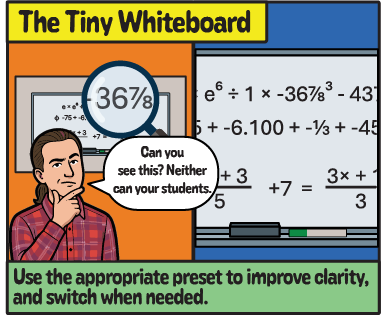
A CLS Camera Control is a saved camera view. The widest camera preset takes in the whole room. Students watching on a laptop or a phone cannot read it.
- Open CLS Camera Control, located on the desktop of the lectern PC.
- Choose the preset that frames the board you are using.
- Switch presets when you move to another board.
- For more information read loading the camera control.
The camera obstruction
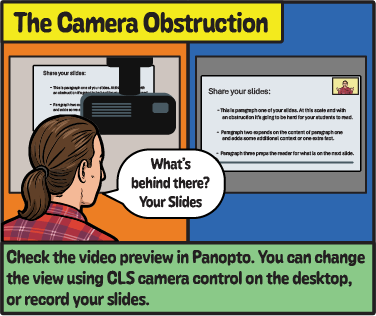
Some CLS Camera Control presets point the camera through a theatre lighting rig or the projector housing. The hardware then appears in front of your slides and your board. You cannot spot this from where you stand. It shows up only in the recording.
- Check the video preview in Panopto before you select Record.
- If equipment blocks the view, select a different camera view in CLS Camera Control.
- Record your slides as a separate source if you cannot get a clear camera view.
- Read the guide on loading the camera control.
The floating iPad
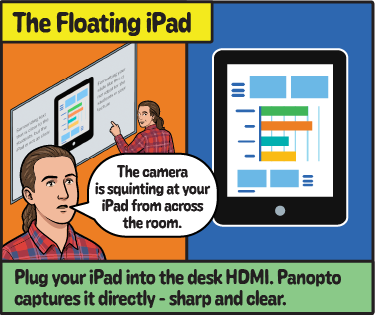
Wherever possible, when using a tablet to present, record directly from the tablet screen rather than putting your tablet under a visualiser.
- Plug your tablet into the HDMI cable on the desk.
- Check that Panopto is recording the tablet screen directly.
- Check the room equipment guides to find out what your teaching room provides.
- Learn what cables are available in which CLS rooms.
The incredible shrinking notes
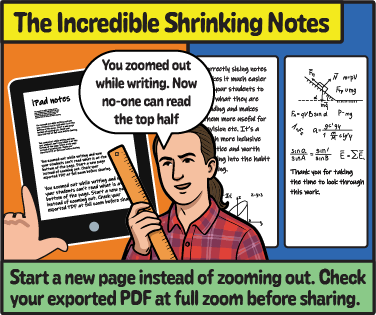
When using a tablet, writing apps match the text size to the zoom level. If you zoom out to fit more on the page, your writing shrinks. You may not notice this until you see the PDF result.
- Start a new page instead of zooming out.
- Check the exported PDF at 100 per cent zoom before you share it.
- Check that you can still read the whole document.
- Share the PDF alongside the recording so students can enlarge the notes.
- Learn what cables are available in which CLS rooms.
Talking to the board
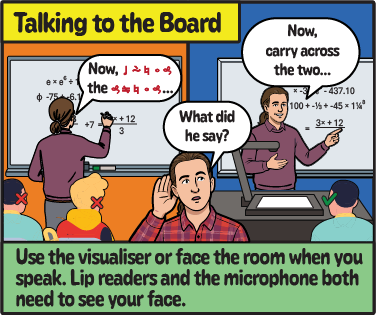
When you turn towards the board, the lectern microphone picks up less of your voice. The recording may become difficult to hear. Facing the room can also help students who lip-read or rely on visual cues.
- Face the room when you explain.
- Use the visualiser so you can write whilst facing your audience. The visualiser is the desk camera that points down at your paper.
- Wear the lapel microphone if the room has one.
The Blackboard trap
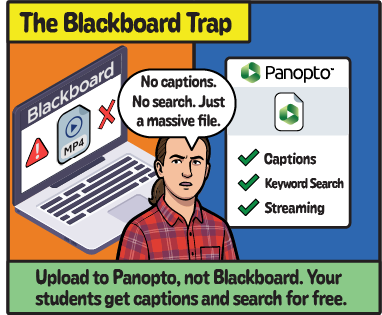
If you upload a video file directly to Blackboard, students do not get captions or a searchable transcript. The video may not stream, so students with a slow connection may have to download the whole file before they can watch it. Captions, transcripts and streaming can help many students access the recording.
- Upload the video file to Panopto instead of adding it directly to Blackboard.
- Review and correct the captions before you share the recording.
- Follow how to upload a video to Panopto.
Tell us when a room fails you
Tell us if a room stops you from making a clear, usable recording.