Staff news: This article will contain a summary of useful updates you may see in your Blackboard Ultra courses in October 2026.
Search for anonymously marked assignments by submission receipt
You can now search by submission receipt number in the gradebook to locate submissions for anonymously marked assignments.
To protect student anonymity before marks are posted, submission receipt information is not displayed in the Mark Details panel. You can locate a submission by entering the receipt number in the gradebook search bar. A matching result appears in a dropdown. Select the result to open the Anonymous File Submission Receipt.
The receipt displays the assessment name, receipt number, attempts, file size, and submitted date. If a mark has been entered, the mark displays. Select Mark to open the submission in Flexible Grading.
Reveal student identity for anonymous assessments
Module and System Administrators can now temporarily reveal a student’s identity for a specific submission on an anonymously marked assessment. Anonymity remains the default. Every action is logged, providing a clear audit trail.
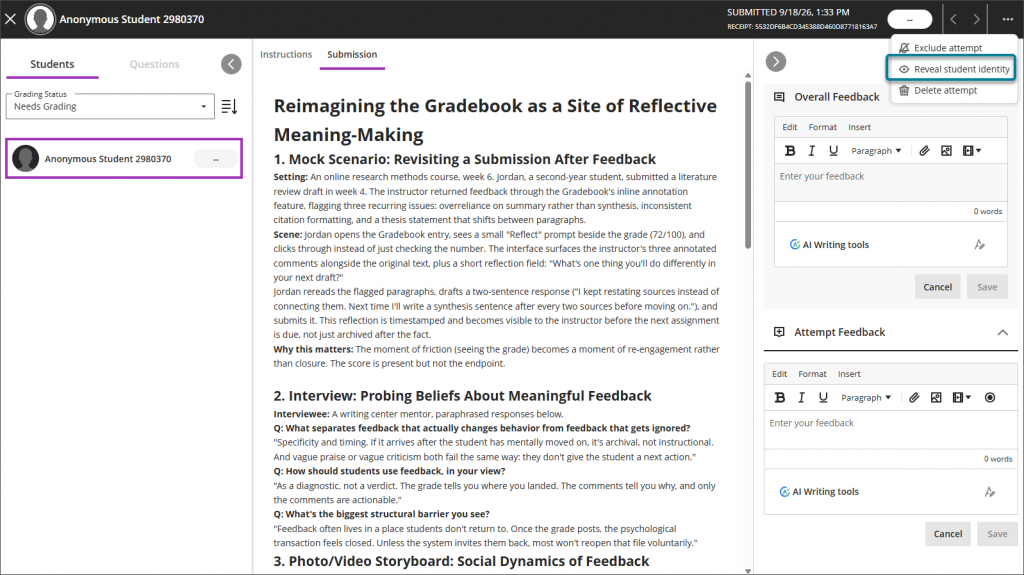
Revealed identities are per user and per session. A student’s identity is automatically re-anonymised if the user logs out, closes the browser, times out, or refreshes the page.
View exception indicators in the gradebook grid view
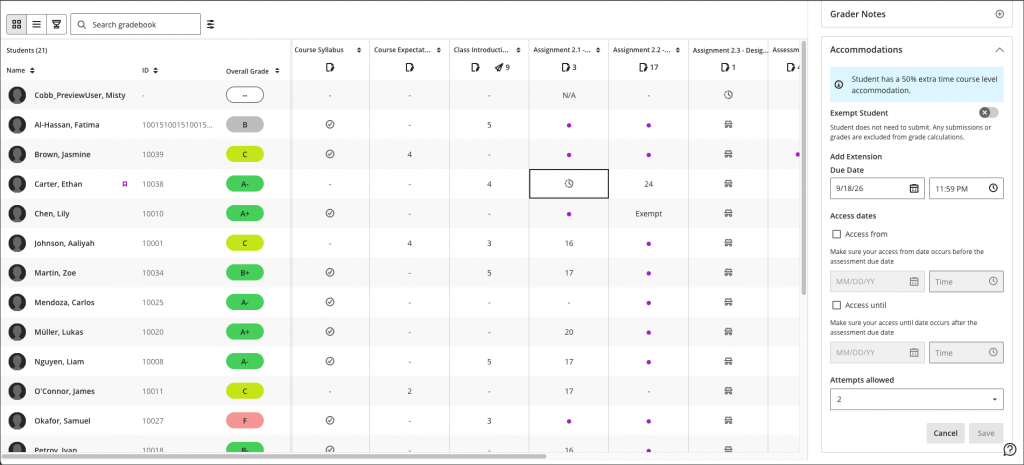
You can now identify at a glance when a student has an exception on a gradable item directly from the gradebook grid view.
A clock icon now displays in a student’s cell when they have an exception on a gradable item. Exceptions include differences in due date, access dates, or attempts allowed. The clock icon displays from the time the exception is set until the item is marked.
To view or manage the exception details, select the cell to open the Mark Details panel, then navigate to the Accommodation section.
Display username and last access date in the gradebook grid view
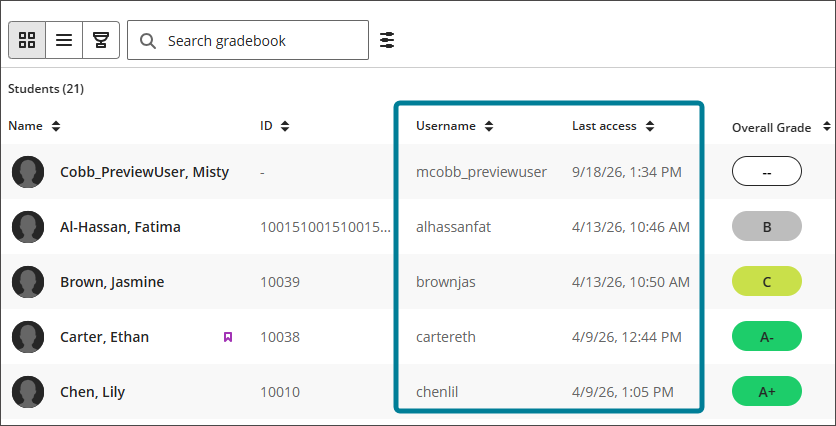
You can now display username and last access date as optional columns in the gradebook grid view.
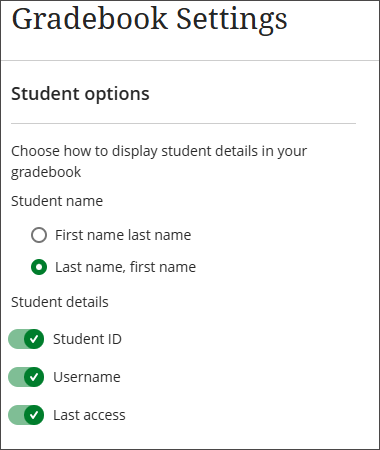
Two new toggles are available in the Student options section of the Gradebook Settings panel.
Both toggles are off by default.
When enabled, each toggle displays a sortable column to the right of the name column in the grid view:
Display points possible in the gradebook list view
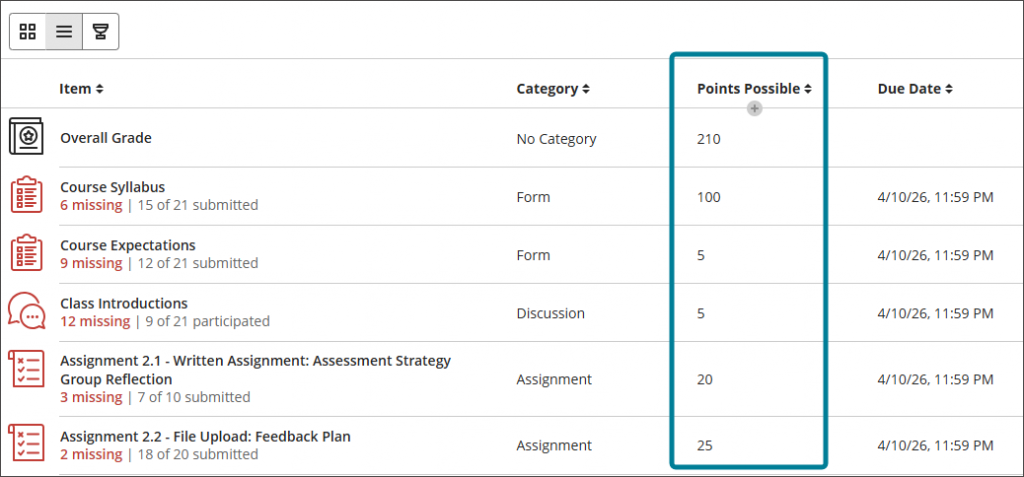
Points possible is now displayed as a sortable column in the gradebook list view, giving you an at-a-glance view of point values for each gradable item.
Lock an AI Conversation to a specific language
You can now set the language an AI Conversation is conducted in. When a language is enforced, the AI responds in that language for the entire conversation and will not switch, even if a student asks it to.
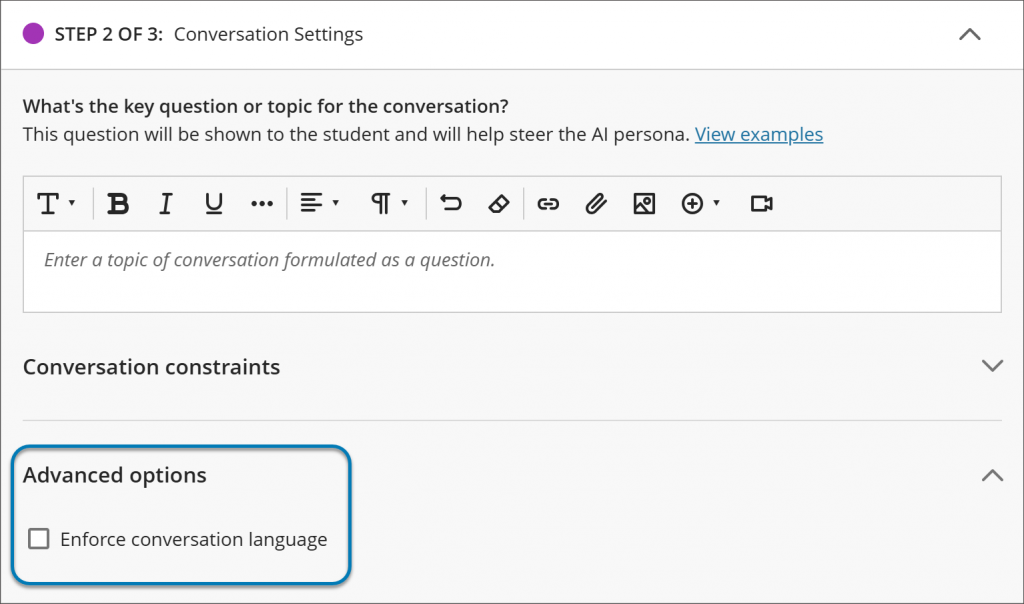
When creating or editing an AI Conversation, open Advanced options and select the language to enforce. The setting applies to the whole conversation, including the AI’s opening message, its questions, its responses to the student, and the closing summary.
New Course Rubrics Page; export and import rubrics
The Course Rubrics page is a dedicated page for managing all rubrics in a course. To access it, select Manage Course Rubrics in the Course Rubrics section of Gradebook Settings.
The Course Rubrics page displays all rubrics in the course in a sortable, searchable table. You can filter rubrics by type and use the ellipsis menu on any rubric to access additional options. Options to Create, Generate, Import, and Export rubrics are also available from the page.
From the Course Rubrics page, you can export and import rubrics. This makes it easier to reuse rubrics across courses.
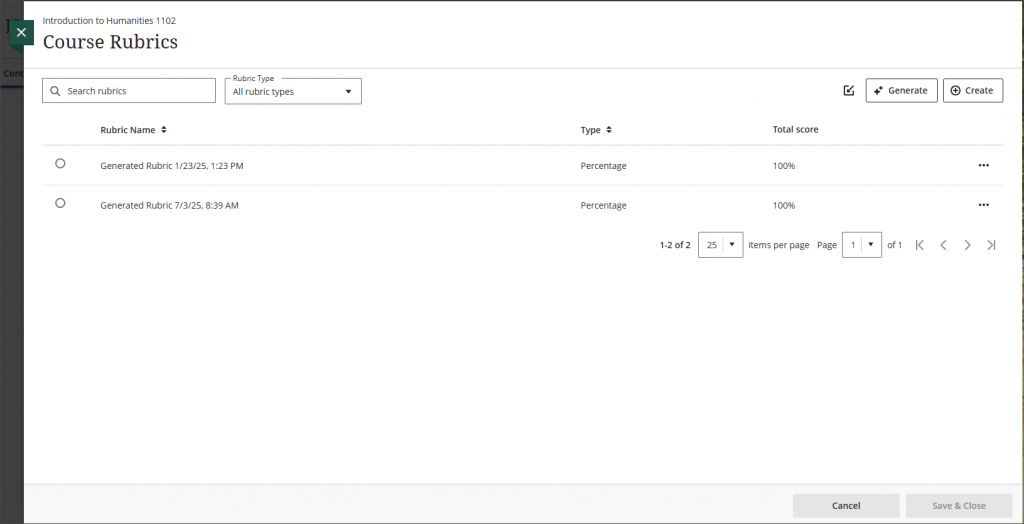
You can access the Course Rubrics page in two ways:
- From Gradebook Settings, select Manage Course Rubrics in the Course Rubrics section.
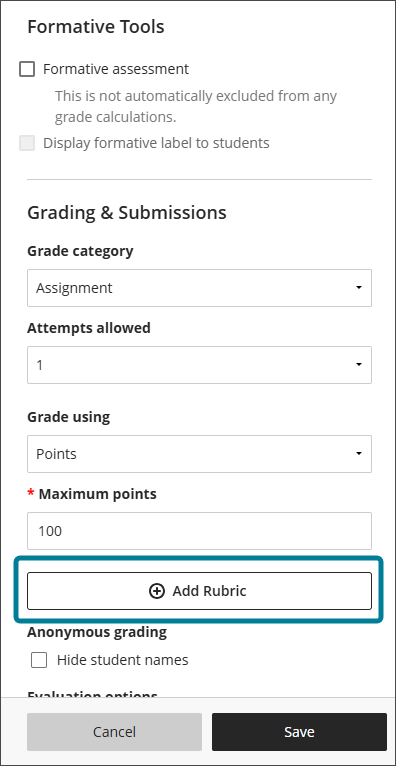
- From Assignment Settings, select Add Rubric in the Grading & Submissions section.