Staff Guide: Known issue around the changing of annotations using the Text function in Blackboard Gradebook for marking student submissions.
Overview of the Issue
We are aware of an issue affecting online marking in Blackboard Assignments where marking using the Text Annotation Tool (T icon) is not retaining it’s size, moving from the original location and the text is sometimes cut off due to this. This behaviour is inconsistent across courses in Blackboard.

Blackboard are aware of the issue and are working on fixing it.
Recommended Workaround
Option 1: Annotate
If using the Annotate Tool, use a font of size 18 which should prevent the modification of the font size.
Option 2: Comment
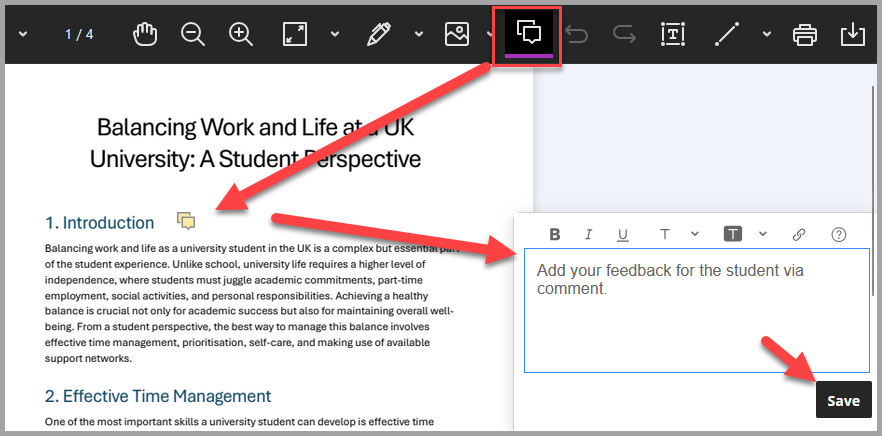
Alternatively, select the Comment button.
Select the area in the student submission on which you wish to provide feedback.
When the comment text box open, write your feedback.
Select Save to add the feedback to the student.
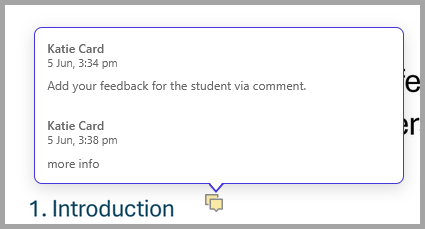
To view or edit the comment, select the comment icon within the submission once to view the comment, then select comment options (…) to edit or delete the comment.
Select the comment box twice, opens a text box below the original comment to add a second comment.
Students will see the comment icon and can select it to view feedback on specific areas of their submission with the name of the marker.