
Staff guide: How to create, attach and mark assessments using rubrics in Blackboard.
A rubric is a scoring tool you can use to assess student work consistently and transparently. Rubrics can be associated with Blackboard Assignments, Discussions and Journals, allowing students to view assessment criteria before submission and supporting efficient marking and feedback. Please note that you can currently attach only one rubric per item.
Types of rubric
Rubrics can be divided into two categories, qualitative rubrics (no points) and calculated rubrics (percentage, percentage range, points and points range).
Summary
- Percentage: fixed percentage values.
- Percentage Range: selectable percentage values within a range.
- Points: fixed point values.
- Points Range: selectable point values within a range.
- No Points: qualitative feedback without score calculation.
Calculated Rubrics
Percentage
In a percentage rubric, each criterion is assigned a percentage weighting and each performance level is assigned a fixed percentage value (e.g. 100%, 75%, 50% etc.). Criteria can therefore be weighted differently, but markers can only select the predefined percentage values associated with each performance level. Blackboard uses the criterion weightings and selected performance levels to calculate the overall grade automatically.
You can think of a percentage rubric as a set of grade bands with fixed percentage values.
Percentage Range
In a percentage range rubric, each criterion is assigned a percentage weighting and each performance level is assigned a percentage range (for example, 30-39%, 40-49%, or 50-59%). The marker then selects a percentage within the chosen range to represent the grade awarded for that criterion. Blackboard calculates the final score using the criterion weightings and the selected percentages. In essence, the rubric defines the grade bands, while the marker can choose the exact percentage within each band.
Points
In a points-based rubric, each performance level is assigned a fixed point value. These point values determine the score awarded for each criterion and the maximum points available for that criterion. Blackboard adds the points awarded across all criteria to calculate the final score. Unlike percentage rubrics, points-based rubrics use a bespoke points system rather than percentage weightings. In summary, a points rubric uses fixed numerical scores rather than percentages. Each level is worth a set number of marks.
Points range
In a points range rubric, each performance level is assigned a range of point values. The marker then selects a point value within the chosen range to represent the grade awarded for that criterion. Blackboard calculates the final score by totalling the points awarded across all criteria. Unlike percentage-range rubrics, points-range rubrics use a bespoke points-based scoring system rather than percentages. In essence, the rubric defines the scoring bands, while the marker can choose the exact point value within each band.
Qualitative rubrics
No points
In a no points rubric, the marker selects the descriptors that best reflect the student’s work, but no numerical scores are associated with the criteria or performance levels. Blackboard therefore does not calculate a grade. Instead, no points rubrics allow instructors to evaluate student work qualitatively using defined criteria and feedback rather than numerical values. In essence, a no-points rubric focuses on structured feedback rather than score calculation and most closely resembles a paper-based rubric.
Create a rubric
Rubrics are saved at a course level and can be associated with any marked Assignment, Journal or Discussion.
Open the rubric tool
Option A: Gradebook

- Locate the Gradebook on the upper tool bar in your Blackboard course.
- Select the Gradebook settings menu via the cog in the top right corner.
- Navigate to the bottom of the menu, to the Course Rubrics section. Select Manage course rubrics.
- From the Course Rubrics page select Create (alternatively, select Generate to use Blackboard’s AI Design Assistant to draft a rubric).
Option B: Assignment settings
- Open the assignment, discussion or journal.
- Select the Settings menu (cog icon) in the top right corner.
- For a discussion or journal, enable marking under Details & Information.
- Navigate to the Marking & Submissions section (or the equivalent Marking and Participation section in discussions or Participation and Marking section in journals) and select Add rubric.
- From the Course rubrics page, select Create. (Alternatively, select Generate to use Blackboard’s AI Design Assistant to draft a rubric)
Configure the rubric
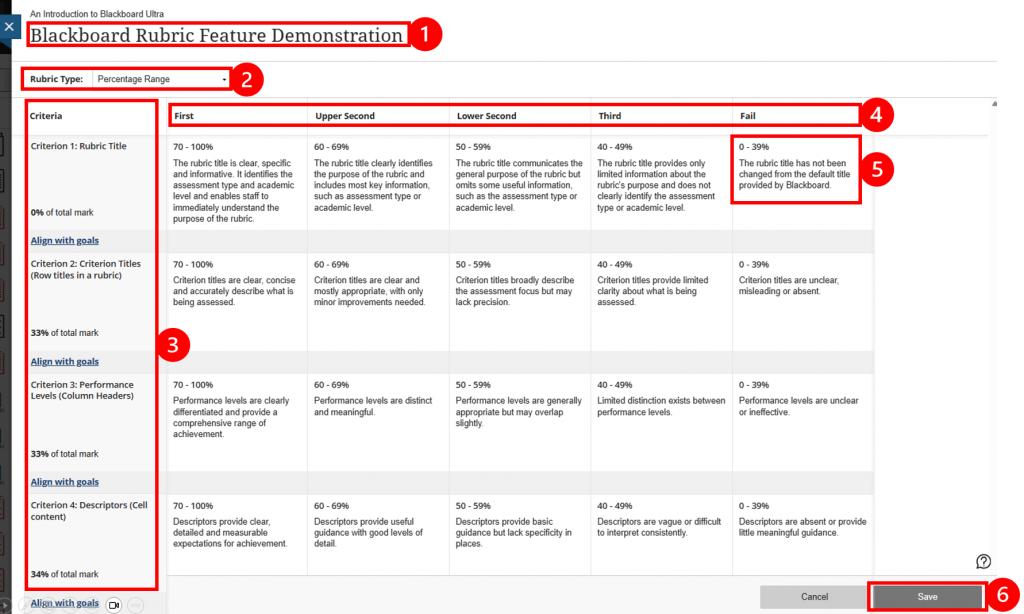
The image above highlights six key features of a Blackboard rubric.
- Rubric title
- Rubric type drop-down menu
- Criteria (row headers)
- Performance levels (column headers)
- Example of a descriptor
- Save
- By default, a rubric is named ‘New Rubric’ followed by the date it was created. To rename the rubric, select the title in the top-left corner and enter a meaningful title. Rubric titles can be up to 225 characters long.
- Select a rubric type from the drop-down menu below the title. The rubric types are described in more detail above. Your available options are:
- Percentage
- Percentage range
- Points
- Points range
- To add a criterion (row) or performance level (column) hover over or tab to the grid line between row or columns headers and select the purple ‘+’ icon.
- To delete a criterion (row) or performance level (column), select the row or column header and then select the delete button (dustbin icon).
- To edit a criterion (row) header, select the cell in the first column and then select the edit button (pencil icon). Enter the required text in the text box provided. Criterion headers can contain up to 1000 characters.
- In calculated rubrics, you can specify how much each criterion contributes to the overall mark (its weighting). The weightings for all criteria must total 100%. If they do not, the message ‘The criteria total percentage must equal 100%’ is displayed and the rubric cannot be saved. To distribute the weighting evenly across all criteria, select Balance Criteria.
- To edit a performance level (column), select in the first row of the column and then select the edit button (pencil icon). Performance level headers can contain up to 40 characters.
- To edit a descriptor, select the descriptor’s cell and then select the edit button (pencil icon). Descriptors can contain up to 1000 characters.
- In calculated rubric types, you can edit the points or percentage values assigned to each performance level using the edit button (pencil icon).
- Ignore the ‘Align with goals’ links displayed in the Criteria column. This Blackboard feature is not used at the University of Southampton.
- To save the rubric, select Save in the bottom-right corner of the rubric window.
Attach a rubric

A rubric can be attached to any Assignment, marked Discussion or marked Journal activity in a Blackboard course.
- Open the Assignment, Discussion or Journal.
- Select the Settings menu (cog icon) in the top-right corner.
- For a Discussion or Journal, enable Marking under Details & Information.
- Navigate to the Marking & Submissions section (or the equivalent Marking and Participation section in discussions or Participation and Marking section in journals) and select Add rubric.
- The Course Rubrics page lists all rubrics available in the course. You can search for rubrics by title or filter by rubric type. Locate the required rubric and select the circle to the left of the rubric name. The selected rubric’s circle will be highlighted in green. Select Save & Close.
- To remove a rubric, return to the Marking & Submissions section (or Marking and Participation in Discussions, or Participation and Marking in Journals). The attached rubric will be displayed as a hyperlink. Select Delete (dustbin icon) to the right of the rubric name.
Copying a Blackboard rubric
Once a rubric has been created in Blackboard, it can be copied between courses and reused, removing the need to recreate it for each course. There are two methods you can use to copy Blackboard rubrics.
Copy Content
To copy a rubric, you must have appropriate permissions in both the source and destination courses. In the destination course, you will need a role with editing permissions, such as Instructor, Teaching Assistant, Module Admin or Course Builder. In the source course, you will need a role that allows you to copy content, such as Instructor, Teaching Assistant or Course Content Collaborator.
- In the Course Content, select the Add Content icon (+).
- Select Copy Content.
- Search for the course you are copying from.
- Select the course title to show the list of course items to copy.
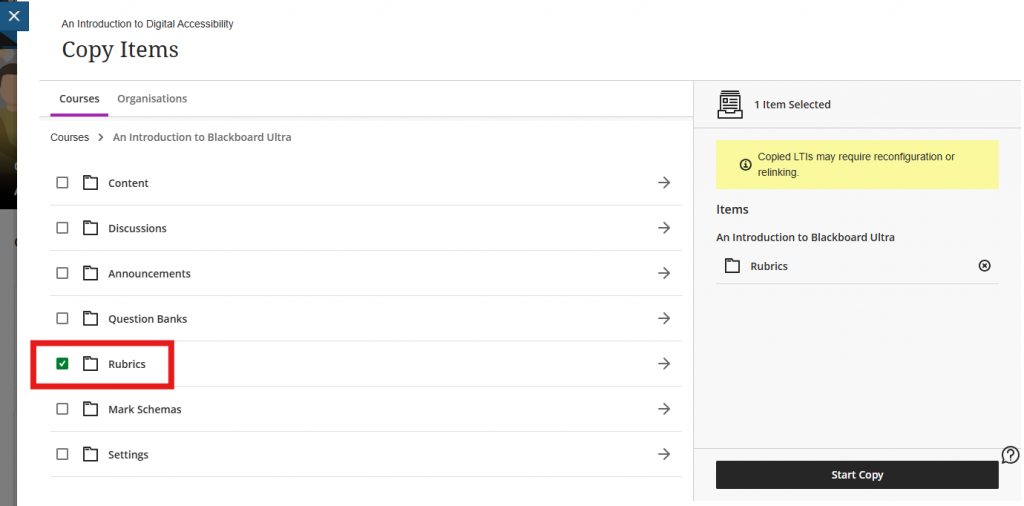
- Select the category Rubrics. Select the checkbox to the right of the Rubrics title to select all the rubrics if appropriate. If not, select the Rubrics title to enter the Rubrics folder.
- Select the relevant rubric(s) using the checkboxes provided.
- Select Start Copy.
- When the copy is complete, the rubrics will appear in the Course Rubrics list in Gradebook. Like any course rubric, they can be edited and attached to Assignments, Discussions and Journals. Changes made to the copied rubric do not affect the original rubric in the source course.
Exporting and importing rubrics
Blackboard rubrics can also be exported from one course as a ZIP file and imported into another course. Please note that only Blackboard-created rubrics can be imported using this method.
To export a rubric
- Locate the Course Rubrics page. One way to access this page is through the Gradebook. Open the Gradebook, select the Settings menu (cog icon) in the top-right corner, and then navigate to the Course Rubrics section at the bottom of the settings panel. Select Manage course rubrics.
- Locate the rubric you wish to export and select the three-dot menu (…) to the right of the rubric.
- Select Export.
- A ZIP file containing the rubric will be downloaded to your computer.
To import a rubric
- Locate the Course Rubrics page in the destination course.
- Select Import.
- Browse to and select the ZIP file containing the rubric, then select Open.
- The rubric will be processed and added to the course’s rubric list, where it can be edited or attached to assessments as required.

Marking with a rubric
- Open the Gradebook. Select To Do to view marking that has been assigned to you and is awaiting completion.
- Select an assignment to enter the marking interface.
- In the right-hand panel, expand Marking Rubric using the chevron icon. This opens the rubric in a stacked view alongside the student submission.
- Alternatively, select the expand icon to open the rubric in grid view in a separate movable window.
- Use the Show descriptions toggle to show or hide the rubric descriptors.
- To mark a submission, select the appropriate performance level for each criterion.
- For percentage and points rubrics, the rubric score updates as you select performance levels.
- For percentage or points ranged rubrics, each performance level has a range of values. Enter the score you wish to award for the criterion in the grade pill. Blackboard then calculates the overall score automatically.
- You can change a selected performance level at any time before posting the mark.
- Use the arrow icons to expand or collapse criteria.
- You can provide written feedback at criterion, attempt and overall level. For more information about marking and feedback see the Getting started with Marking eLearn guide.
- You can override the calculated rubric score by entering a new value in the rubric score pill, or by selecting Override final mark from the ellipsis menu in the top right corner of the marking window.
- Students can see when a rubric score has been overridden. Where possible, explain the reason for the change within the feedback.
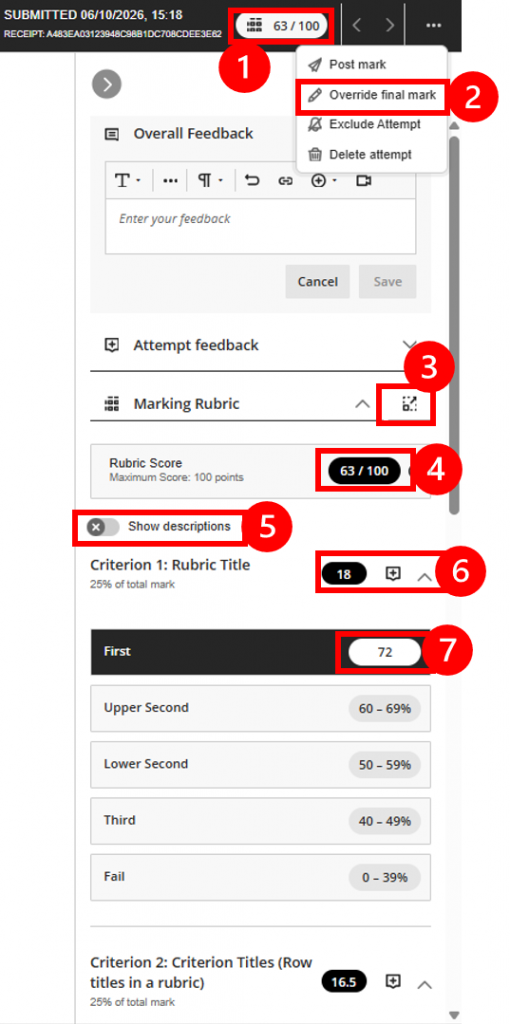
The image above highlights seven key aspects of the stacked view of a Blackboard rubric as shown in the marking interface:
- The overall grade calculated using the percentage-range rubric, shown as 63/100.
- The Override final mark option within the More actions menu (three dots icon).
- The Expand rubric icon which presents a grid view of the rubric in a separate window.
- The overall Rubric Score, shown as 63/100 (the rubric score can be used to manually override a calculated score, this is then mirrored in the overall grade).
- The Show descriptions toggle, displayed in the off position.
- A criterion score showing the weighted score for the criterion, alongside the criterion-level feedback icon.
- Criterion 1 with a selected performance level and an individual score of 72 entered for that criterion.