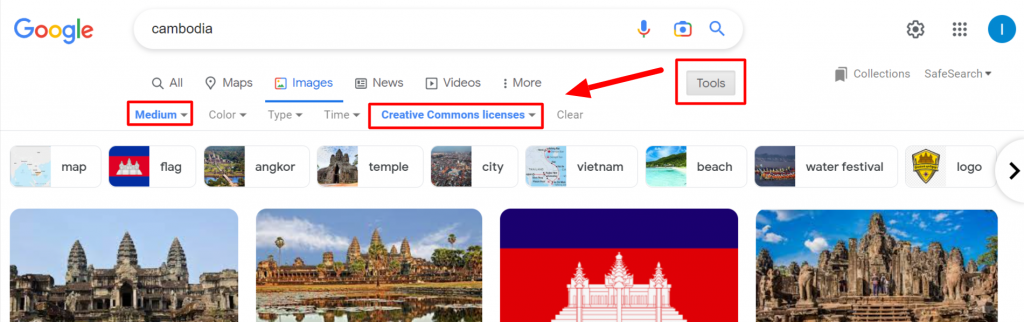
Staff Guide: A course banner image will give your course page an identity and help students to locate the course in their Courses view.
The Course Image
- The course banner appears at the top of the Course Content page.
- A thumbnail of the course image also appears in the grid view of your Courses list.
- The course image will crop and resize on different devices.
- The Course title is displayed in the banner, so avoid images with additional text.
- If a course doesn’t have a selected banner, a placeholder image will appear at the top.
Edit your Course Image
It’s easy to add a stock or uploaded image to your course Banner.
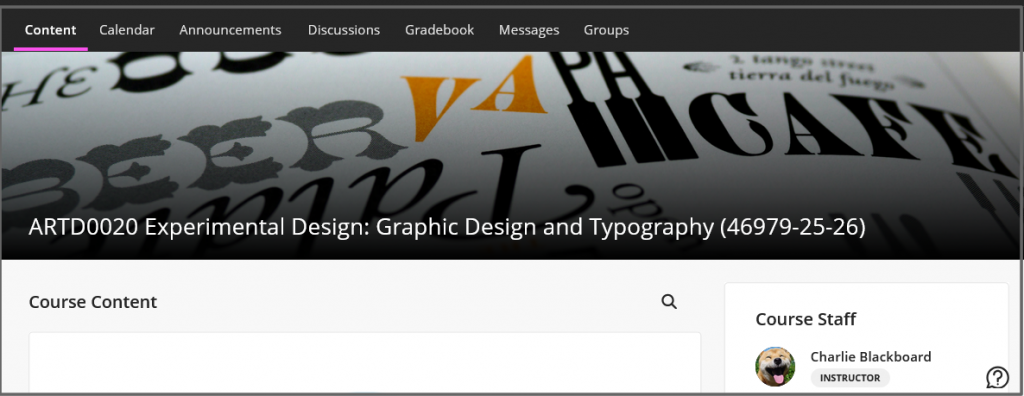
- Go to the Details and Actions menu of your course page and select Course Image/Edit display settings.
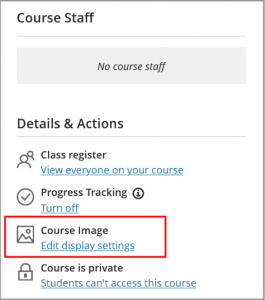
- Select the Course Image button.
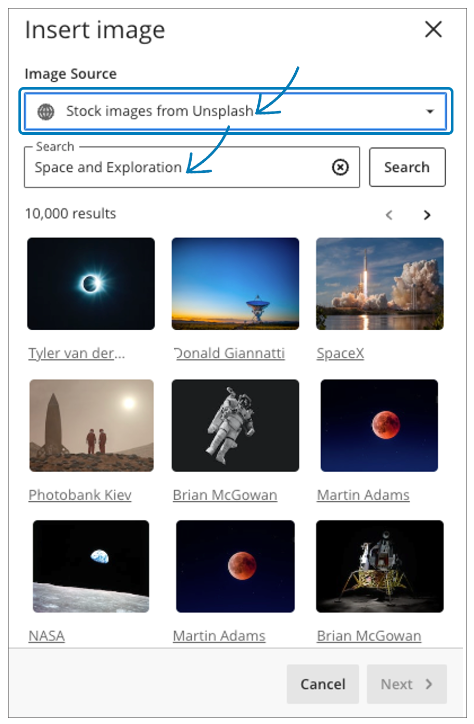
- Search for a stock image from Unsplash, or upload from your device.
- Mark the image as decorative.
- Ensure the Course Banner is on.
- Save.
Troubleshooting
- If you see the error message “Image is too small. Select an image 1200 x 240 pixels or larger”, you will need to source a larger image. See the search settings below for examples of how to search for images by size.
- If the banner image does not appear at the top of the course content page, check the course banner display settings. Toggle the course banner to on.
Tips for choosing a course banner image
Licence
Always use an image from a source that can guarantee you are not infringing copyright or the image licence agreement. Many sites allow you to search for images with the licence CCO (in the public domain with no attribution required). See the suggestions below for where and how to search for a suitable image.
Subject
- An abstract image or one with a focus at the centre would work better for a course banner, due to cropping variability.
- Avoid images with brand names or photos of identifiable people (unless from a stock image source).
- Avoid using text as this may not scale or crop well.
Image size
- The minimum recommended size for the banner image is: 1200 x 240 pixels.
- Any image will be cropped and scaled by Blackboard when you upload it, but if the image is less than the minimum recommended size (in pixels) you will see an error message and will need to source a larger image.
- See below for tips on how to find an image of the correct size.
Using an image from the web: recommended sites
The following sites allow you to search for quality images that are free to use without attribution. Choose free, non-sponsored, images.
- Unsplash: the Unsplash library is built into Blackboard, making it simple to add stock images to your course.
Search settings
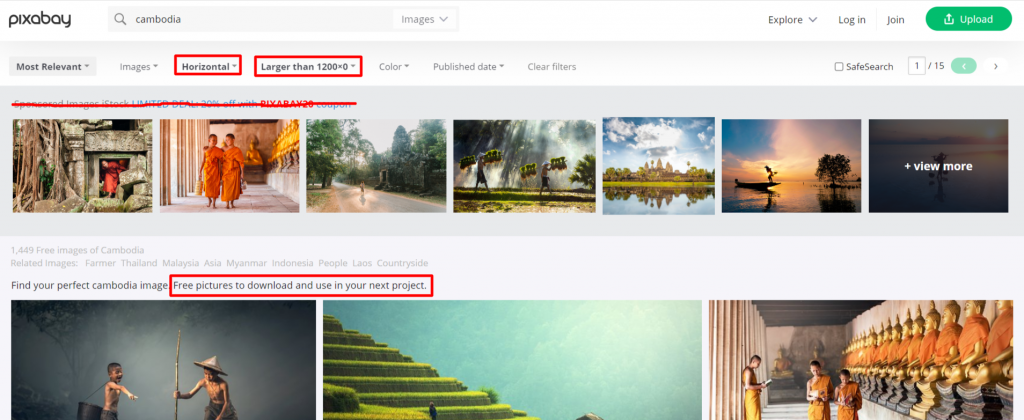
Pixabay
You can set to search by:
- Orientation = Horizontal
- Size = larger than width 1200
Select download size of 1280 x 686.
Google Image Search
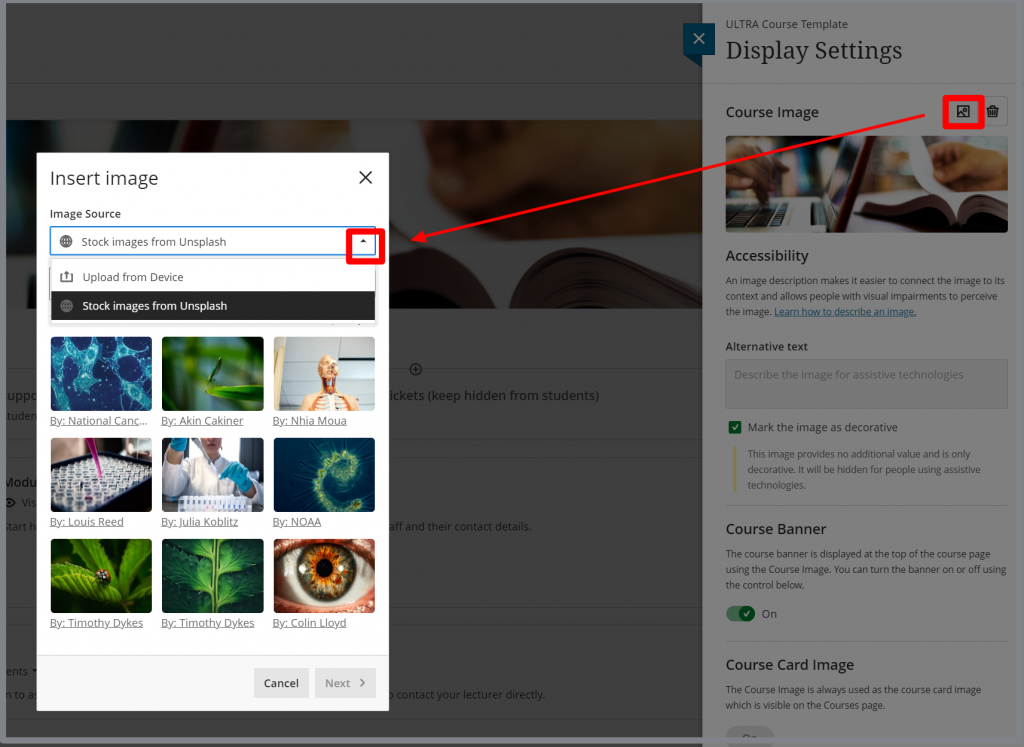
- Select Tools.
- Select Size = medium or large.
- Select Usage rights = Creative Commons.
- When you find an image, select the Visit option and go to the source webpage for the image and save or download the full-sized image. Do not save the Google thumbnail as it will be too small.
- Always check the image licence as Google do not guarantee accurate usage rights from their filters.