
It is no longer possible to turn off all email notifications from Blackboard, or manage these on a course-by-course basis.
You may select either:
- Email me straight away – all notifications that you have selected, will be emailed to you within 30 mins.
- Email me once a day – all notifications that you have selected, will be collated and emailed to you in one email around 5pm daily.
- Related: elearn guide on updating your Blackboard notifications
- Related: elearn guide on adding an announcement (for instructors)
I do not want to receive emails from Blackboard
We have raised this as a feature request to Blackboard and hope that more flexibility will be provided in the future. In the meantime, we recommend that you set you notification preference to “Email me once a day” and then create a rule in outlook to remove these emails from your inbox.
Create an outlook rule
Create a new folder
Create a new folder to forward your notification emails to:
- Right-click on Inbox or the top-level folder where you would like to add the sub folder
- Select “New Folder”
- Give the folder a name, such as “Blackboard”
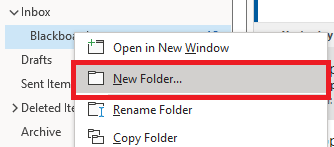
For more info, see the Microsoft guide: Create folder in Outlook
Create a rule
Now, create a rule to auto forward the emails from Blackboard to this folder:
- Find an email from Blackboard called “Daily Notifications”
- Right-click and select “Rules” then “Create Rule…”
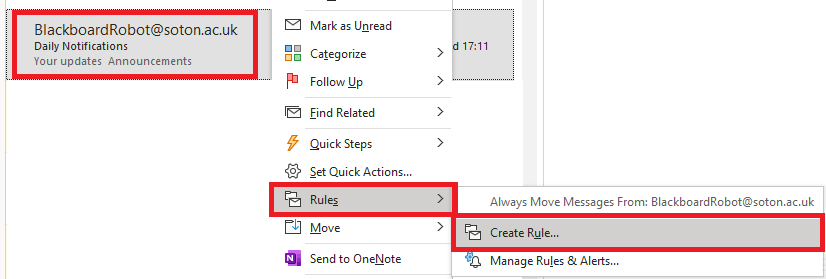
- Ensure the following are selected:
- From BlackboardRobot@soton.ac.uk
- Subject contains Daily Notifications
- Move the item to folder: “Blackboard” (or other folder of your choice)
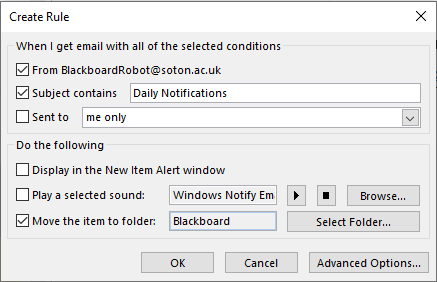
- Select OK
- To move all emails already in your inbox, select “Run this rule now on messages already in current folder”
For more info, see the Microsoft guide Use inbox rules in Outlook
Check your Blackboard folder, email inbox and course announcement areas regularly
You may want to set up a recurring reminder or task so that you check this folder regularly.
It is vitally important to check this folder regularly so you do not miss anything which may be important or time-sensitive, especially during exam periods and when you have an assessment deadline.
I’ve removed/deleted my emails from Blackboard and I think have missed something. Where else can I find important communications?
- Double-check your inbox and other folders for emails. These may not come from Blackboard directly, and may have been sent from your school office or course instructor.
- Check your deleted items or spam folder.
- Check your the announcements pages of the courses you are enrolled on.
- Check your activity stream.