1. Home
  2. Staff guides
  3. Latest News
  4. Blackboard Ultra Updates – May 2026
  1. Home
  2. Staff guides
  3. Blackboard Ultra staff guides
  4. Blackboard Ultra Updates – May 2026

Blackboard Ultra Updates – May 2026

Staff news: This article will contain a summary of useful updates you may see in your Blackboard Ultra courses from Friday 8th May 2026.

New Groups Management Experience (TBC)

Groups management has been reimagined from the ground up with a cleaner layout and more intuitive controls. 

  • Automatic enrollment with clearer controls
  • More flexible ways to assign students
  • Sorting for group members and groups

You can now start by choosing how they want to structure groups—before managing individual members. The options include:

  • manual assignment
  • automatic assignment
  • self‑enrollment
  • import
The Groups page showing two existing groups (Festival Planning and Final Presentations). The New group set button is selected, opening a dropdown menu. The options on the dropdown menu are Manually assign, Automatically Assign, Self-enroll, and Import from CSV. The dropdown menu is highlighted with a blue box, highlighting it in the screenshot.

You can automatically assign students to groups by specifying the number of members per group. 

A new group set is being created called Exam Study Groups. The option for automatic enrollment has been selected, which opens a dialog box called Automatic enrollment. With instructions saying This will randomly assign students to groups, the required number field is labeled Number of members per group. The number 4 has been entered in the number field. Below the number field is text saying This will create 3 group. At the bottom corner of the dialog box, the buttons Enroll members or Cancel appear.

Upcoming improvements
– Search within the group management screen
– Drag‑and‑drop assignment of students to groups
– Ability to create groups in bulk
– Improved sorting order when numbers are used as part of group name
– Improved handling of preview and unavailable students

Provide answer-level feedback for multiple choice and multiple answer questions

You can now add feedback for each answer option in multiple choice and multiple answer questions. This helps students understand why each choice is correct or incorrect after an attempt is submitted.

Lock answer options in a fixed position for multiple choice and multiple answer questions

You can now lock specific answer options in a fixed position so they remain in place when other options are randomized. This is useful for answer choices such as “None of the above” or “All of the above” that should always appear at the end of the list regardless of randomization settings.

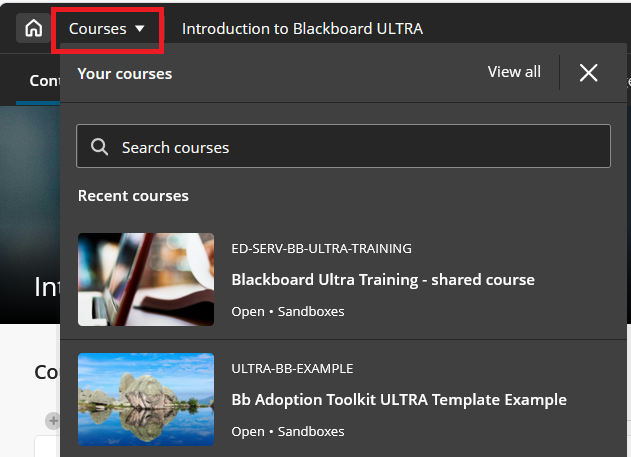
Search in the Course Switcher

You can now search for a course directly from the Course Switcher and navigate to it without first returning to the Courses page.
Carry group filter into Flexible Marking

The group filter selected in the Gradebook grid view now carries over into Flexible Marking. Markers who filter by a group in the Gradebook will find only the students from that group when they enter Flexible Marking.

White space improvements in Documents

Refined spacing and layout behavior in Documents to reduce unnecessary vertical white space and improve overall readability and visual balance.

Resized Accommodations icon

The Accommodations icon has been updated to a smaller size.
Improved screen reader experience in Document view mode

Screen reader users now have a cleaner, more focused experience when navigating documents in view mode. Unnecessary row and column announcements have been removed to allow access to primary content in the correct order, left to right, across rows, columns, and blocks. Edit mode behavior is unchanged.

Was this article helpful?

Related Articles