
Staff news: This article will contain a summary of useful updates you may see in your Blackboard Ultra courses from Friday 7th August 2026.
Gradebook grid view
The Gradebook Grid View has been restructured, giving staff an new layout and a new way to manage marking tasks.
Blackboard have provided videos to get you started:
- Gradebook – Navigation and Layout
- Gradebook – Grade Details Panel
- Gradebook – Column Header and Assessment Details panel
- Gradebook – Filter
- Gradebook – Manual Grade Entry and Posting Grades
- Gradebook | Accommodations, Exceptions, and Exemptions
The following are changing in the Grid View:
- Layout and navigation, including a new Grade Details panel that brings grading information and actions into one place
- Grade entry workflow
- How grades are posted
- How exceptions and exemptions are managed, now grouped under Accommodations
The following are not changing:
- Grades, calculations, and overall grade configuration
- Grade schemas and grading settings
- Course-level accommodations
- The List View
- All existing grades and submission history
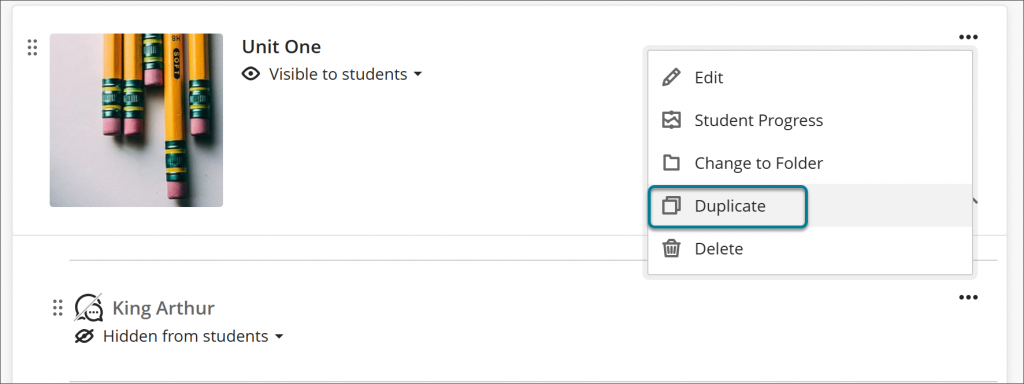
Duplicate content on the Course Content page
A new Duplicate option appears in the More options (…) menu for every item. Selecting Duplicate creates a copy of the item with “Copy” appended to the name. The copy is hidden from students by default. Instructors can rename and edit the copy before making it visible to students.
Discussions: Sort by newest or oldest first
Instructors and students can now sort discussion posts by newest first or oldest first, making it easier to navigate long discussions.
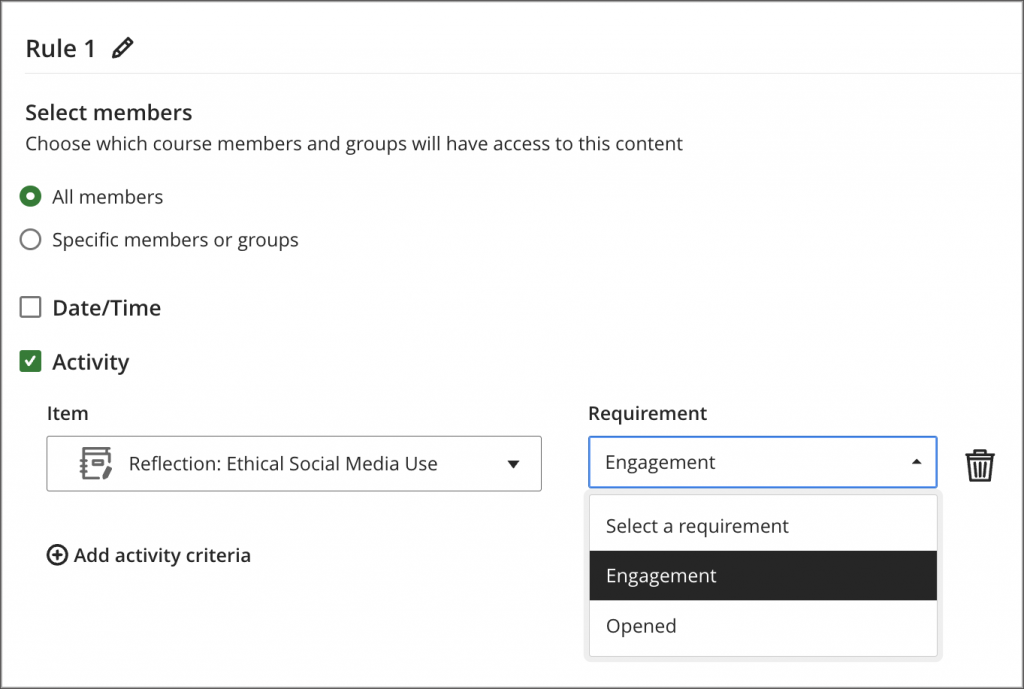
Set release conditions based on journal submissions
When setting release conditions for course content, you can now choose journal engagement as a condition. Content releases automatically once a student submits to the journal, without requiring the instructor to review or mark the submission first.
Changes to course navigation
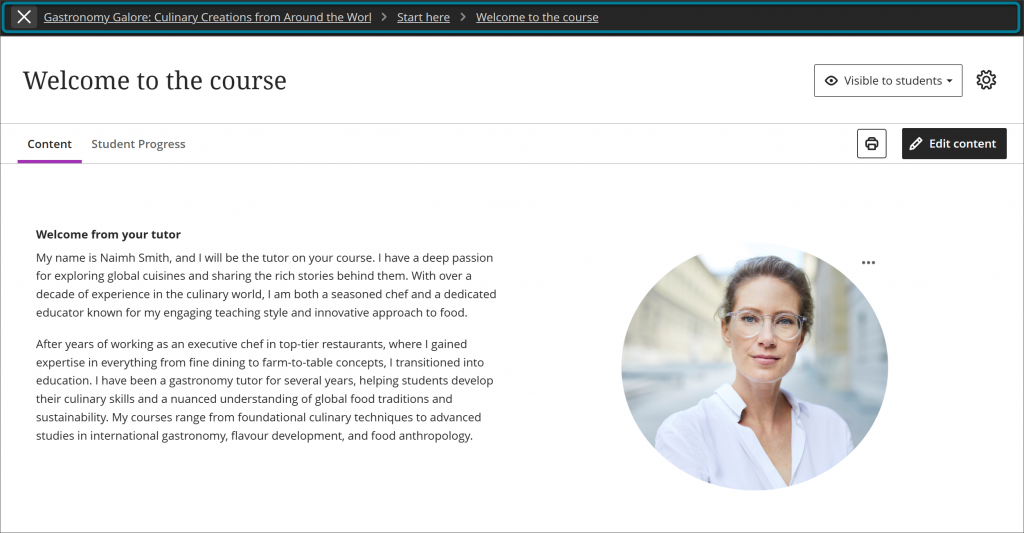
New updates make navigation in Blackboard clearer, more stable, and easier to follow.
- Content now opens as a full page with consistent headers and navigation, rather than as stacked overlay panels.
- The exit option now sits within the navigation banner, reducing accidental exits.
- Breadcrumbs on a content page show the user’s location and allow quick movement back through modules and folders.
- Selecting the Home button while in a course now returns you to the Courses page.
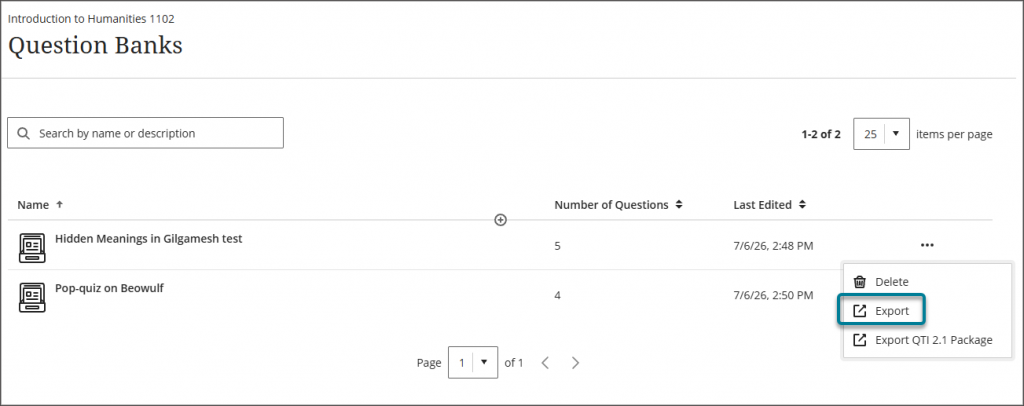
Export question banks
From the question bank management page, you can select an export option to download the question bank to your local file system. The exported file can be backed up, shared with other instructors, or reused in other courses.
Display answer-level feedback for selected options only
Students now receive answer-level feedback only for the options they chose in multiple choice questions. This gives students more targeted insight into their responses without revealing feedback for options they did not select.
Cloud documents now have a slightly different name
Embedded Cloud Document is now Microsoft Embedded Cloud Document.
Retirement warning in Blackboard Original courses
Blackboard LMS now displays a warning banner in Original courses for all non-student roles. The banner notifies instructors, administrators, and other staff that support for Original Course View ends after December 31, 2026. It will not be available for teaching and learning as of January 1, 2027.
