
Staff Guide: How to enable SafeAssign and view reports to check Originality on Blackboard Assignments and Tests.
About SafeAssign
SafeAssign compares submitted work with published sources and other student submissions. It produces an Originality Report showing possible text matches. The report supports academic judgement. Academic misconduct cannot be determined through the tool alone.
Before you start
Create the Blackboard Assignment or Blackboard Test and add its title, instructions, due date and other settings. Then continue with the steps below.
Enable SafeAssign
- Open the Blackboard assessment where you want to enable SafeAssign.
- Select Settings [cog icon].
- Scroll down to the bottom of settings options.
- Under Originality Report, select Enable SafeAssign.
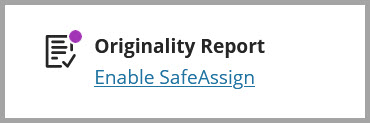
- Enable SafeAssign checkbox.
Choose the report options:
- Allow students to view the SafeAssign Originality Report for their attempts: students can open their report after submitting.
- Exclude submissions from the institutional and Global Reference Databases: SafeAssign checks the work but does not add it to the reference databases. Use this for drafts or practice submissions where appropriate.
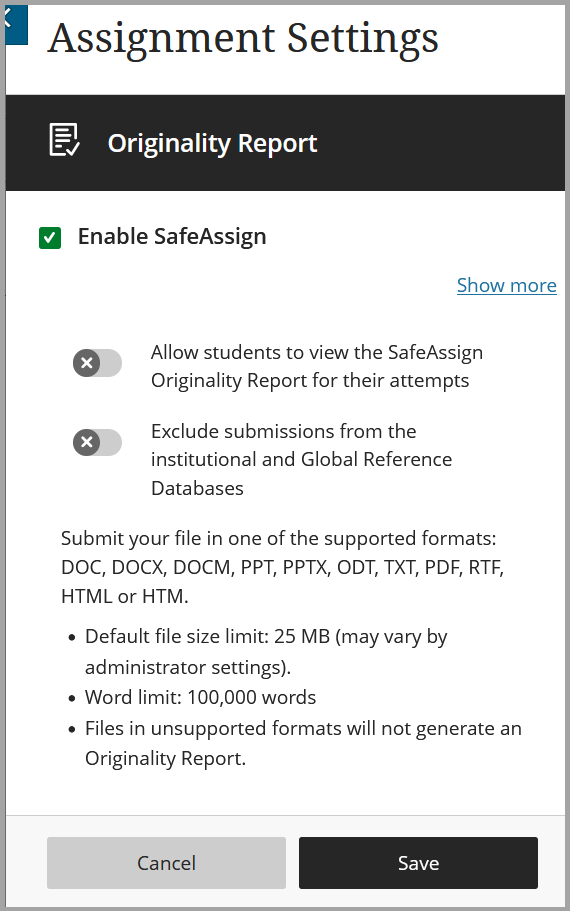
- Select Save.
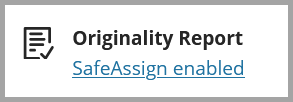
- Check the remaining assessment settings.
- Select Save to finish editing.
Supported files types and requirements
SafeAssign can check common document formats, including DOCX, PDF, PPTX, ODT, TXT, RTF, HTML and HTM. Unsupported files can be included in the compressed folder but will not be processed by SafeAssign and therefore not generate a similarity report.
- Each file must contain fewer than 100,000 words.
- Each uploaded file size must be smaller than 25MB.
If you intended to mark and provide feedback using inline grading in Blackboard Assignments, please inform your students they will need to to submit in the DOCX or PDF file types.
From October 2026, you can limit student submissions to only include certain file types.
View an Originality Report
- Select the Assignment, then go to the Submissions tab.
- You will see a column, Originality, showing that a report has been generated.
- Open the student’s attempt.
- Within the marking view, either expand the feedback panel [1. grey circle with left arrow] or select the Originality Report button [2. text icon with green tick in circle] to show a quick summary.
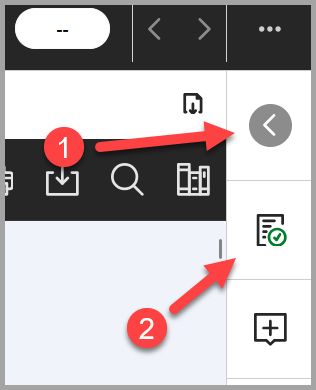
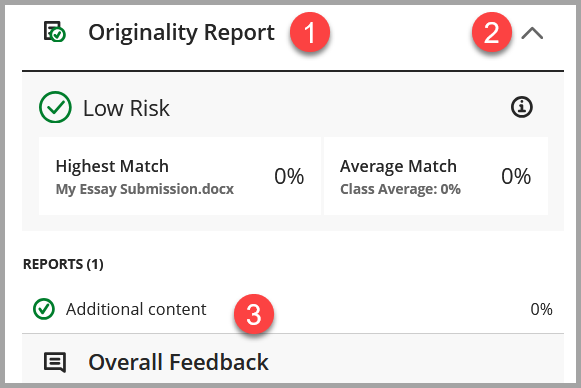
- The SafeAssign Originality Report Summary will be shown (1).
- Expand or collapse the Originality Report Summary using the chevron icon (2)
- Select Additional content (3) to open the full SafeAssign Originality Report [opens in a new window/tab].
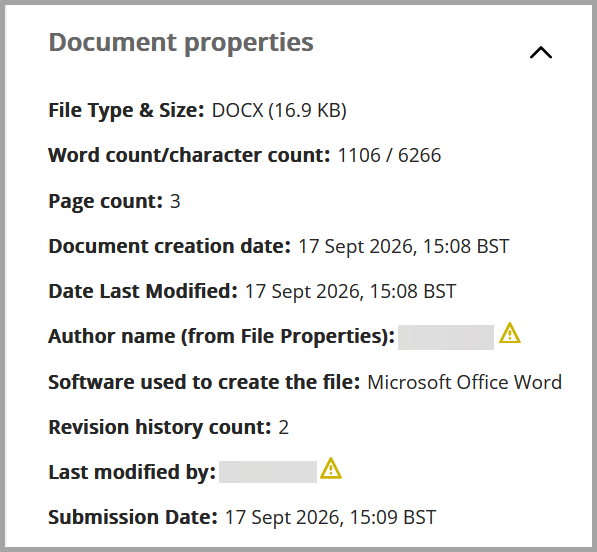
The full Originality Report shows information about file type, word count and document creation/last modified dates as well as author information.
Student Support
For more information about the student experience submitting to a Blackboard Assignment with SafeAssign enabled, see the How to Submit to a Blackboard Assignment elearn guide.
DirectSubmit
DirectSubmit allows you to add resources to our institutional database, add content you believe the students may copy from or submit content on behalf of a student for originality testing.
DirectSubmit is only available for staff, students cannot access this tool to self-submit or check their work.
Submitting content via DirectSubmit
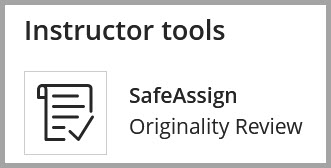
- From Course content, select View course & institutional tools.
- Under Instructor Tools, Select SafeAssign (Originality Review).
- Choose how to submit your content:
- Select Upload file: drag and drop or browse to a file on your device. Use a ZIP file to upload multiple resources at a time.
- Copy and paste text: enter a title and the past your text into the text box.
- Select upload options
- Check for plagiarism – processes the submission and generates an Originality Report.
NOTE: Turn this off if you don’t require a report but want to compare future student submissions against the uploaded resources. - Add to institutional database – add the file(s) to the institutional database.
- Share – allows other markers to be able to access this submission from this course.
- Check for plagiarism – processes the submission and generates an Originality Report.
- Select Submit. The uploaded file(s) will be processed. You can wait for processing or leave the tool until processing is complete and the Originality Report is ready.
