Staff guide: How to create an Assignment and an overview of uses and settings, including checking for Originality with SafeAssign.
About Blackboard Assignments
Uses
- Assessments requiring a file upload submission, for example essays, presentations, project work and scanned handwritten notes. Students can submit multiple files in one attempt.
- Integrated Panopto and media submissions.
- Group work – one group member can hand in and all group members receive the mark and feedback.
- Peer review – designate a number of submissions for each student to review.
- Collect submissions offline – add marking and feedback for assessments with no physical student submissions, such as oral presentations and practical work.
- Timed Assignments – (Student AER extra time is now automatically added to Blackboard Accommodations from Banner).
- Summative or formative assessment
Originality checking with SafeAssign.
You can enable SafeAssign, Blackboard’s originality checking tool, for Blackboard Assignments.
Enable SafeAssign before students submit work – see the Assignment Settings below.
Marking and Feedback options
This guide covers assessment settings and provides a range of options for organising marking and configuring assessments, including delegated marking, 2 markers per submission, and anonymous marking.
Blackboard’s Grading interface offers a range of tools for marking and feedback, including:
- Rubrics.
- Annotations.
- Audio and video feedback with transcripts.
- File attachments.
If you currently use rubrics in Turnitin, you will be able import them into Blackboard Assignments.
Supported File types
Assignments recognises a wide range of file types, including integrated Panopto video submissions. These files open directly in the browser or an associated application. If the system doesn’t recognise the file type, users can download the attached file and open it on their computers.
Submitting multiple files, and student attempts
Students can submit multiple files (of different formats) as part of a single submission attempt, and all files must be included if they choose to submit a repeat attempt.
You choose how many submission attempts to give students, and all submission attempts are saved. You can choose which attempt to mark – first, last etc.
When setting up an assignment, don’t select “unlimited attempts”, ideally, restrict to 2 or 3 attempts (check department process).
Essay questions
If you want to set and manually mark a series of Essay Questions, rather than file submissions, you can use this question type in a Test. See the separate guide to using Essay Questions in Tests.
Note: Essay questions in Tests are not suitable if students are uploading files, only if you want them to free text into the Essay Question’s answer field.
More guidance
Always talk to your Faculty Examinations Officer and Administration & Assessment teams and about any changes to your planned summative assessment process.
Raise a ServiceLine ticket for the Blackboard Support team if you need any advice on the Assignment tool. We advise you to try any new assessment workflows in low-stakes formative assessment.
Add an Assignment to your Course Content
You can add an Assignment anywhere in your course, but Summative assessments should be added to the Assessment Learning Module on the course template.
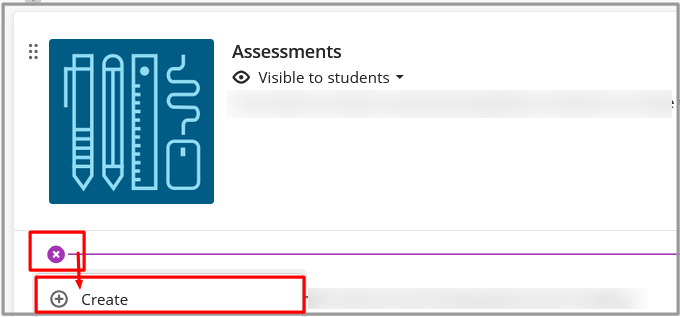
- Select the + icon to add new content wherever you want the Assignment to appear.
- Choose Create from the dropdown menu.
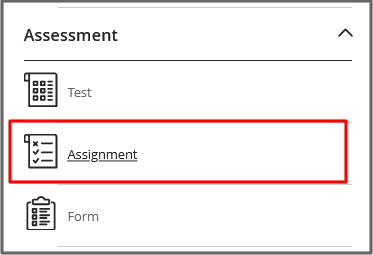
- Select Assignment from the Course Content Items pane.
The Assignment Page – add a title, instructions and review settings
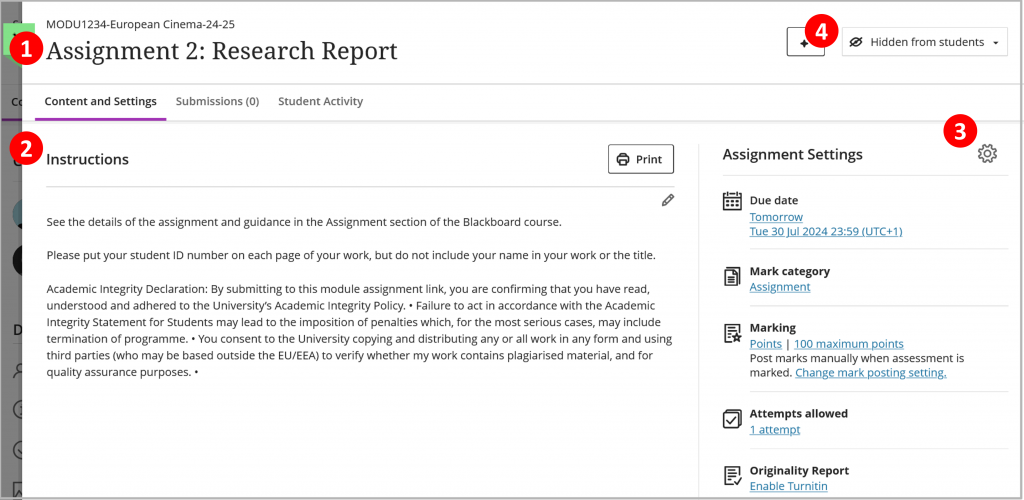
1. Add a title
DO:
- Enter a descriptive title so students can easily find the assignment among your course content.
- The title will appear in notifications and the Blackboard Gradebook and can be found using course Search.
- For example, Assignment 2: Research Report.
Don’t:
- Include the Due Date or Time Limit (if set) – this is displayed automatically with the Assignment link.
- Include The Blackboard course title or module code – this will be displayed automatically and included with any notifications.
You can add a short description in the assignment settings and this will appear with the Assignment Title on the Course Content page. See the section on Student view of Assignments below.
2. Add Instructions
- Use the text editor to add instructions, attach files and embed images, media, and links.
- See this guide for more information on using the maths editor.
- Use Auto generate assignment to use Blackboard’s AI Design Assistant to generate assignment prompts based on course content,
Students can view the instructions when they follow the link to the Assignment.
A note about Assignment instructions:
Students can be taken directly to the assignment page if they follow a link from the Blackboard Gradebook, Calendar, Activity Stream, or email notification, so they may not see instructions added as a separate document in the Course Content area. You can repeat instructions in the Assignment Instructions, or remind students where to find details of the assessment in the course Content.
3. Assignment Setting
Check your department’s processes before finalising settings.
Select the Settings cog to the right of Assignment Settings to open the detailed settings panel.

Due Date, Details and Information
- Set the due date during working hours (Monday – Friday 09:00 – 17:00) so students can get support if they have issues or questions while submitting. Due dates will appear in the Blackboard Calendar and Activity Stream.
- Do not tick prohibit late submissions or prohibit new attempts after the due date. If a student submits late, this will be flagged in the Blackboard Gradebook. Students can either apply for Special Considerations or a late penalty will be applied. It’s recommended to not allow unlimited attempts when not prohibiting late submissions but instead set it to 2-3 attempts.
- Option to tick allow Class conversations – this will allow students to ask questions about the assignment. You will not receive notifications about Class Conversations so you may prefer to use a Discussion instead.
- Choose Collect submissions offline to grade student work that doesn’t require students to upload a submission. For example, you can add grades and feedback for oral presentations.
- Choose what formats students can submit. By default they are allowed both File upload and Text entry as the allowed formats for online submission. It’s important to note that Text entry also includes the ability to submit Panopto/Video assessments.
Formative Tools – tick for all formative assessments
Students tell us they want to know if an assessment is formative or summative.
- Tick the formative assessment option for all formative assessments and display the label to students.
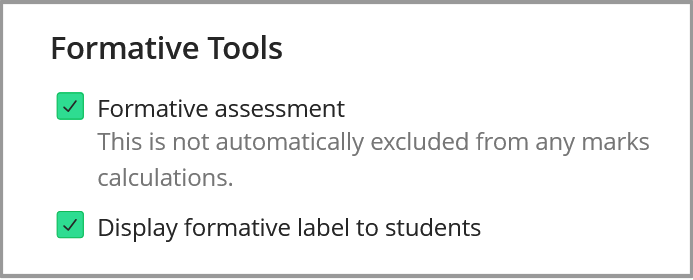
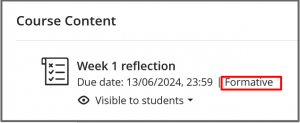
When these options are ticked, students will see a Formative label with the assessment.
Marking and Submissions – set number of attempts and grading options
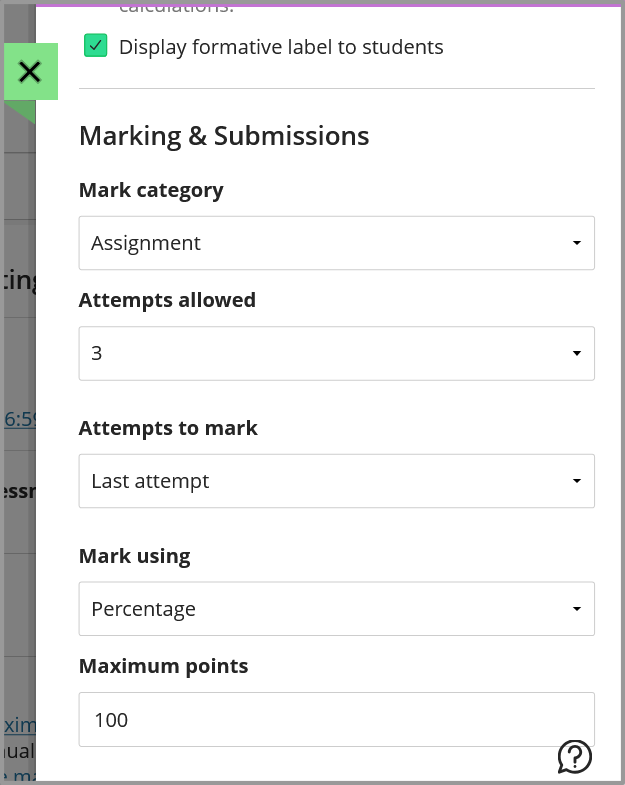
- Leave the mark category as the default unless you are using this to organise your Blackboard Gradebook (advanced Blackboard Gradebook use).
- Set Attempts allowed to 2 or 3 (1 if using Peer Review). This gives students extra attempts if they submit the wrong file or want to make changes before the due date. When you allow multiple attempts, you can also choose how the final grade is calculated. Make it clear to students that you will only mark their last attempt if this is your intention. Individual students can be given extra attempts via Exceptions.
- Note: If students are submitting multiple files, they need to submit ALL files on each new attempt.
- Set the Mark using and Maximum points setting to suit your assignment. If this is a summative assessment, this must match the grade options in Banner Gradebook.
- Anonymous marking is used to avoid bias in summative assessment – follow school policy.
- If your assignment requires 2 markers per student and a reconciler (double-blind marking) see the Blackboard guide to Parallel Grading and test this workflow before committing to it. The student will only see the marks and feedback given by the reconciler. The marker and reconciler cannot be the same person.
- Peer review allows students to review their peers’ work through criteria-based evaluation. See more on peer review.
- Select Delegated Marking to split the marking and assign markers to groups of students. You can assign marking to anyone with the course role of Instructor, Teaching Assistant or Marker. You need to set up appropriate Groups to support delegated marking first. See more on Delegated Marking.
- Post assessment marks automatically is off by default. If ticked, students will see their marks as soon as their work is marked – you may want this for some formative assessment, but you would usually leave this unticked and Post marks manually from the Blackboard Gradebook.
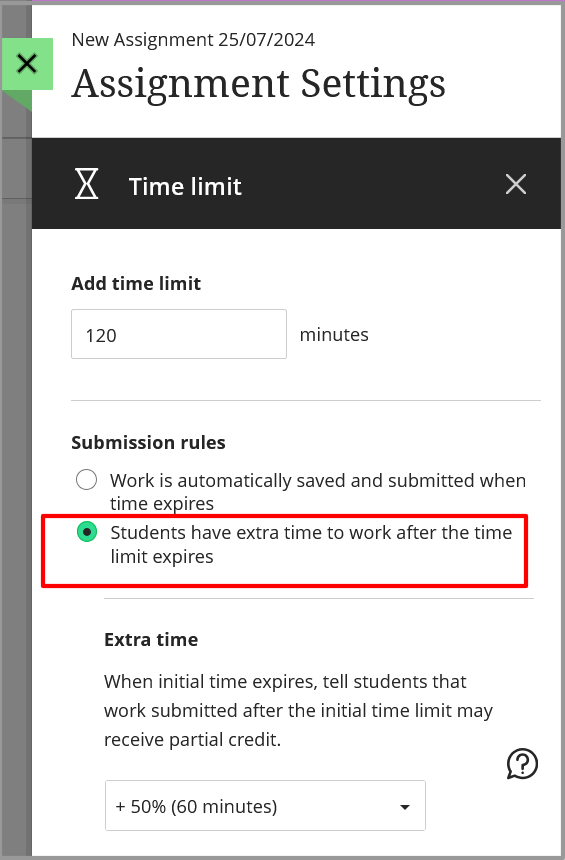
Time Limit – add a timer if you want a timed assessment
There is an option to add a timer to an Assignment. Students will see a pop-up inviting them to start the timer when they select Submit to enter the assessment and start their attempt.
Check with your school or faculty policy when planning a timed, summative assessment.
- Time Limit Accommodations for students with AERs (Additional Exam Requirements) are added automatically from Banner. If a student has extra time, the extra time will be added automatically to all timed assessments in the module. Students with Accommodations (AERs ) display a purple flag in the Gradebook and Class Register.
- If you select the Submission rule: Students have extra time to work after the time limit expires, please recommend students set another timer as sometimes browsers can throttle the timer making it come out of sync on the screen. Students can apply for Special Considerations if they have technical difficulties during the assessment or a late penalty can be applied.
- See the Blackboard guide to Time Limits (includes a video) if you are considering this setting.
Use marking rubric
A well-designed rubric can support efficient and consistent marking and make marking criteria clear and transparent to students.
- See the detailed Blackboard guides on how to create rubrics.
- See the CHEP guide to creating an assessment rubric.
- NEW: If you have been using Turnitin Rubrics, a process will be available shortly to import these to Blackboard Assignments.
Assigned groups
Create a group Assignment by selecting the option to Assign to groups. One member of a group can submit the assignment and all members of the group can view the submission and all receive the assignment mark and feedback.
You will need to organise your students into Groups first from the Groups page of your module.
Cannot currently use Group assignment with:
- Multiple attempts.
- Time limit.
- Hidden names (anonymous marking).
- 2 markers per student.
- Delegated marking
- Peer review.
Originality report with SafeAssign or Turnitin.
The University is moving away from Turnitin for 2026/27 academic year. For more information, see this eLearn article about the University’s decision.
Courses that started before 14th September 2026 and finish before calendar year 2027 can continue to use Turnitin.
If you believe you have the wrong Originality option in your Blackboard Assignment Settings, raise a ServiceLine ticket and we can swap it, assuming you meet the criteria. (SafeAssign or Turnitin).
Most 2026-27 Courses will now see the option to enable the SafeAssign tool for checking Originality.
- Select Enable SafeAssign
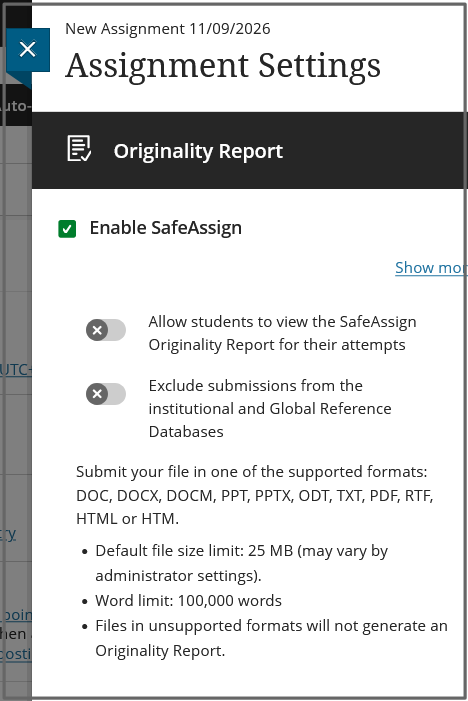
- Allow students to view the SafeAssign Originality Report for their attempts: Follow department guidance, but generally this is left off.
- Exclude submissions from the institutional and Global Reference Databases: select this if students are submitting a draft or any work you don’t want to be stored for future comparison.
If you want to exclude student submissions from the Institutional and Global Reference Databases, you must select Exclude submissions from the Institutional and Global Reference Databases before students submit their work. You can’t remove work from the databases that was submitted before you selected the exclude option.
When you enable the Originality Report, an Originality column is added to the Submissions page. Scan the list to quickly determine which submissions may contain high similarity.
Enable SafeAssign before students have begun submitting. You can enable the SafeAssign Originality Report any time, even after students have started their submissions, but submissions are only checked when SafeAssign is enabled. Submissions received before you enable the setting aren’t checked with SafeAssign.
Student names are hidden in the SafeAssign Originiality reports while anonymous marking is enabled. After you post marks, names will become visible within the reports.
Multiple attachments and attempts
SafeAssign recognises multiple attempts for an individual test as submitted by the same student for the same test. SafeAssign doesn’t check the contents of the current attempt against content from previous submissions. You can view each Originality Report next to the corresponding attempt.
If a student includes more than one file with a submission attempt, they are listed in the Originality Report section of the SafeAssign panel. Select a file name link to view the file’s text in a new window, along with detailed text matching analysis.
You can use SafeAssign with all other Assignment settings, including Group Submissions, Delegated Marking and 2 Markers per Student.
See the Blackboard guides for more information on using SafeAssign.
Description
The Description will appear with the Assignment on the content page and students will see it when they select the link to open the Assignment. This should not include due dates or anything that belongs in the Instructions.
4. Make the Assignment visible to students
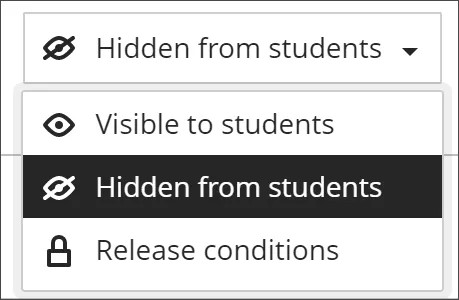
Students can’t see an assignment until you choose to show it. Set the visibility in the top right of the Assignment or from the options with the Assignment link in the course Content.
You can make the Assignment:
- Hidden from students.
- Visible to students.
- Set Release Conditions to show to particular students, groups, dates, or when conditions are met.
How to add additional Attempts and Due Date extensions.
Exceptions and Exemptions may be set by either the Administration and Assessment team, or Instructors, for students with Special Considerations or other approved circumstances.
Set individual assessment options in the Blackboard Gradebook/Students view.
- Exceptions can also be used to give students more attempts to submit and alternative Due Dates (extensions).
- An Exemption is used to remove students from the Assignment and notifications if they do not need to take the assessment.
Setting Timed Assignments
Blackboard Accommodations (extra time) for students with AERs will be added automatically from Banner for 26-27 courses. The extra time will be added to all timed assessment for a student in the course.
Panopto Video Assignment
Students can record a video in Panopto and submit the presentation via an Assignment.
Student View of Assignments
To see how your assignment content and settings will appear to a student use Student Preview.
The Assignment Title, Due Date and Description all appear in the Course Content:
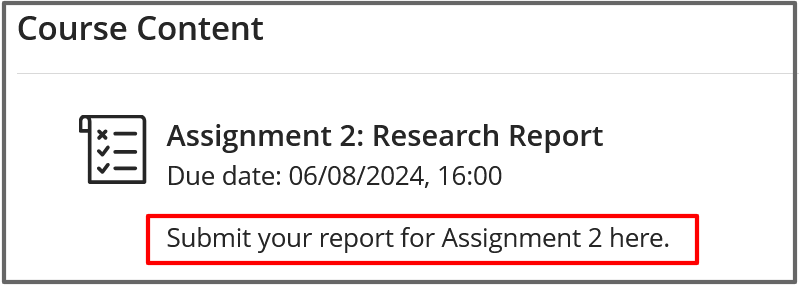
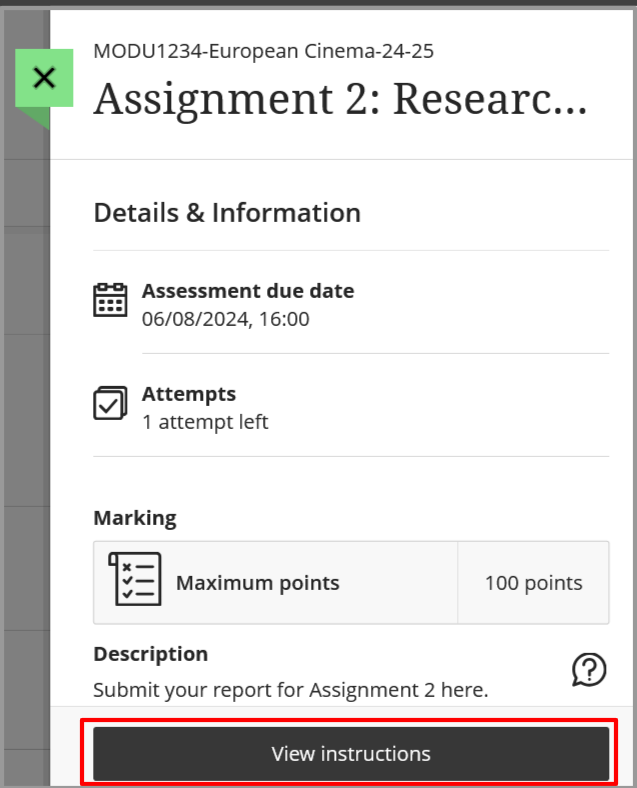
When students select the link to the Assignment they will see Assignment Details and Information and the option to view Instructions.