
Staff news: This article will contain a summary of useful updates you may see in your Blackboard courses from Friday 3rd July 2026.
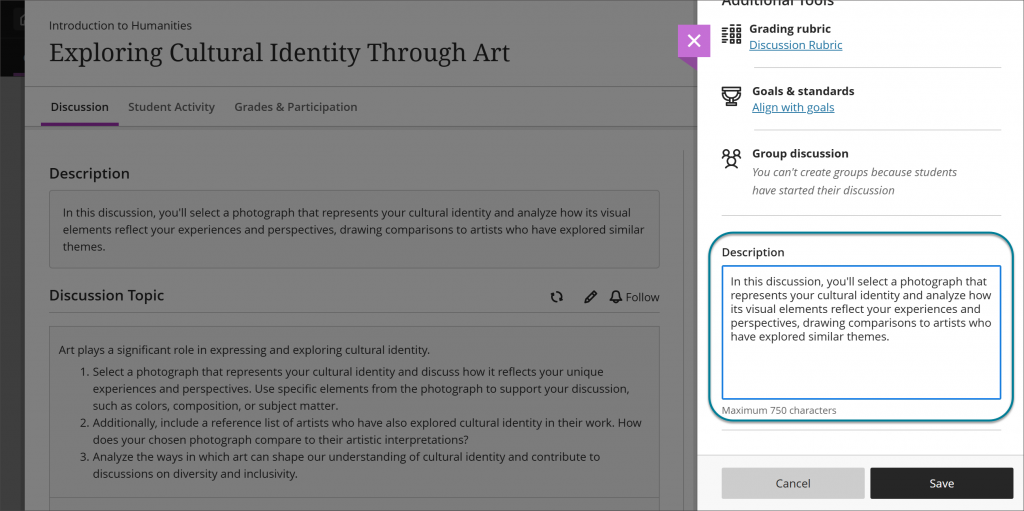
Add descriptions to Discussions and Journals
Discussions and Journals now include a dedicated Description field, bringing them in line with other course content items such as folders, learning modules, and Documents.
Access the description in the item settings by selecting the cog icon.
Control AI Conversation duration with time limits
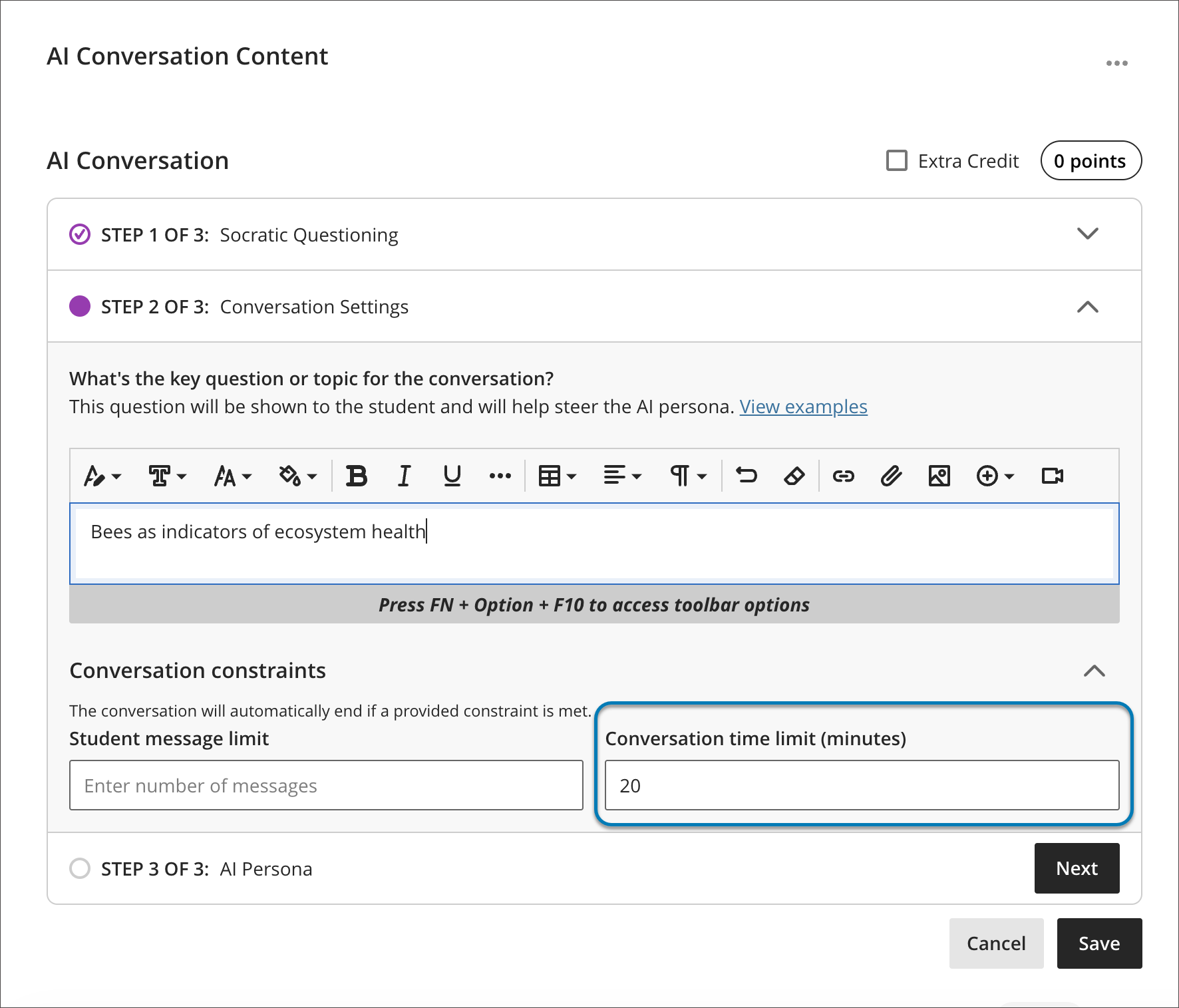
You can now manage the duration of AI Conversations by setting a time limit. Choose between two time-limit options depending on whether you want to time the whole assessment or only the conversation itself.
You can now apply a time limit in either of two places, depending on which part of the activity they want to time:
- Assessment-level time limit (existing): Set in the AI Conversation assessment settings, this applies to the entire assessment — both the conversation and the reflection question. When time expires, the activity behaves according to the instructor’s setting: it either automatically saves and submits, or the student is given additional time to finish (with the amount of extra time set by the instructor).
- Conversation-level time limit (new): Set within the conversation setup, in the conversation constraints. This time limit applies only to the conversation itself and does not limit the time students spend on the reflection question afterward.
The options are mutually exclusive.
- Instructors can modify the time limit before any student begins the activity.
- Once a student starts their submission, the time limit becomes locked and cannot be changed.
Students
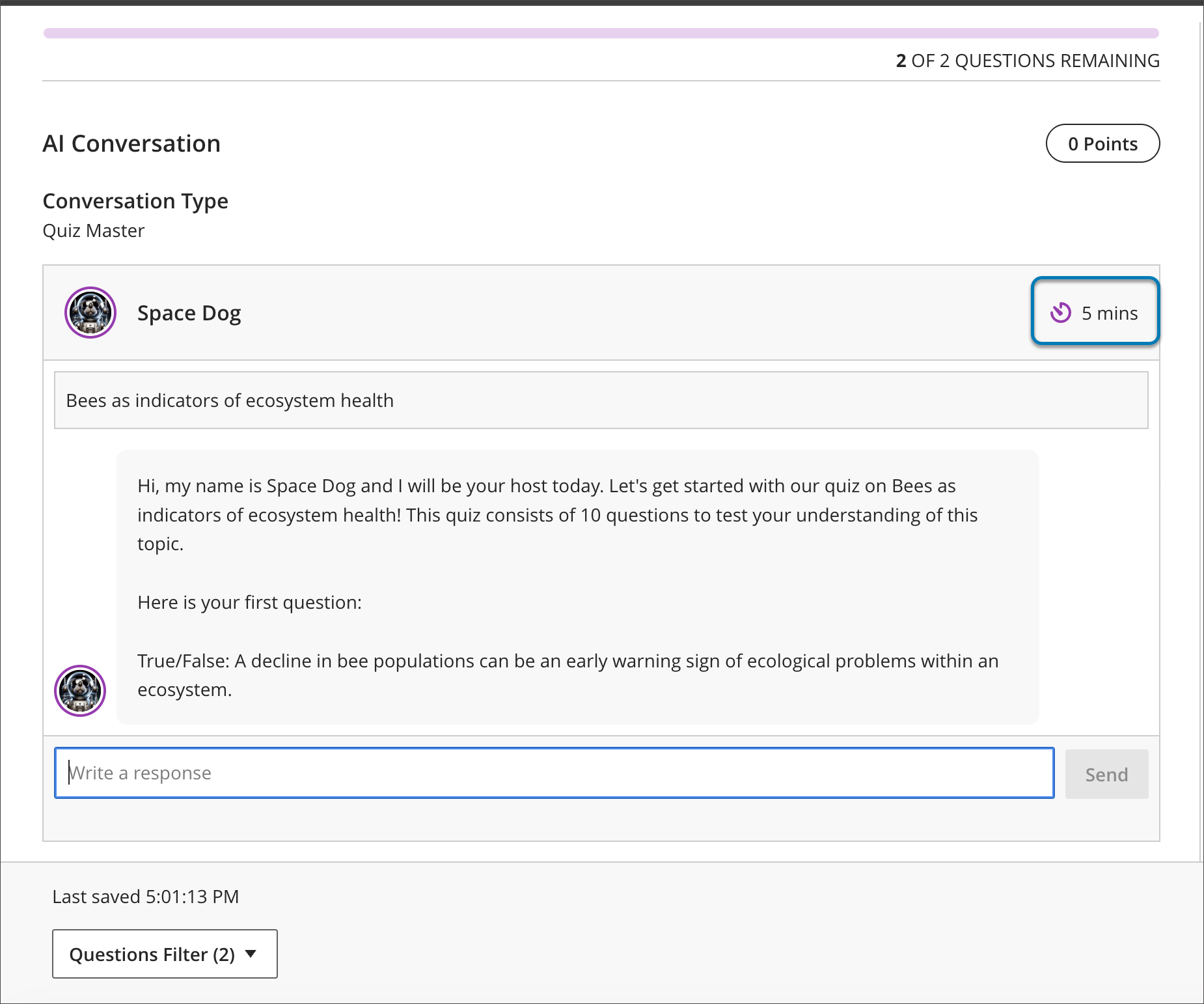
Students see the time remaining during an active AI Conversation.
- Conversation-level time limit: The countdown appears within the conversation, next to the messages-remaining indicator, in the response area where students type. Because only the conversation is timed, students can still complete the reflection question without time pressure once the conversation ends.
- Assessment-level time limit: The countdown appears at the top of the assessment, and the configured expiry behavior (auto-submit or additional time) applies to the activity as a whole.
For students with accommodations, the system adjusts the time limit to ensure equitable access.
Improvements to LTI assignments sync with Blackboard
When you change a due date in an LTI tool such as Turnitin LTI, the tool will now update the due date shown to students in Blackboard so the dates are in sync automatically.
Find your favorite courses faster with Course Switcher
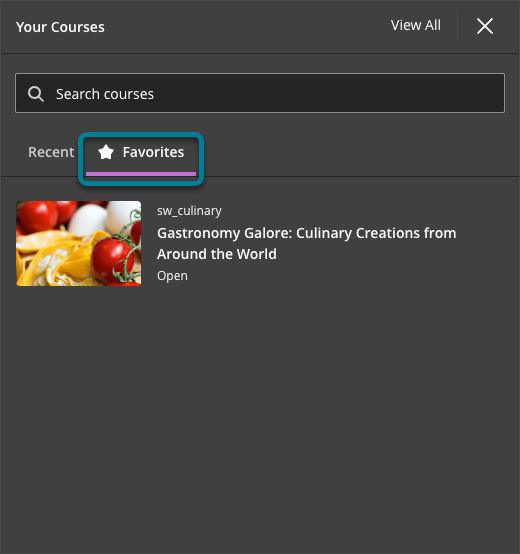
We’ve enhanced the Course Switcher to make it easier to access the courses you use most frequently. Users can now view their favorite courses directly within the Course Switcher, reducing the need to return to the Courses page.
The Course Switcher dropdown displaying tabs for Favorites, Recent, and Search, with a list of favorited courses visible under the Favorites tab.
Run a Rubric Evaluation Report for graded activities
You can now run a Rubric Evaluation Report directly from the gradebook for any graded activity that has a rubric associated with it.
This report aggregates rubric data across all student submissions, giving you a clear picture of how students are performing against each rubric criterion. The report supports ongoing course improvement by helping you identify areas where students are excelling or struggling.
To access the Rubric Evaluation Report, open the gradebook and locate a column associated with a rubric. The report option is available in the contextual column menu in both the Grid view and the Markable Items view. When selected, instructors are taken to a configuration page where they can select PDF or CSV as the output format before generating the report.
To be included in the report, marks must be posted. Once generated, the report provides the following sections:
- Frequency Distribution: A table showing the percentage of students who achieved each level of performance for every criterion, along with statistical values including average, median, mode, and standard deviation.
- Overview: Displays the assignment name, rubric name, rubric type, and the total number of student evaluations included in the report.
- Rubric Overall Performance: Shows the average score students achieved against the total points possible, displayed as a summary value (for example, Average achieved score: 79.57 / 100).
- Rubric Analysis: A bar graph comparing the points possible for each rubric criterion to the average points students earned.