
Staff Guide: Set up your course using the template, enrol staff, and copy content from other courses using the 26-27 updated guidance.
Guide 1 of 3. These three quick set-up guides are designed to take you through the essential steps to getting your Blackboard teaching course ready for the next academic year.
Before you start: Key updates to the 2026-27 template and new rollover process (essential)
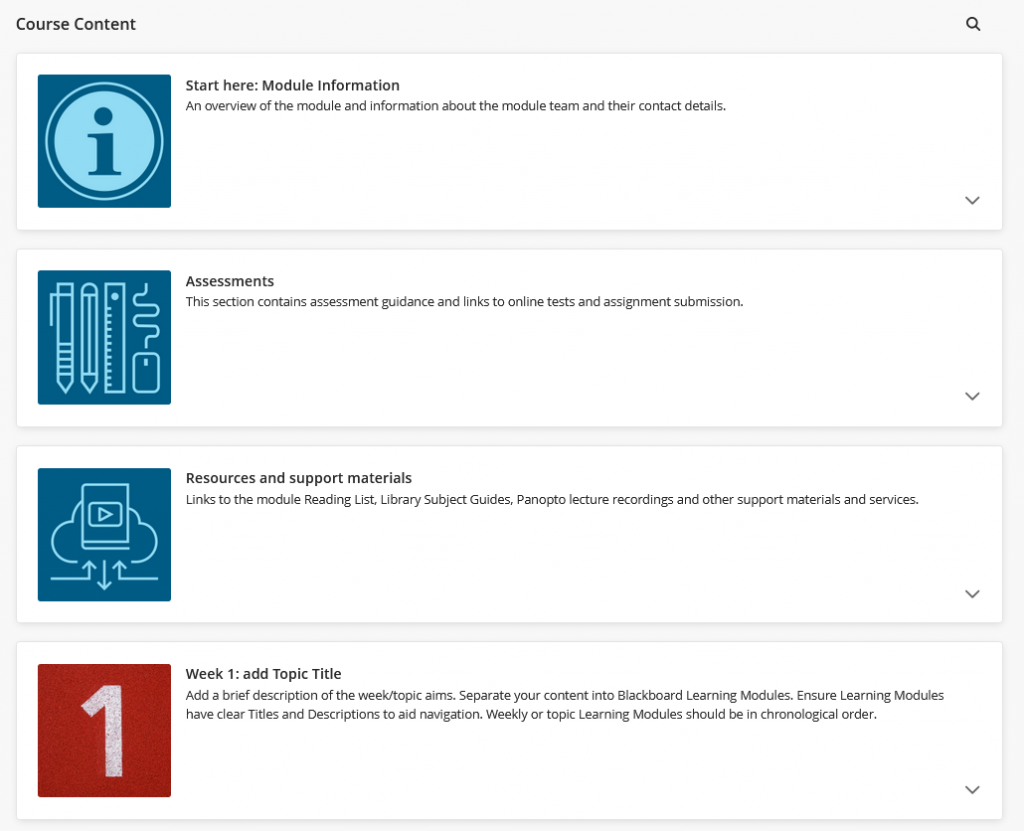
26-27 Blackboard module courses are provisioned with an updated template designed to support course design in line with student expectations and Blackboard Universal Standards.
What’s in the 26-27 template?
There are 3 core Learning Modules in the 26-27 template.
- Module Information.
- Assessment.
- Resources and Support Materials.
These have been updated for the 26-27 template, so don’t copy over the template Learning Modules from previous courses.
- Follow the guidance in the Quick Setup 2 guide to ensure your template is in place and contains all the key information and links students expect.
Why the course template matters to students
Students tell us they value consistency across modules.
- The Template helps them:
- Find key information quickly.
- Focus on learning.
- Also supports accessibility and inclusivity.
This academic year (2026/27), the use of the course template is encouraged and tracked.
New: Copy Content (Rollover) guidance has changed this year
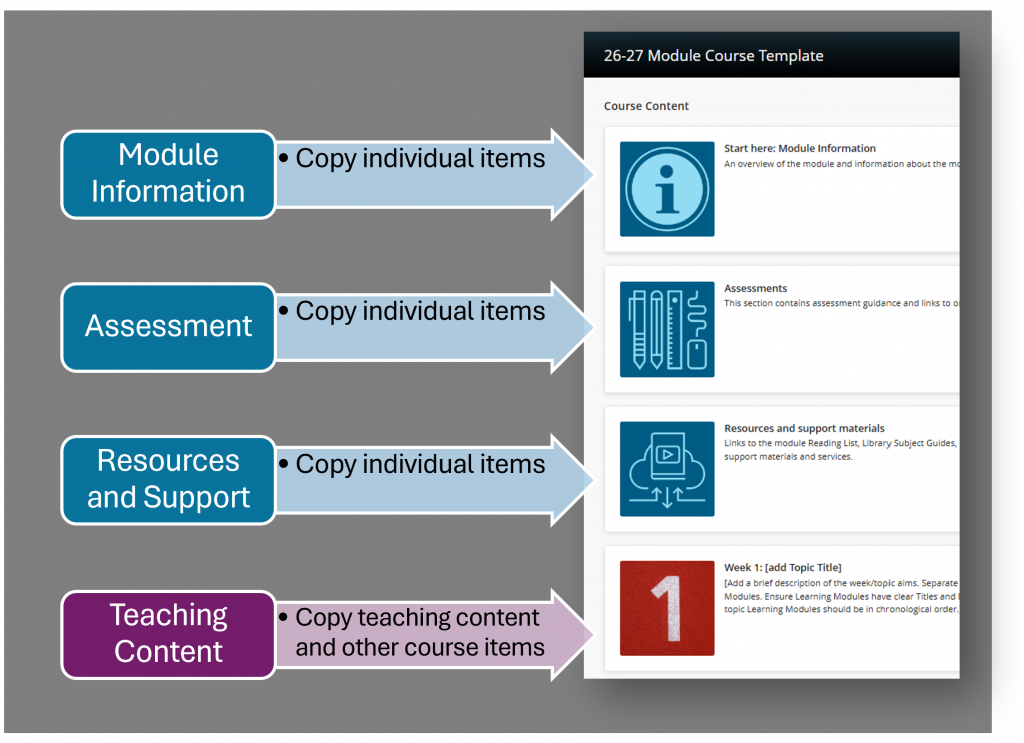
Follow the guidance in the Copy Content section below and selectively copy content into the course template, using the 2-step approach:
- Step 1.
- Copy items selectively into the 26-27 Template Learning Modules.
- Only copy items you added or modified in last year’s Template.
- Step 2.
- Copy all teaching content.
- Copy other Course Items (Discussions, Announcements, Banner image..).
This process:
- Supports a consistent experience for students.
- Improves accessibility and usability.
- Reduces time spent fixing inherited issues during teaching.
1. Confirm you are enrolled on 26-27 courses
Courses linked to Banner modules are automatically created in Blackboard.
Who is automatically enrolled?
From 2026-27, only the following staff are auto-enrolled:
- The Module Coordinator listed on Worktribe/CRUMS and
- Primary Instructor listed on the Banner module delivery/CRN (if different*).
*A module may have more than one delivery in the academic year, and the delivery of the module may have a different lead. For example someone leading the module in the Delhi campus may be different to the overall Module Co-ordinator in Worktribe.
Find your module
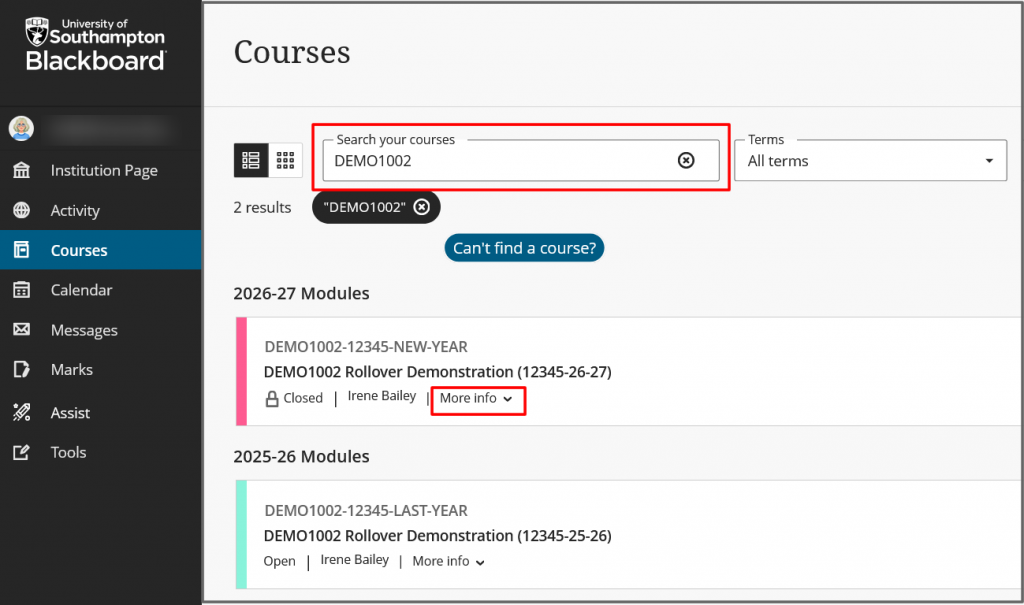
- Search for your module in Blackboard and check that you are enrolled on your 26-27 course.
- Some modules have more than one delivery. See More information/Course Description for and delivery details, including campus, semester or start date, and delivery mode.
- NEW: following feedback from academic staff, we’ve added Campus terms, so you can clearly identify the correct campus course for your module.
- You can favourite your most used courses.
2. Check your course role and add other staff
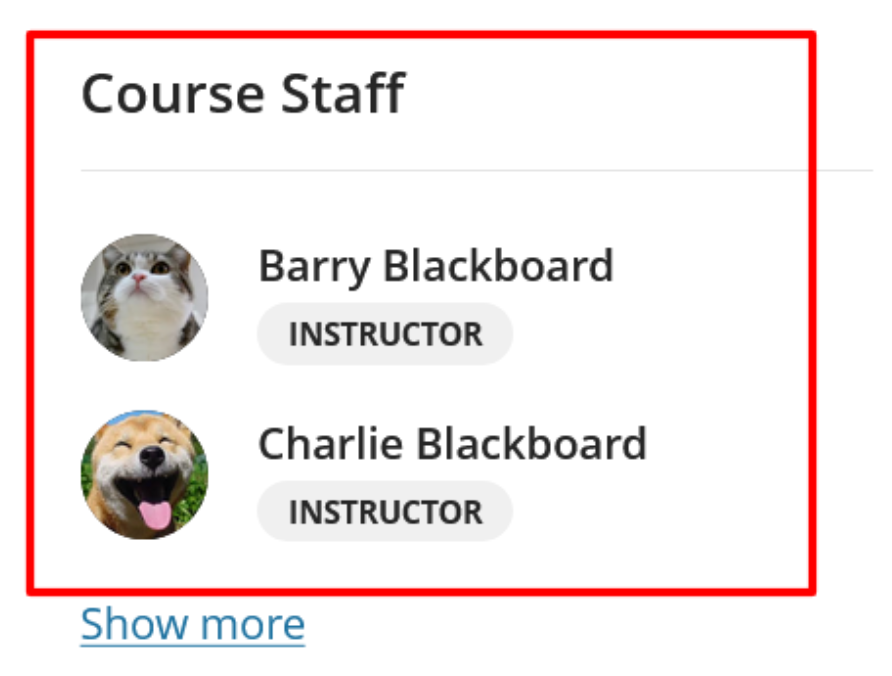
Check the Course Staff list
The Course Staff list is visible to students, so it must be accurate.
- The Module Coordinator from Worktribe, and Banner Primary Instructor (if different), are auto-enrolled with the Course Role: Primary Instructor, and appear at the top of the Course Staff List.
- Anyone with the course role Instructor will appear in the Course Staff List.
- Course members with other roles can be viewed/edited via in the Class Register (which is not visible to students).
- Ask Instructors to update their Blackboard Profile to include an image and name pronunciation.
Who can add staff members and edit course roles?
Anyone with these course roles and manage course enrolments via the Class Register:
- Course Instructors (this includes the module co-ordinator).
- Teaching Assistant.
- Module Administrator (members of you A&A team can self enrol).
- Programme Lead (any Programme Lead in your deparmtment can self enrol).
Do you need to change your course role?
You can change your course role if you do/don’t want to appear in the Course Staff list, or you need a role with more permissions to view and edit content.
To change your role :
- Contact anyone on the course with the role of Instructor, Teaching Assistant or Module Administrator, or a Programme Lead in your department.
- See the guide to change a course member’s role.
How to add other staff members
Add other staff with an appropriate role:
- Use the Instructor role only for academic staff who are directly responsible for teaching the course. Users with this role are visible to students in the Course Staff list.
- The Instructor – hidden from students role has the same permissions as the Instructor role but does not appear in the Course Staff list.
- For guidance on available course roles, permissions, and when to use each role, see the staff enrolment guide.
NEW: Use Enrol Linked Staff (in Books and Tools) to quickly enrol module staff from :
- Timetable (once the timetable is published).
- Worktribe (CRUMS) – see anyone listed in “Other staff”.
- Last year’s Blackboard course.
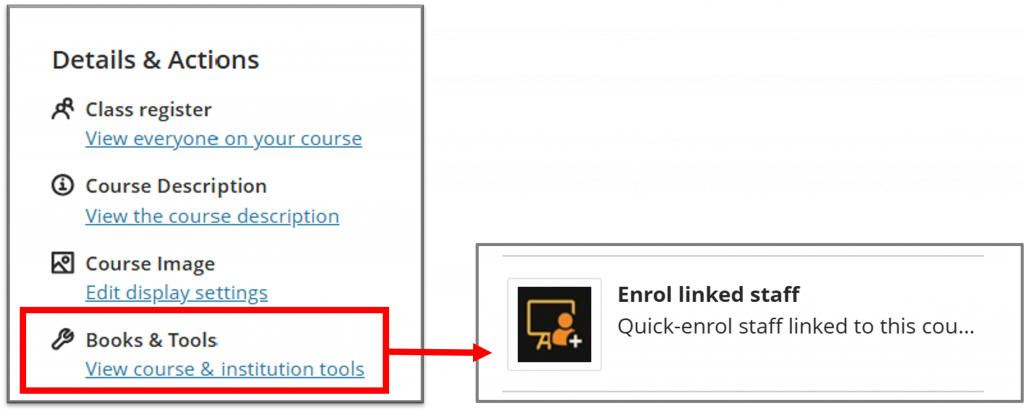
Staff you choose to enrol will be added with the course role “Instructor – hidden from students, but you can change this via the Class Register.
3. Copy any content you want to reuse from other courses
- Step 1.
- Copy items selectively into the 26-27 Template Learning Modules.
- Only copy items you added or modified in last year’s Template.
- Step 2.
- Copy all teaching content.
- Copy other Course Items (Discussions, Announcements, Banner image..).
4. Review copied content
You will need to:
- Remove duplicate template items.
- Delete Turnitin assignments. Turnitin will not be available for AY 2026-27.
- Check permissions on any embedded Panopto recordings.
See the next guide: Quick Set up 2, for further guidance on arranging and adding content to your Template.
5. Check you have a relevant course banner image
A course banner image will give your course page an identity and help students to locate the course in their Courses view.
- Add a Course Image if you see the blue holding image at the top of the Course Content page.
- The course image will automatically crop and resize for different devices, so avoid images with text.
- The Course title appears in the Banner, so no need to include this in the image.
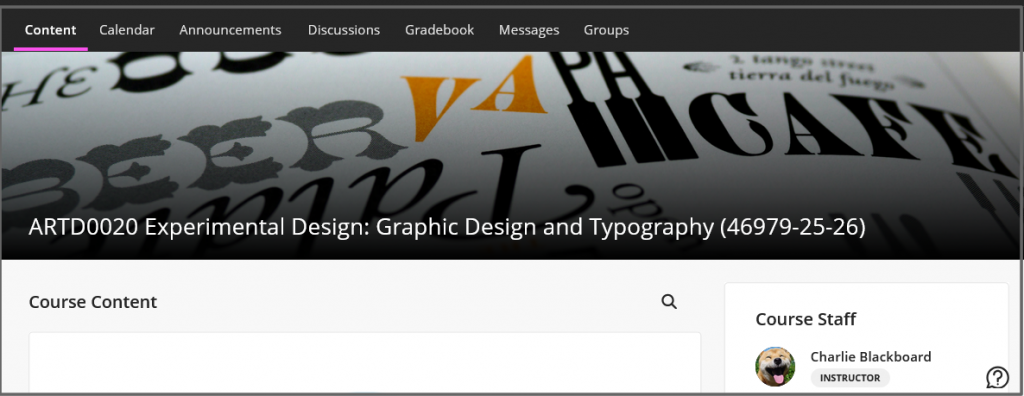
It’s easy to add a banner image from the Unsplash image library or upload your own. You can also copy an image from another course.
Next Steps.
- Quick Set Up 2: Plan an effective course layout: review, replace, and create content.
- Quick Set Up 3: Check content and the student experience, welcome your students, and open your course.
Appendix
Need more support?
- See the Southampton eLearn guides for staff and student guidance on all online teaching tools.
- Blackboard’s help guides (be aware that some of our available tools and processes may be different at Southampton).
- Contact the iSolutions Education Services team via ServiceLine if you need assistance with Blackboard tools, processes, and course setup.
Rollover timeline 2026-27
Rollover is the annual preparation of Blackboard module courses for the next academic year.
- Early June: Courses linked to Banner modules are added to Blackboard.
- Blank course shells are created each year with an updated University Template.
- The Module Coordinator /Primary instructor is auto-enrolled from Worktribe and Banner.
- Prepare courses for teaching.
- The Module Lead or teaching teams follow any updated guidance to review and prepare courses. This includes copying content from previous years, creating new content, and updating template items.
- 26th June: Students are auto-enrolled from Banner*.
- Students are enrolled after the release of semester 2 marks.
- New students will be enrolled 24 hours after they subscribe to their IT account.
- Students taking supplementary exams in the summer will have their Blackboard enrolments updated after the release of supplementary marks (September for most programmes).
- After 26th June: Courses can be opened for teaching.*
- Open your course anytime after students are enrolled (26th June), and the content is ready.
- If you want to start teaching a 26-27 module ahead of the 26th June, contact your CQA team about a Split Module (NS module) in Banner, or raise a ServiceLine ticket for advice.
- Jan/Feb: Staff and student consultation for the 2027-28 course layout and guidance.
- Look out for news of how to give your feedback on the template and guidance for the next academic year.
*Raise a ServiceLine ticket if you need students enrolled before the 26th June, or you have any questions around this timeline.
Request a “Sandbox” course if you want to start planning ahead of time, before courses appear in Blackboard.
Glossary of terms
| Term | Description |
| Rollover | Rollover is the annual preparation of Blackboard module courses for the next academic year. Part of this process may involve copying content from the previous year’s course. |
| Blackboard Module Course/Teaching course | These Blackboard courses are linked to Banner and found in the Modules section on the Blackboard Courses page. All teaching and assessment content linked to a student’s programme must be hosted in a Blackboard Module course. See this guide for more information on the different types of Blackboard courses. |
| Module Delivery | Delivery of a module includes details such as campus, dates, and mode of delivery (part time/full time/ online). You can see delivery details in the course description. Each delivery is identified by the 5-digit course reference number(CRN). |
| Blackboard Programme Course | A Blackboard Programme Course can support Programme Leaders to open a communication channel, develop an online community with students, and share programme-level content. |
| Blackboard Learning Module | Blackboard Learning Modules are added to the Blackboard Content page to organise teaching content in a logical way. e.g. week 1 teaching; assessment information. See this guide: Create and Edit Learning Modules. Some Learning Modules are added to the Course Template. |
| University Template | The content that is automatically added to new taught courses created in Blackboard. |