Staff Guide: This guide provides an overview of Gradebook where you can view all markable content in your Blackboard Ultra course as well as details about enrolled student progress.
Access Gradebook
From within a course, select Gradebook from the Navigation bar.

Layout
There are two Gradebook views.
Grid View
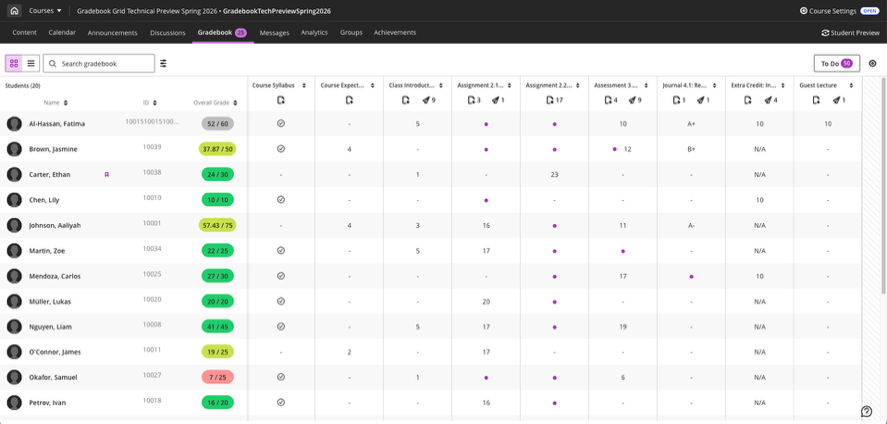
This view shows the full list of students in the left hand column with each additional column representing an assignment, test or other markable items.
Student list defaults to surname, first name but can be changed in Course Settings. Student ID is shown in an additional column.
Student accommodations will be indicated with a flag icon to the right of the student name.
Selecting a student in the list shows the students assessment record on the course.
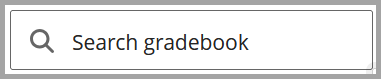
Use the search box to search for individual students or assignments.
Use the filter to create a bespoke view of the Gradebook by individual students, groups, categories, assessment types or markable items.
Clear filters by selecting the X on individual filter items or selecting filters icon and Clear Filters to remove all filters.
Note: filters are not saved if you navigate away from Gradebook grid view.
List View
This view shows a list of all assignments, tests or other markable items.
Select an item to view submissions, student activity, and content and settings.
Gradebook Settings

Select Settings (cog icon) to:
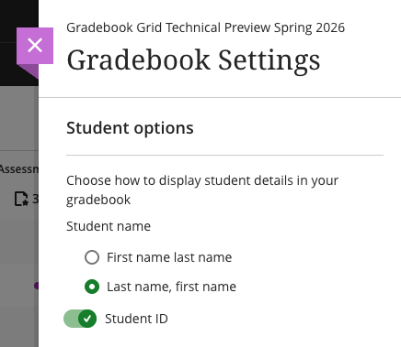
- Change how students details are displayed:
- List students by first name or surname.
- Show or hide the Student ID column.
- Download marks or upload a markbook.
- Manage mark schemas.
- Set up student performance alerts.
- Manage Gradebook items.
- Create/Generate Course Rubrics.
To do (marking and posting marks)
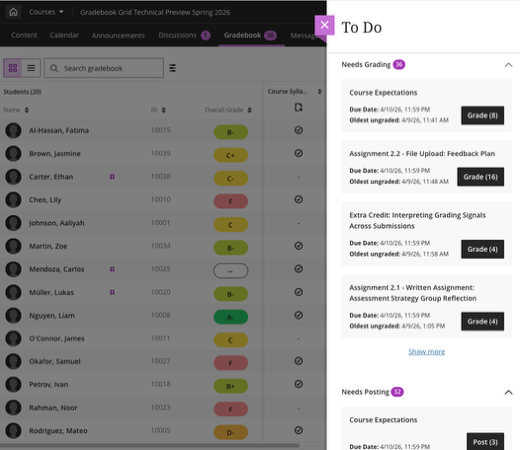
Select To do to open a side panel to see an overview of Gradebook tasks including Needs Grading and Needs Posting.
Each section can be collapsed to show one beneath the other. This allows you to see tasks that require attention.
Navigation (in Grid View)
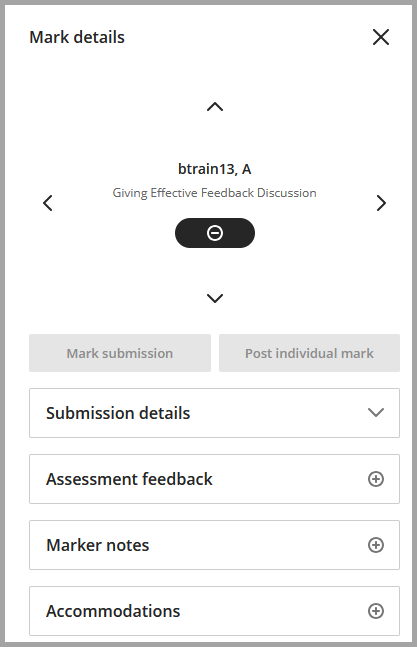
In Grid View, selecting a specific submission will display all student information about a particular assignment including
- Submission details.
- Assessment feedback.
- Marker notes.
- Accommodations.
Moving Around Gradebook submissions
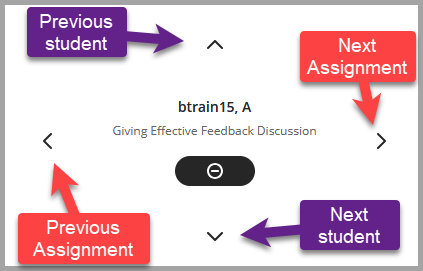
Use the arrows keys to navigation across individual records.
Up to see previous and down to see next student submission in the assignment list..
Left to see previous assignment and right to see next assignment in the student list.
Search
Use search to locate individual students by their name or student ID.
Filters
Use Filters and Views to access drop-down filters which allow you to select multiple filters at once including students, groups and assignments.
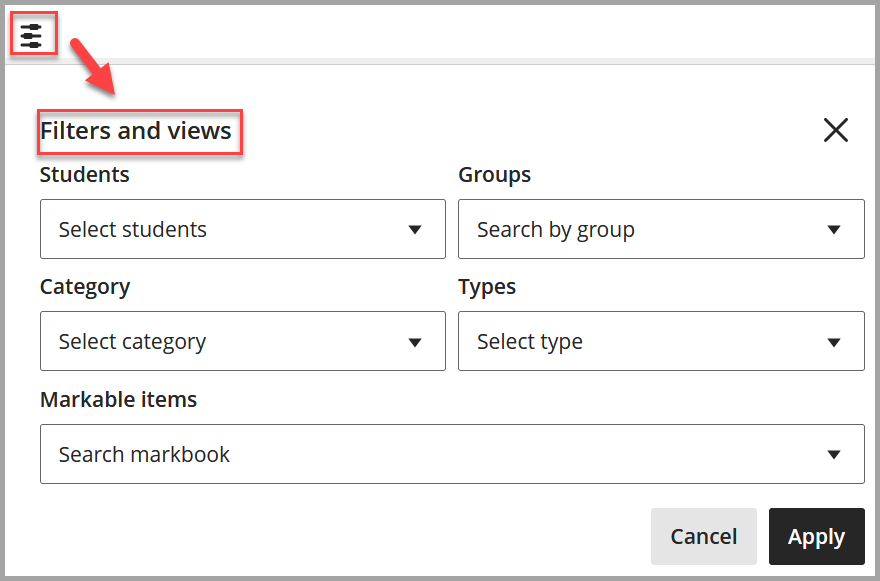
Once you have selected required filters, select Apply.
Filters are shown at the top of Gradebook, next to the Filters and View icon.
Remove individual filters, e.g. a single student, by selecting the X on the filter.
Clear all filters by selecting the Filters and View icon, select Clear All then Apply.

What do students see?
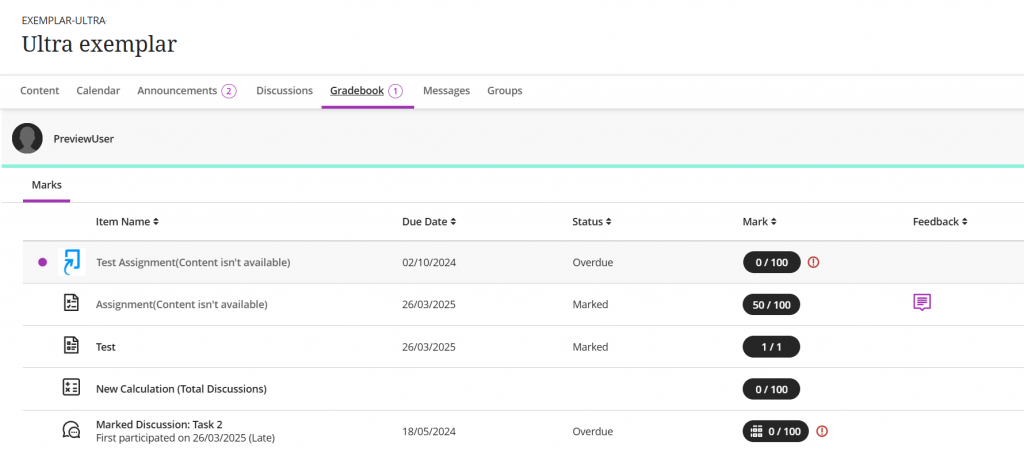
Students can also see a version of the Gradebook to view their marks, submissions and feedback.