
Staff guide: It is quick and easy to set up Blackboard Groups to allocate submissions to markers in Blackboard Assignments. You can also share a filtered view of the Gradebook with external examiners.
Create a marking group
- Select the Groups from the top course menu.
- Select New Group Set.
- Leave the visibility of the group set as Hidden from Students.
- Leave the Group Students by Custom group.
- Use the purple plus to create the desired number new groups in the group set.
- Select the three dots (…) to the right of a group to delete it.
- Hover your cursor over the group name and select the pen icon to edit the group name.
- Select a student (or multiple students) and then select the three dots (…) to the right of their name. Allocate them to a desired group.
- Save the group set.
Use a marking group for delegated marking
You must enrol your markers on the course and created your marking group first.
- Create and name your assignment.
- Select the Assignment Settings cog.
- Under Marking & Submissions, select Delegated Marking.
- Select Assign markers.
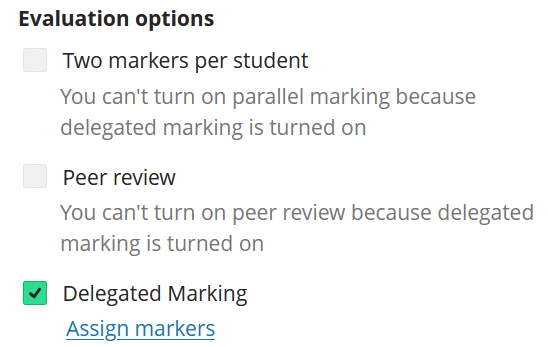
- Select Select group set and then choose your marking group.
- Assign at least one marker to each group. Markers must be Instructors, Markers or Teaching Assistants.
- Save to save the Delegated Marking, then save again to save the Assignment Settings.
Filter Gradebook by marking group
- Open the course Gradebook and select Grid view.
- Select the filters icon.
- Use the drop-down to select the required group(s).
- Select Apply.
- You can select additional filters to further reduce the students or items shown.
- Applied filters appear at the top of the Gradebook.
- Remove individual filters by selecting the X next to the filter or remove all filters by selecting filters then Clear All.
Using Marking groups with Turnitin LTI
You can filter the Turnitin LTI inbox by Blackboard group.
To view and mark the submissions for a particular marking group – Select the Search All Students drop-down options, select Marking Groups (or the name of the group set you are using to allocate marking) and choose the relevant group.
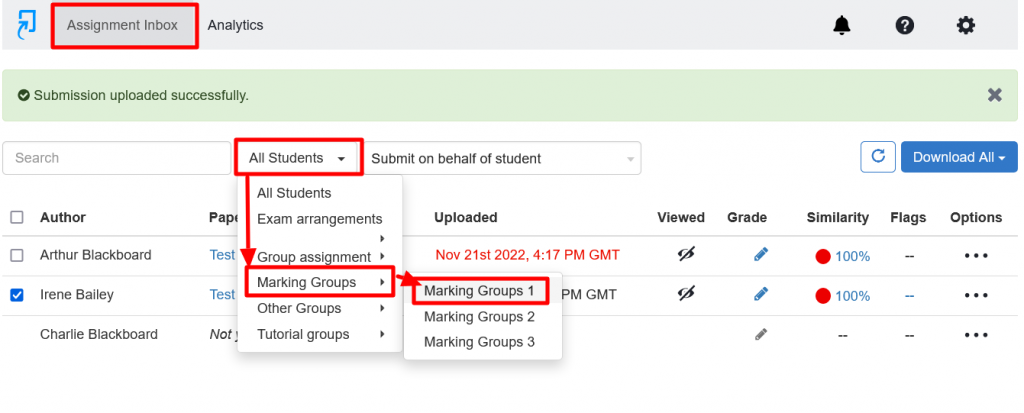
If you have created or edited groups after the assignment was created, select the arrow icon to Refresh the Inbox Data to update the list of groups that appear in the Turnitin Assignment Inbox.
